
How to Archive Website Screenshots Automatically
If you've ever tried to keep a visual record of a website over time, you know how it goes. You open the page, take a screenshot, rename the file so you can find it later, drop it into a folder. The next day you do the same thing. And the day after that. At some point you realize you've spent more time organizing screenshots than actually looking at what changed.
We built Snapshot Archive because we kept running into this exact problem. The idea is simple: you add a URL once, tell us how often you want it captured, and we handle everything else. The system takes screenshots on autopilot, compares each new capture to the previous one pixel by pixel, and sends you an alert if something changed. No folders, no renaming, no manual comparisons.
Here's how the whole process works, step by step.
Paste a URL and pick how often you want it archived
Everything starts with one action: you paste a page address into the input field and click "Add." That's it. It can be a competitor's pricing page, your own landing page, a supplier's terms of service, a regulation page. Anything that lives at a URL.
On the same screen you choose a capture frequency: once an hour, once a day, once a week, or once a month. For most monitoring tasks, like tracking competitor prices or keeping an eye on compliance pages, a daily schedule is more than enough. Hourly makes sense when you're watching something that moves fast, like SERP results or news sites.
Worth noting: pages behind logins or cookie banners work too. We support custom cookies, clicking elements before capture (useful for dismissing popups), and hiding elements entirely. That way your archive shows the actual page content instead of a cookie consent wall covering half the screen.
From that point on, screenshots happen without you
Once you've added a URL, there's nothing left to do on your end. Snapshot Archive spins up a headless browser in the background, loads the page, waits for it to fully render, and saves a full-page screenshot with a precise timestamp. This happens on every scheduled interval, if you're at your desk or not.
Every capture gets stored in your account alongside the date, time, and source URL. Over time, this builds into a visual timeline of the page. You can scroll back and see exactly how it looked a week ago, a month ago, six months ago. It's basically your own Wayback Machine, except you decide what gets captured and how often, instead of hoping a crawler passes by.
One detail that matters: all our captures are full-page. We scroll all the way to the bottom and grab the entire content, not just the viewport you'd see in a browser window.
Visual diff compares every new screenshot to the previous one
This is the part that saves the most time, and it's what sets Snapshot Archive apart from most archiving tools. Every time a new screenshot comes in, we compare it against the previous capture, pixel by pixel. If something changed, the system highlights the difference in red.
In practice, that means you don't have to open two screenshots and squint at them to figure out what's different. If a competitor raised a price, swapped a headline, or added a new section to their page, the diff shows you exactly what shifted and where. If nothing changed, the diff returns 0% and you move on with your day.

We apply a sensitivity threshold to filter out visual noise that doesn't represent real changes: rotating ads, blinking cursors, cookie banners that load differently each time. For more on how we handle that, take a look at our visual diff explainer. And if you're curious about edge cases, we wrote a separate piece on handling false positives.
You get an email the moment something changes
You don't need to log into the dashboard and check each URL manually. When visual diff picks up a change, Snapshot Archive sends you an email with the diff image and a direct link to the full screenshot. You open the email, see what moved, and decide whether it needs your attention.
Alerts are configured per URL, so you've got full control over what triggers a notification. If you're archiving a page purely for historical records, there's no reason to get emails about it. But if you're tracking a competitor's pricing or watching a compliance-sensitive page, those notifications replace what would otherwise be a daily manual check.
What else is included beyond screenshots and diff
Scheduled screenshots and visual diff are the core of the product, but there are a few other things worth mentioning.

You can organize URLs into projects, which helps when you're tracking multiple competitors or monitoring pages across different clients. Each project groups its URLs, screenshots, and diff history together.
We offer a REST API for teams that want to trigger captures programmatically, pull archive data into their own systems, or build automations around screenshot monitoring. If your workflow involves scripts or integrations, the API gives you full access to everything the dashboard does.
All captures are full-page by default, meaning we scroll to the bottom and capture everything. And when you need to export data, snapshot packages let you download all captures for a given time period as a single ZIP archive. That comes in handy when you're preparing a report or handing off evidence to a legal team.
Why not just use Print Screen or the Wayback Machine?
Manual screenshots work when you have one or two URLs and no urgency. But most real monitoring tasks look different. You need to track 10, 20, maybe 50 pages every day, and you can't afford to miss the moment a competitor changes their pricing or a regulation page gets updated.
The Wayback Machine is a great resource for browsing web history, but it wasn't built for this kind of monitoring. You don't control when it takes snapshots. For popular sites like nytimes.com, captures might show up every hour. For a niche SaaS pricing page? Maybe once every few months. Maybe never. And there's no visual diff, so even if you find two snapshots from different dates, you're left comparing them with your eyes.
Snapshot Archive closes both of those gaps. You choose what to archive and how often, and visual diff does the comparison work so you only spend time on pages that actually changed. We covered this in more detail in our Wayback Machine comparison.
Start archiving websites today
Free plan includes 3 websites with daily captures. No credit card required.
Create free account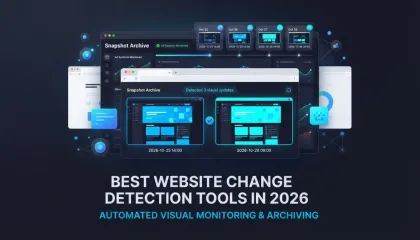
Best Website Change Detection Tools in 2026
Visual diff, text monitoring, open-source, budget options — an honest comparison of 8 website change detection tools and which one fits your workflow.
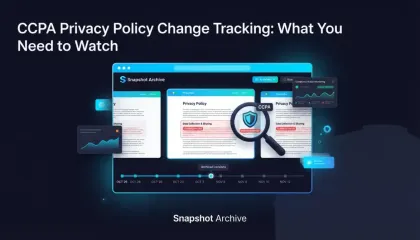
CCPA Privacy Policy Change Tracking: What You Need to Watch
CCPA requires your privacy policy to stay current — and your vendors' too. Here's how to catch silent changes before regulators do.
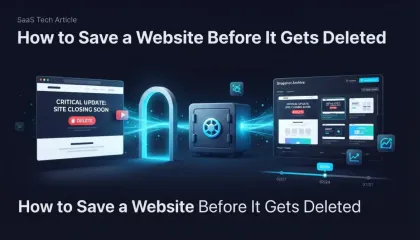
How to Save a Website Before It Gets Deleted
Free tools to save a website before it disappears — Wayback Machine, SingleFile, wget, and how to set up automated screenshots so the next shutdown doesn't catch you off guard.

Ad Landing Page Screenshots for FTC Compliance
The FTC investigates ad claims retroactively. By the time they look, your landing page has changed. Automated screenshots with timestamps create a record of what you published and when.