 Vitalii Holben
How to find a stable CSS selector when the page only has utility classes
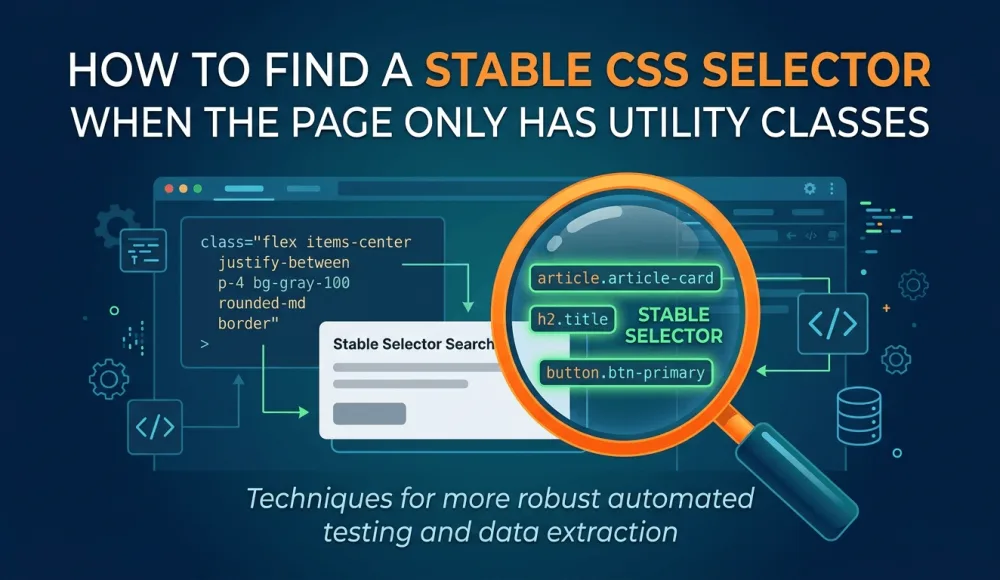
On modern sites built with Tailwind, Chakra UI, shadcn/ui, and similar atomic CSS frameworks, we keep running into the same operational problem while setting up monitoring: the elements technically have classes, but using them as selectors is pointless — they're both fragile and non-unique. A hide selector like .flex.relative.overflow-hidden.rounded-lg.h-64 will work once, then break at the next redesign.

Open DevTools on a page you've just added to monitoring, try to find a selector for hide or clip to element — and all you see in the element's class attribute is a soup of flex, w-full, px-4, md:pt-20, rounded-lg, relative, overflow-hidden. Nothing resembling .careers-hero or .pricing-table. The classes are there, but they're not selectors in the classical sense — they're a set of utility rules that describe how the element looks, not what it means.
In this article we'll walk through what to latch onto in situations like these. The approach isn't really about CSS itself — it's about how to monitor real websites without relying on their authors having left us convenient semantic classes.
Why Tailwind classes don't work well as monitoring selectors
On older-style sites, markup used to include meaningful class names — .product-grid, .site-header, .footer-links. Each class described what the element was, was unique on the page, and lived for years. For screenshot monitoring, this is an ideal setup: find the class in DevTools, paste it into your settings, done.
Tailwind sites work differently. Instead of one semantic class, the element carries ten utility classes: flex items-center justify-between px-4 py-2 bg-white rounded-lg shadow-sm. Each class is a single CSS rule. The element itself has no "name" — only a visual description. That approach has its upsides for development, but for us as external observers it creates three problems.
These classes aren't unique. A class like flex can appear on a hundred elements on a single page. Using it as a selector makes no sense — Snapshot Archive won't know which flex element you mean.
They're fragile. A combination like .h-64.md:h-\[560px\].aspect-\[9/10\] is technically unique, but any change to the height, padding, or aspect ratio during a redesign will break the selector. Monitoring will start reporting "no changes" right at the moment when the noise begins leaking back into the frame.
They don't carry meaning. A class like bg-white rounded-lg doesn't tell us this is the careers hero or a pricing card — it tells us the element is white with rounded corners. For monitoring, what matters is understanding what we're tracking or hiding, not how it looks. When the design changes, the meaning of the element stays the same while its styling doesn't.
The takeaway is simple: on Tailwind sites, we need anchors other than classes. The good news is those anchors almost always exist — you just need to know where to look.
Five ways to latch onto an element when classes won't do
The order in the list goes from most stable to least reliable. The first method that works is the right one — you don't need to keep going down the list.
1. The element's ID
If the element has an id attribute, use it. IDs are unique on the page by HTML spec, and they rarely change — they're usually tied to anchor navigation or to JavaScript logic that would break if the ID moved. The selector uses a #:
#pricing-table
#careers-list
#main-content
On Tailwind sites, IDs show up less often than on classical sites, but they're almost always left on key containers — if only because anchor links in the header nav won't work without them. When an element has an ID, that's the best possible anchor.
2. Data attributes (data-testid, data-component, data-section)
Modern front-end teams add attributes like data-testid="header", data-component="pricing-card", data-section="hero" to important elements. These exist for E2E tests (Playwright, Cypress, Selenium) — QA teams need stable hooks that don't change with styling. For us, this is a gift: these attributes are stable by design, because tests depend on them, and developers don't want to rewrite tests every week.
The selector uses square brackets:
[data-testid="header"]
[data-component="pricing-card"]
[data-section="careers-hero"]
To find one, check the element's attributes in DevTools and look for anything starting with data-. If you find one, it's almost certainly a stable anchor.
3. Semantic tags and ARIA roles
HTML tags like <main>, <nav>, <header>, <footer>, <article>, <section>, <aside>, <video>, <iframe> are unique by meaning. They rarely appear more than once or twice per page. ARIA roles are even more stable — role="main", role="banner", role="navigation" are added for accessibility, and removing them usually isn't an option without breaking screen readers.
Selectors by tag and role:
nav
main > article
[role="banner"]
[role="navigation"]
footer
Media tags deserve a special mention. If the page has a noisy autoplay video or an embedded iframe with interactive content, you can reliably hide them with video or iframe without trying to find a specific class. We ran into this on cohere.com/careers, where two autoplay videos in the hero block were adding noise to every visual diff capture — the video selector in hide settings solved it in thirty seconds, and it'll keep working even if Cohere redesigns the entire layout.
4. Structural selectors via combinators
When there's no ID, no data attribute, and no obvious semantic tag, what's left is structural selectors. The idea is to describe the element by its position in the DOM: "third section inside main", "first div inside footer", "next element after h2". No classes involved.
main > section:nth-of-type(3)
footer > div:first-child
main section:has(h1) + section
article > :first-child
The selector main > section:nth-of-type(3) means "the third section that's a direct child of main". As long as the page structure stays stable (three sections inside main in the same order), the selector works, regardless of which classes they carry.
This approach has its own fragility: if the site author rearranges sections or adds a new one, the selector will start pointing to a different block. But in practice, top-level page structure changes less often than utility classes — sections get added or reordered maybe once every six months to a year, while classes get tweaked all the time.
5. A combination of utility classes (last resort)
If nothing above worked, you're stuck writing a selector by classes — but understanding it's a temporary fix. Take a combination of 2-3 of the most specific classes on the element:
.relative.overflow-hidden.rounded-lg.h-64A selector like this will work as long as all four classes stay on the element. At the next redesign, it may break — either silently (the element stays but the classes change) or loudly (the element disappears). Use this approach only when there are no other options, and know you'll need to re-check the monitor periodically.
Practical example: Cohere careers
Let's walk through a real page. We added cohere.com/careers to our monitoring, wanted to track changes in the job listings, but kept getting alerts because of autoplay videos in the hero block. Open DevTools on the noisy element and we see:
<video class="h-full w-full object-cover"
       poster playsinline loop muted crossorigin="anonymous"
       src="https://stream.mux.com/...">
</video>
And the parent container looks like this:
<div class="relative overflow-hidden rounded-lg h-64 md:h-[560px]
            aspect-[9/10] flex-[1.53] md:aspect-[3/2]">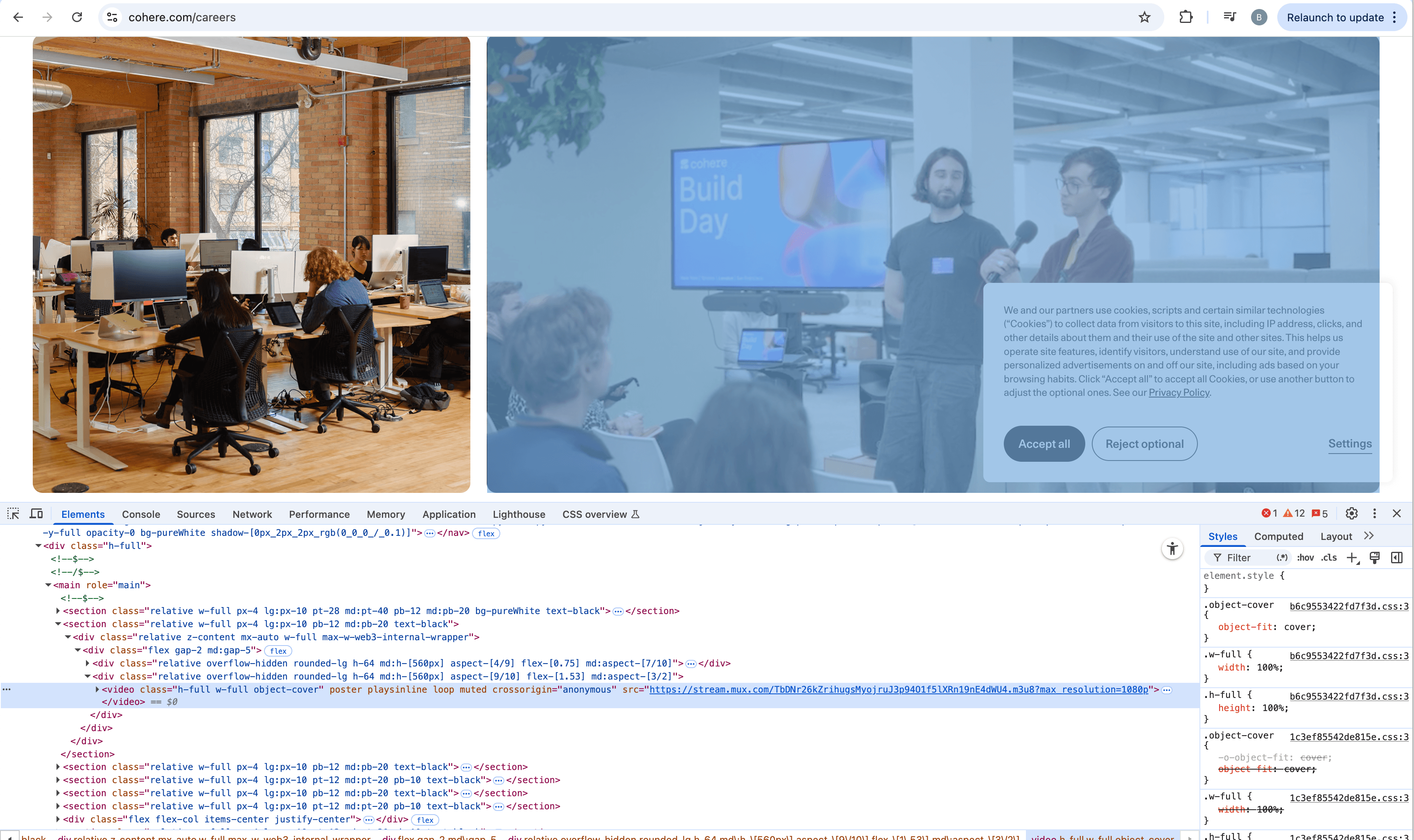
Going down our list top to bottom. No ID. No data attributes. Semantic tag — yes, and it's exactly what we need: <video>. The video selector as a hide rule will take out both autoplay blocks in the hero in a single line, and it'll also catch any new video Cohere adds later.
What if we need to hide the entire hero block
Now let's raise the bar. Say we don't just want to remove the video — we want to hide the entire hero block, both media containers as a single unit. That's a realistic scenario: the hero might have not only the video but also an office photo on the left, plus captions that also change between captures. The video selector won't help here, because the photo on the left isn't a <video> — it's a regular <img> inside a div, and we'd need to hide it separately.
Open DevTools, walk up the DOM from the video to its ancestors, and look at the structure. On Cohere, we see something like: <section> on the outside, then <div class="relative z-content mx-auto w-full max-w-web3-internal-wrapper">, and inside that div, two child blocks with media — one for the photo, one for the video.
We run our list against the outer <section>. No ID. No data attributes. Semantic tag — yes, it's <section>, but there are about six <section> elements on the page (you can see the siblings below in DevTools), and a selector by tag alone would grab the wrong one. We need to narrow it down.
Moving to the fourth step — structural selectors. Our hero section is the first section inside main:
main > section:first-of-typeA selector like this works as long as the hero stays the first block on the page. If Cohere adds an announcement bar above the hero as a <section>, the selector will slide onto it and the hero will start landing in the frame again. There's a risk, but it's an order of magnitude more stable than trying to write something like .relative.w-full.px-4.lg\:px-10.pb-12 by Tailwind classes on the section itself.
The alternative is to latch onto the inner wrapper div, which has a more specific class: max-w-web3-internal-wrapper. At first glance it looks like a Tailwind utility (max-w-*), but the value web3-internal-wrapper is clearly a custom variable from tailwind.config rather than a stock class. Custom values like this live longer than regular utilities, because they're tied to the project's design system. The selector .max-w-web3-internal-wrapper:has(video) will only hide the inner wrapper that contains a video — meaning specifically the hero block.
Both options are viable, with their own trade-offs. The structural main > section:first-of-type is simpler and more intuitive, but it breaks if sections get reordered. The :has(video) variant is more tightly bound to content, but depends on the authors not renaming that custom wrapper class. On a Tailwind site, the perfect selector usually doesn't exist — we pick the best one available and come back in a month or two to verify it still works.
If we need to clip the screenshot to the job listings
The reverse scenario: not hiding the hero, but capturing only the job listings block below it. We run the same algorithm against that block. It's most likely wrapped in <main>, in a dedicated <section>, or in a div with a data attribute like data-section="jobs". In any of these cases we won't need its Tailwind classes — we'll latch onto structure or semantics.
When the algorithm doesn't help — invert the task
Some pages have multiple noisy elements, and each one has its own problem: one has no ID, another uses CSS-in-JS with hashed classes, a third lives inside shadow DOM. Setting up five different hide selectors on a page like this means committing to a config that'll break at the first redesign.
In cases like these, it's easier to invert the task. Instead of "hide everything unwanted", we go to "capture only what's needed" — via clip to element. For the block we actually care about (the job listings, the pricing table, the team section), we can almost always find at least one stable anchor from our list of five approaches. And everything else on the page — all that utility-class soup with videos, animations, cookie banners, and ads — simply doesn't end up in the frame, because we never captured it in the first place.
The two approaches often combine. Clip to element takes only the block we care about, and inside it, hide selector removes any local noise (for example, if there's an iframe chat widget inside the block). Together they produce a stable configuration that doesn't need fixing every time the site updates.
Takeaways and a practical checklist
Utility classes on Tailwind sites are poor selectors for monitoring, for three reasons. They aren't unique — the class flex might appear on a hundred elements on a single page. They're fragile — a combination like .h-64.md:h-\[560px\].aspect-\[9/10\] breaks on any change to size or aspect ratio. And they don't carry meaning — bg-white rounded-lg describes styling, not whether the element is a careers hero or a pricing card. Monitoring needs anchors that survive redesigns, and utility classes aren't those anchors.
Instead, we walk five steps in order of decreasing stability. Step one: look for an id — if it's there, don't go further. Step two: data attributes like data-testid, data-component, data-section. Step three: semantic tags (main, nav, article, video, iframe) and ARIA roles. Step four: structural selectors via combinators — main > section:first-of-type, footer > div:first-child, article:has(h2). And only on step five, when everything else failed — a combination of 2-3 of the element's most specific classes, understanding this is temporary and the monitor will need re-checking.
The algorithm works in both directions. When we need to hide a noisy element (hide selector), we look for an anchor on the element itself or on its container. When we need to capture only a specific block (clip to element), we look for an anchor on that block. The logic is the same in both cases — open DevTools, go down the list, stop at the first option that works.
When there are too many noisy elements or the algorithm hits a dead end on all five steps, we switch from "hide everything unwanted" to "capture only what's needed" via clip to element. It's the same selector-finding algorithm, just applied to the target block rather than to the noise around it. The two approaches often combine: clip to element takes the block we need, and inside it, hide selector cleans up local noise. On a Tailwind page, this combination is usually more stable than trying to catch every noisy element individually.
If you're setting up monitoring and you're stuck finding a selector, open DevTools and go down the list top to bottom. In 90% of cases, steps two or three turn up something usable. The remaining 10% are situations like Cohere, where we drop down to structural selectors and sometimes settle for the fact that a perfect option simply doesn't exist, and we pick the best of what's available. For the typical sources of noise that most often need hide selectors on sites like these, we've covered them in a separate article on false positives — there we break down live counters, rotating carousels, and everything else modern websites do to "change" on every capture.
Start archiving websites today
Free plan includes 3 websites with daily captures. No credit card required.
Create free account
False Positives in Screenshot Monitoring: What Causes Them and What to Do
We got 14 alerts in one day from a single website. The problem was a live counter and a logo carousel triggering visual diff on every capture. Here is how we fixed it with threshold tuning and hide selectors.

How to monitor competitor website changes automatically
How to set up automated competitor website monitoring with screenshots and visual diff — which pages to track, how often to capture them, and how to filter out noise from A/B tests and dynamic content.
E-commerce price monitoring with screenshots: what we actually found
We set up screenshot-based price monitoring on Amazon across several product categories. Instead of clean price data, we got error pages, layout shifts, and a visual diff that catches things text scrapers miss entirely. Here's the full breakdown with real data.