
Visual diff that catches real changes, not noise
Snapshot Archive captures your pages on schedule and compares each new screenshot to the previous one, pixel by pixel. When something changes (a price, a headline, a layout shift) you get a visual overlay showing exactly what moved.
The hard part isn't detection. It's filtering. Real websites are full of rotating banners, live counters, and chat widgets that change between any two captures, and a diff that flags everything is unusable in practice. So the comparison comes with two filters built in: a configurable threshold that hides changes smaller than X percent, and monitoring zones that limit comparison to specific parts of the page.
Three view modes (Diff Overlay, Side by Side, and Slider) let you read each change from the angle that makes it clearest. Set it once on a URL you care about, and you'll only hear from us when something actually moved.

Four jobs visual diff does best
Before we get into settings and technical details, here are the scenarios where pixel-level diff shows its strength as part of website change detection.
Tracking competitor pricing. You watch a competitor's pricing page once a day or once an hour, and what matters is whether the numbers moved. Low threshold plus a zone over the pricing card: and the diff lights up the moment a price changes.
Post-deployment regression. After a release you want to know whether anything visual broke on production. Threshold higher, because only real layout damage matters here. No zones, regressions can show up anywhere on the page.
Legal and compliance archiving. Diff works in tandem with the archive here: it shows what specifically changed on a Terms of Service or Privacy Policy page between two dates, and the full snapshot history confirms what the page looked like on any given day.
Brand and asset monitoring. When an agency runs a client's site or a marketing team watches their own site for unauthorized changes, what they need is "tell me if anything visual changed."
Quick start: your first diff in 5 minutes
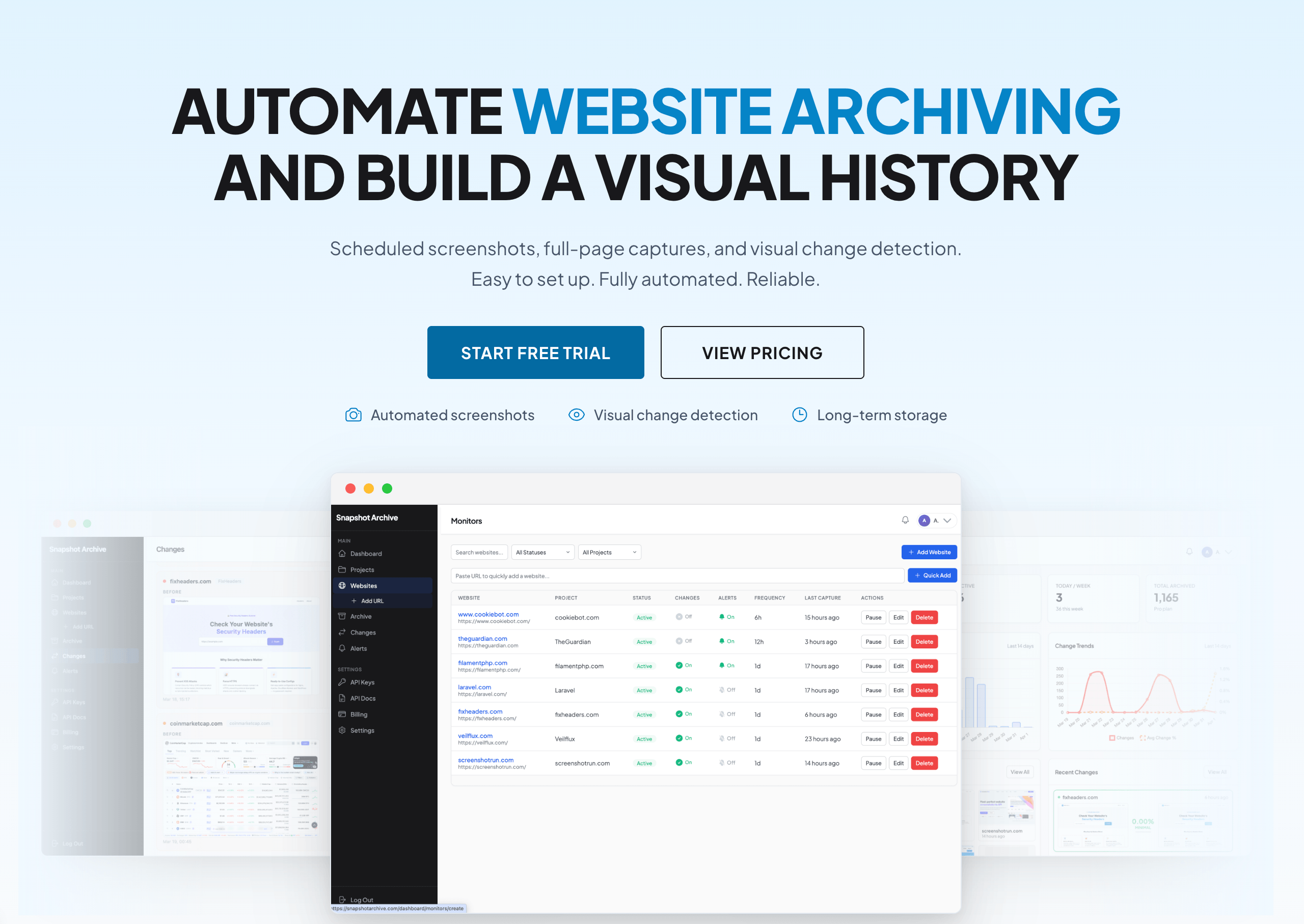
Create an account — the free plan is enough for a test
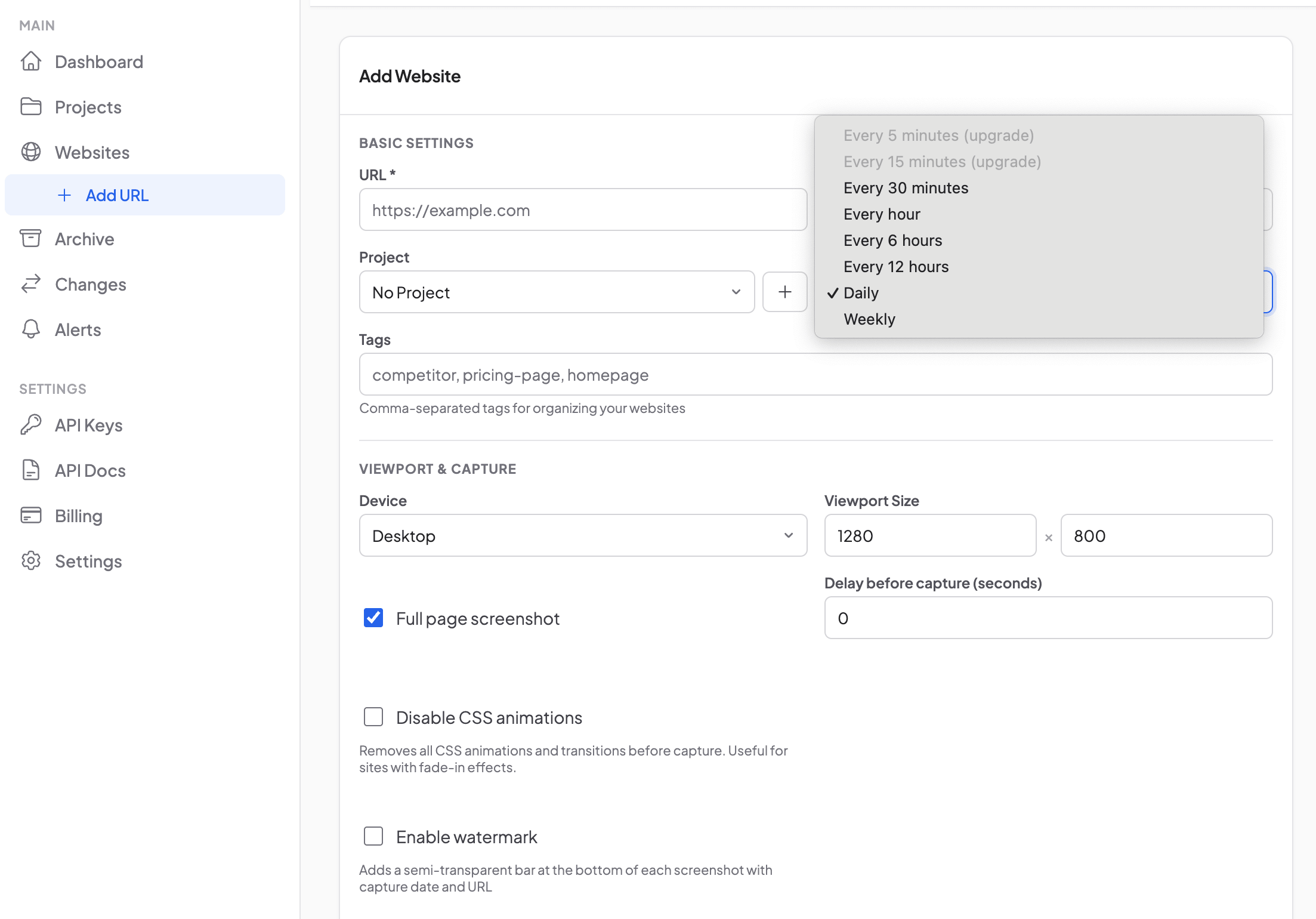
Add a URL and pick a capture frequency (start with once a day)
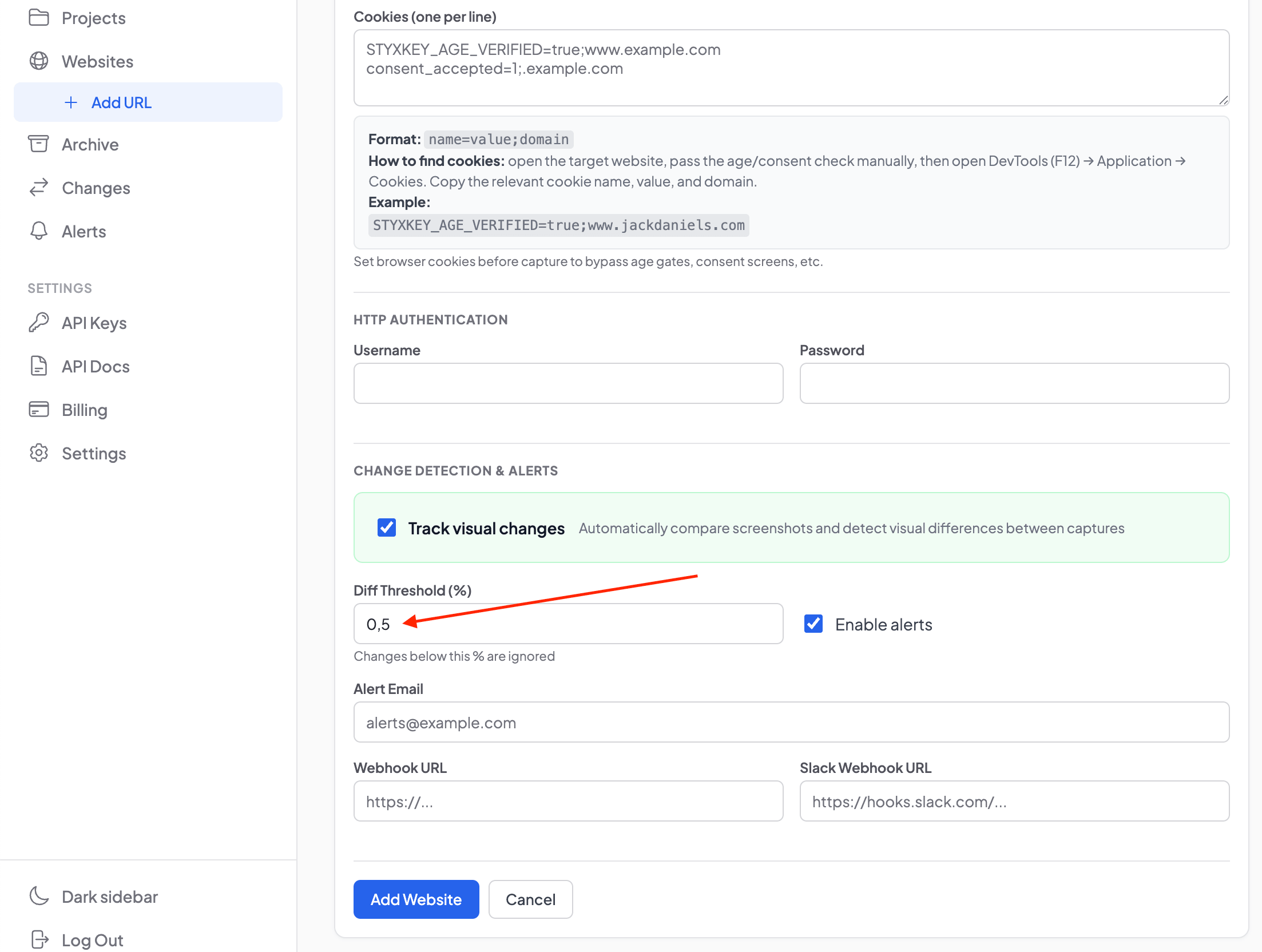
Set Diff Threshold to 0.5% — a sensible default for most pages
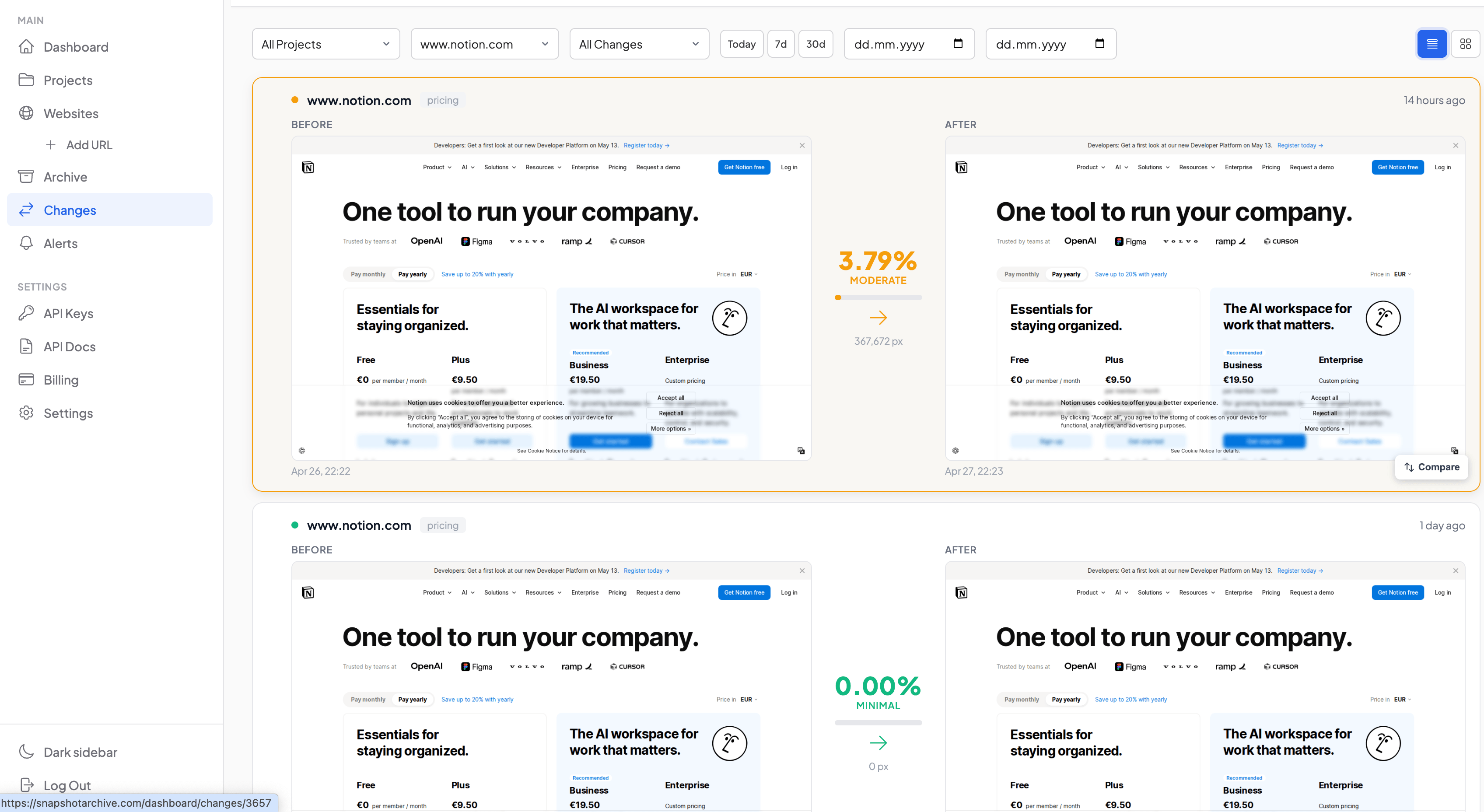
Your first diff appears after the second capture
If the first comparison shows too much noise. Raise the threshold to 2–3% or add hide selectors for the rotating elements.
Three view modes for an automatic diff
A diff overlay is good for a quick scan, but sometimes you need to see the same change from a different angle. There are three view modes, each one answers a different question.
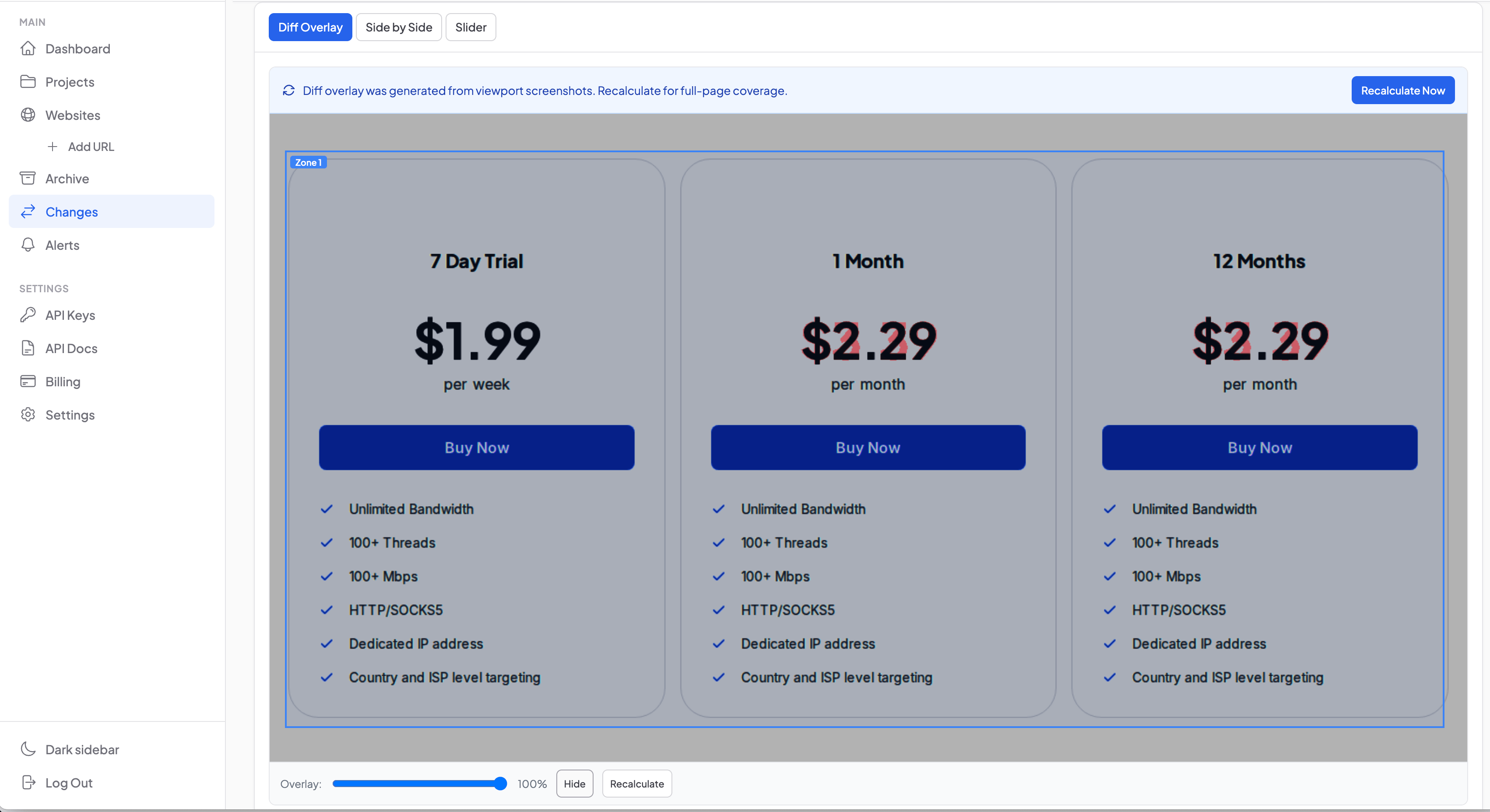
Diff Overlay answers "where on the page did something change?": red areas over a darkened After capture, easy to read at a glance. This is the default mode because it's the fastest way to triage an alert.
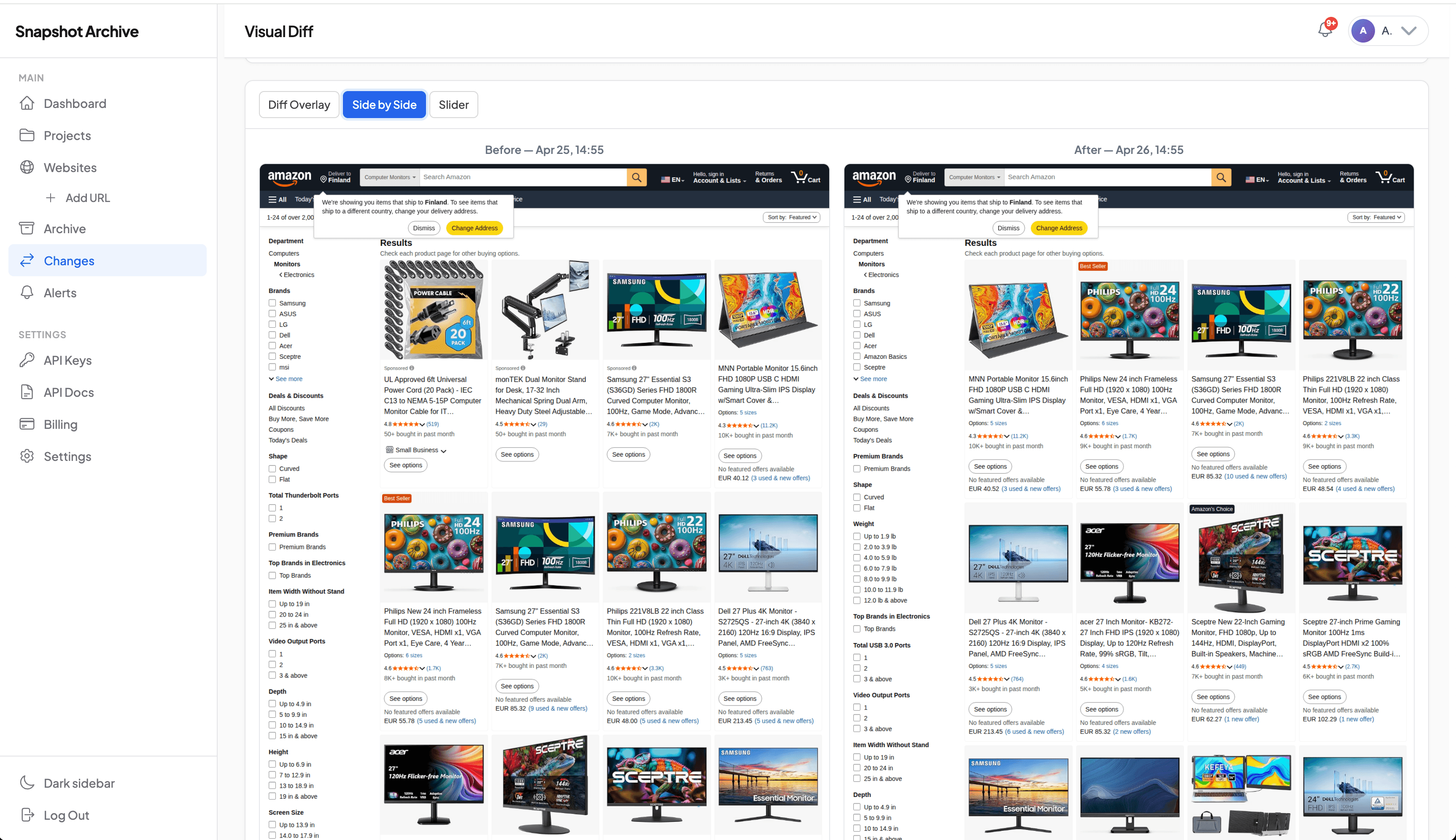
Side-by-side answers "what exactly changed?" Two captures at the same scale with synced scrolling. Useful when the change is textual or numeric and you need to read both versions.
Slider compare answers "how did the layout shift?" A draggable handle splits the screen between Before on the left and After on the right. Useful for catching layout shifts, content additions, and structural changes between two versions of a webpage.
This is the right mode for catching layout shifts, when blocks moved, when a card got taller, when a column collapsed on mobile.
These three view modes apply to every automatic diff (one captured against the previous one, always) and to manual compare, where you pick any two captures from the archive. The difference between the two is covered below in the "Change history" section.
Threshold and zones: how to control false positives
A pixel-level diff that ignores nothing is unusable in practice. Real websites are full of rotating banners, live counters, cookie consent overlays, and chat widgets that change between any two captures. Without a way to tell the diff "ignore this part," you end up in the situation we documented after monitoring stripe.com, 14 alerts in a single day, all from a GDP counter and a logo carousel. Two settings keep that from happening to you.
Diff threshold
The threshold sets the minimum percentage of changed pixels that counts as a real change. Anything below it is flagged as Minor and doesn't trigger an alert. Anything above is flagged as Significant and sends a notification.
The field accepts values from 0 to 100 with two decimal places. In practice the working range is 0.1% to 5%. For a static page like a Terms of Service, 0.1% works. Any change is meaningful. For a corporate homepage with rotating elements, 2–3% filters out the obvious noise. For a busy news site, 5–10% leaves only structural changes.
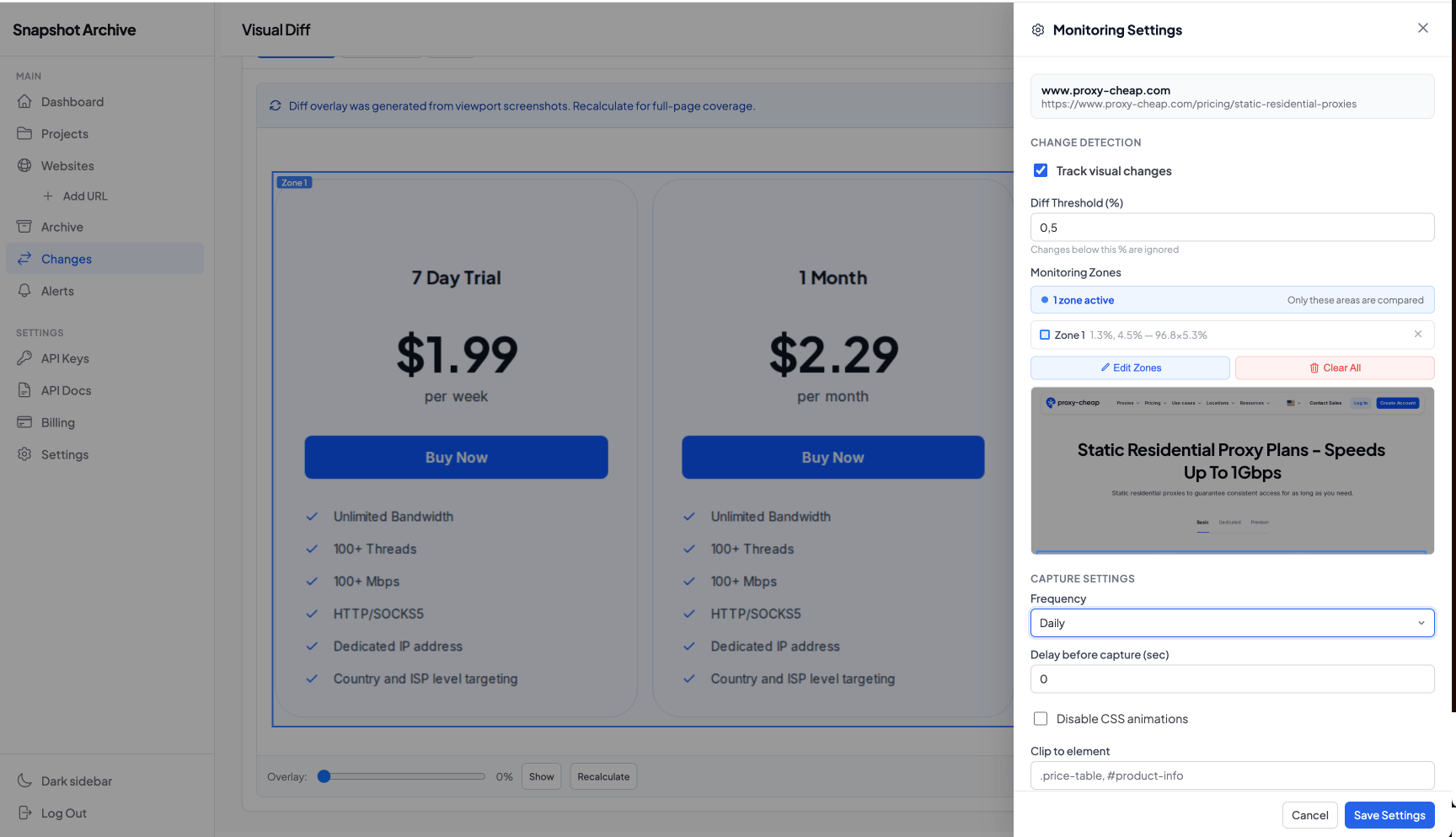
We default new monitors to 0.5%, which works for most static and semi-static pages. After the first day or two of captures, look at your changes list: if the same area keeps producing Minor flags, that's a sign to either raise the threshold or use the second tool.
Monitoring zones
Zones answer a different question than threshold. Threshold says "ignore changes smaller than X." Zones say "look only at this part of the page."
How it works: you draw rectangular regions with your mouse directly over the rendered page in the settings panel, and the diff is calculated only for those regions. Everything outside the zones is dropped from the comparison. If you set up one zone over a pricing card and the rest of the page completely redesigns, the diff still reads 0%, because the redesign happened outside what you asked us to watch.
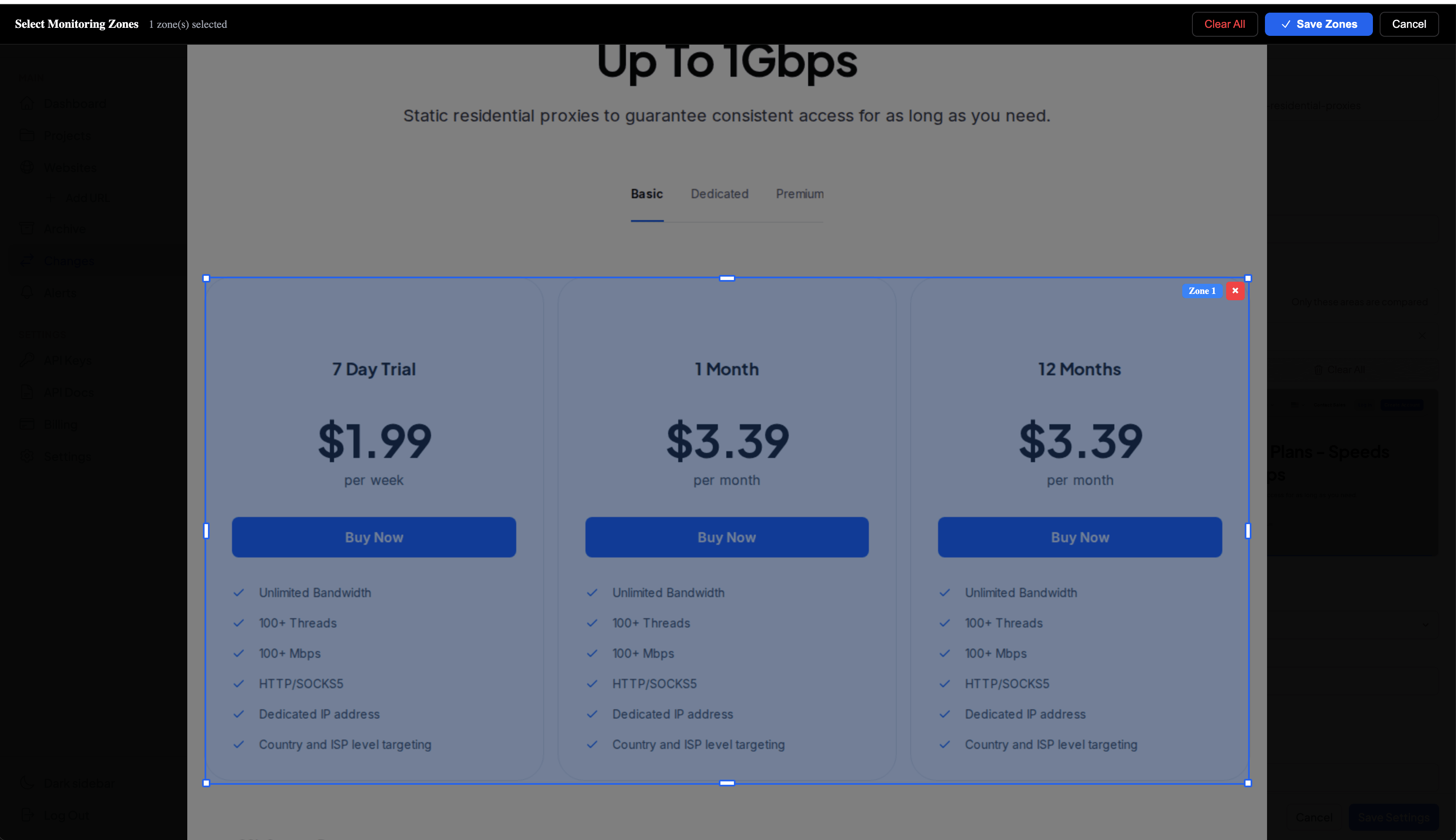
This is the inverse of how some tools work. The conventional approach is exclusion masks: "ignore this banner, ignore this carousel, watch everything else." We went the other way because for the use cases we see most often, inclusion is the right default. If you're tracking a pricing page, what you actually want is to watch the price card, not "everything except the cookie banner and the chat widget and the announcement bar." Inclusion makes the intent explicit.
The trade-off is honest: if your goal really is "watch the whole page except for one noisy element," reach for hide selectors instead. They work at capture time and physically remove the element from the screenshot.
Change history and the legal value of the archive
Each capture gets compared with the one immediately before it. There's no fixed baseline. New capture comes in, diff runs against the previous one, result is saved. There's a reason for this design and a trade-off worth knowing about.
The reason is that monitoring is about detecting change events, not measuring drift from an ideal. When a competitor updates their hero image on Tuesday and again on Friday, you want two diff records. Tuesday against Monday, Friday against Tuesday. Sequential comparison gives you that. A baseline approach would only show the cumulative difference from the original, and you'd lose track of when each change actually happened.
The trade-off is that gradual drift can hide. If a page changes by 0.4% every day for a week, each individual diff is below most thresholds, but the page on day seven looks meaningfully different from the page on day one. We don't have an automatic alert for cumulative drift yet. What we recommend instead is occasionally browsing the Changes list for a URL and looking at captures from a week or month ago, not just the latest two.
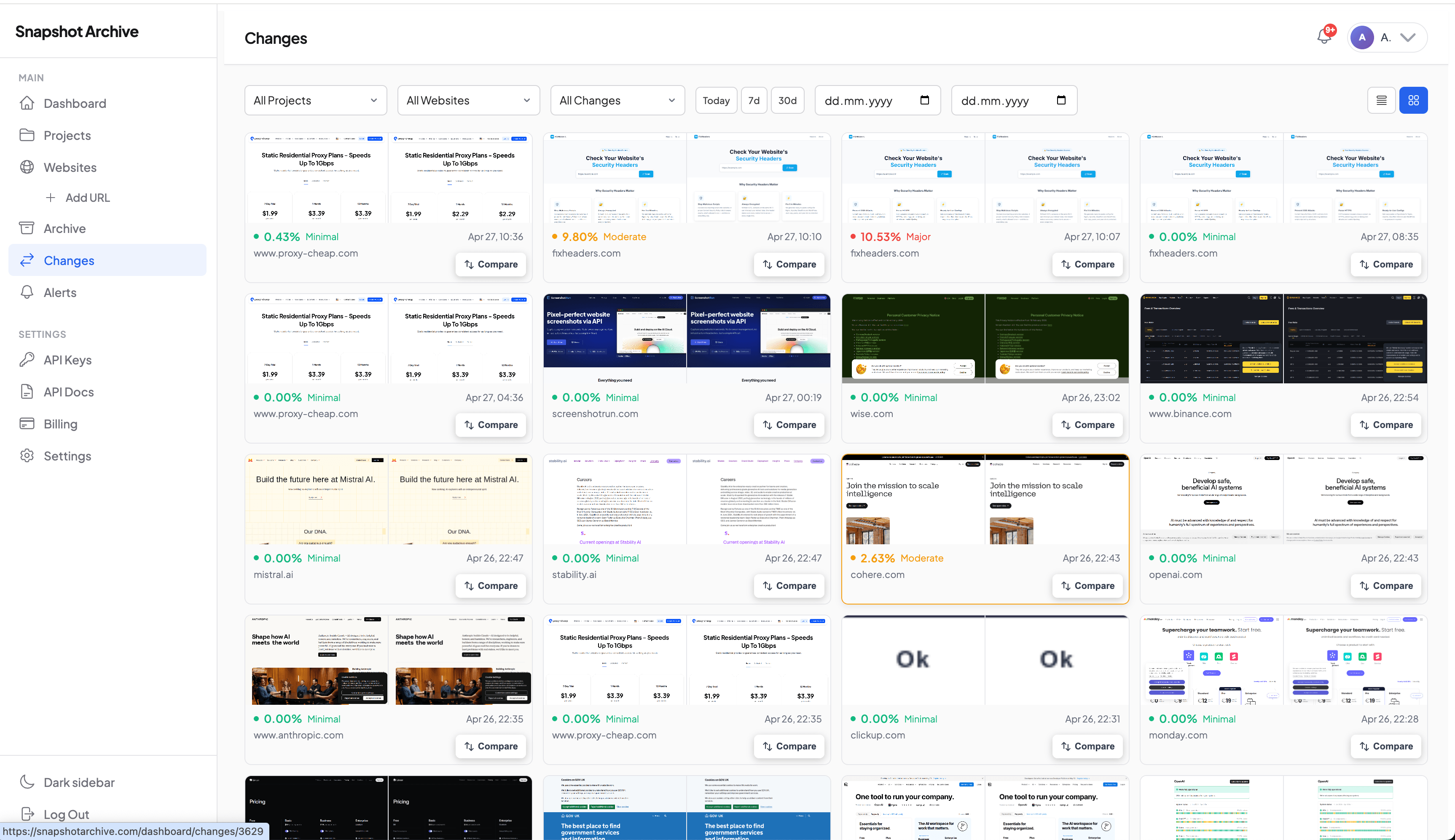
For that, we have manual compare. The Changes list shows every capture we've taken for a URL: and you can pick any two of them, from any two dates, and put them side by side. The percentage diff won't recalculate (that's reserved for sequential comparison), but the visual comparison itself works the same way as for an automatic alert.
Manual compare for legal evidence and compliance
Day to day, the automatic sequential diff is what you'll use most, that's where the alerts come from. Manual compare is for the other situations: legal evidence, compliance reporting, or pulling up what a page looked like six months ago. A regulator asking what changed in your Terms of Service between Q1 and Q3 doesn't want a chain of weekly diffs. They want one comparison: Q1 snapshot against Q3 snapshot, side by side, with timestamps and a PDF export for their records.
What you get is the full history. Every diff is stored as a separate record with references to the before-snapshot, the after-snapshot, the change percentage, the list of changed regions, and the diff image itself. Nothing gets overwritten. You can pull up the diff between two snapshots from eight months ago and see exactly which pixels were different on that day. Plus you can pick any other pair of snapshots from the archive and compare them manually whenever you need to.
Compare any two snapshots manually
Open Changes and select two snapshots from any dates
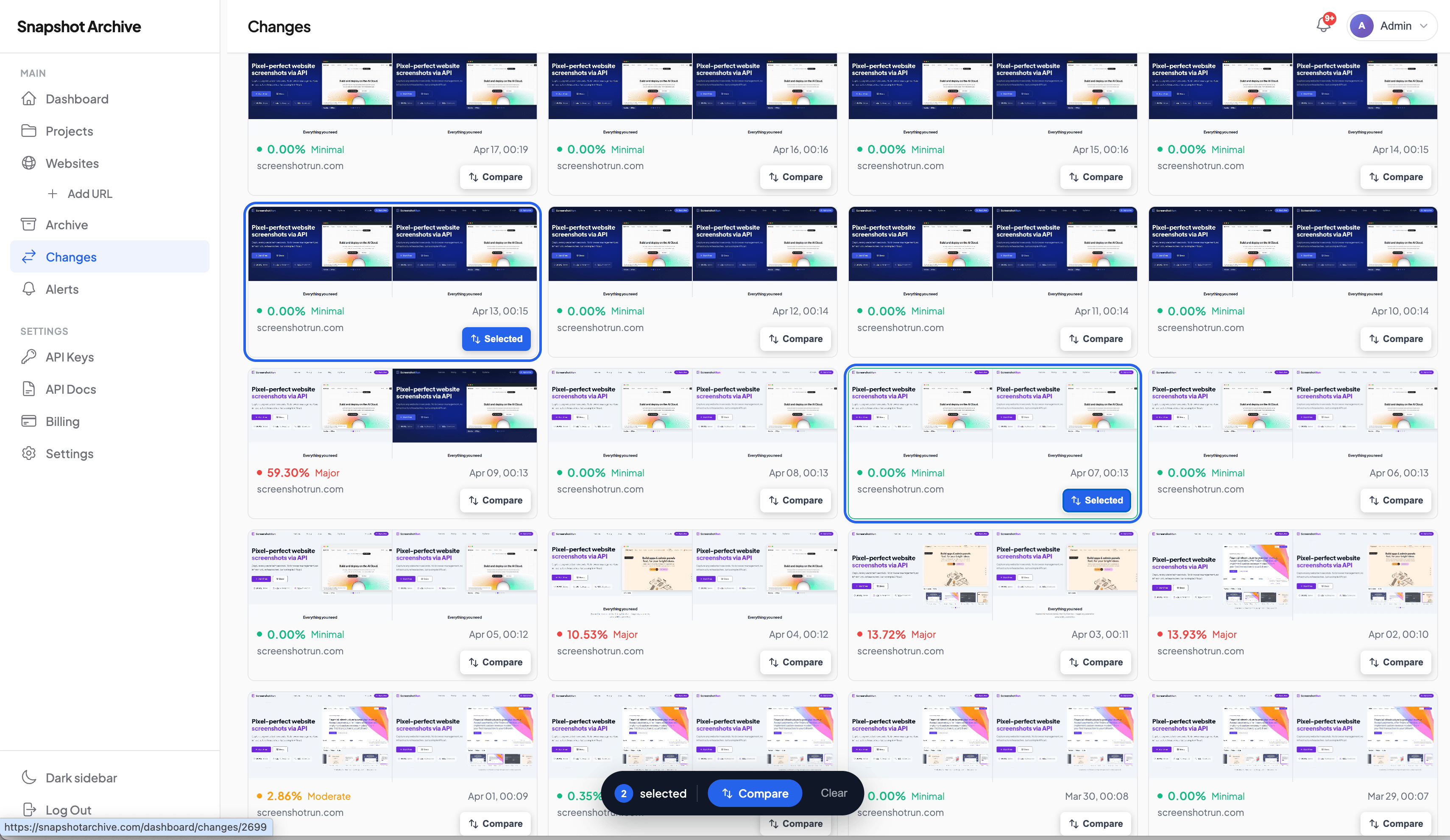
Use Side by Side mode for textual or numeric changes
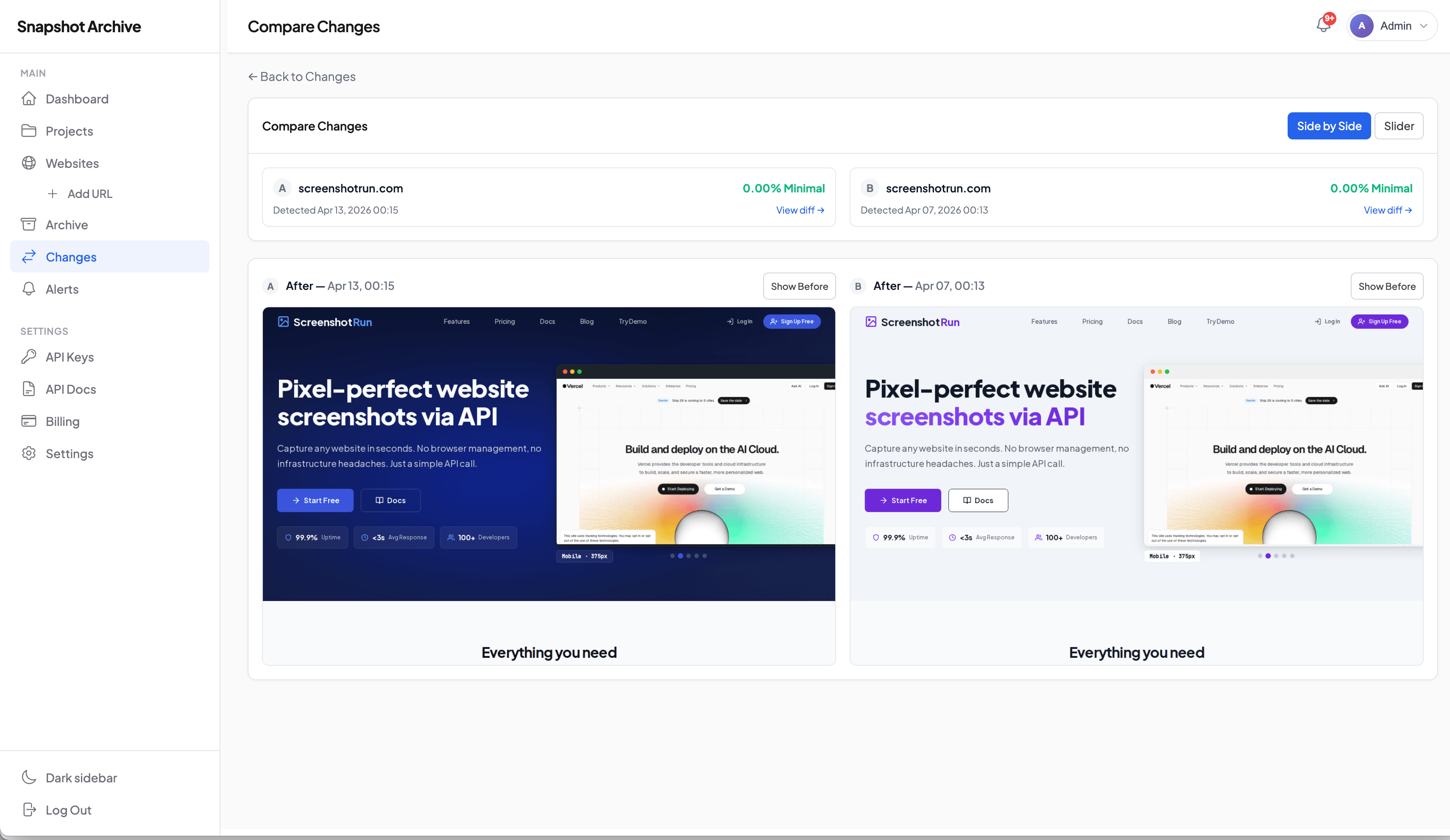
Switch to Slider mode for layout shifts
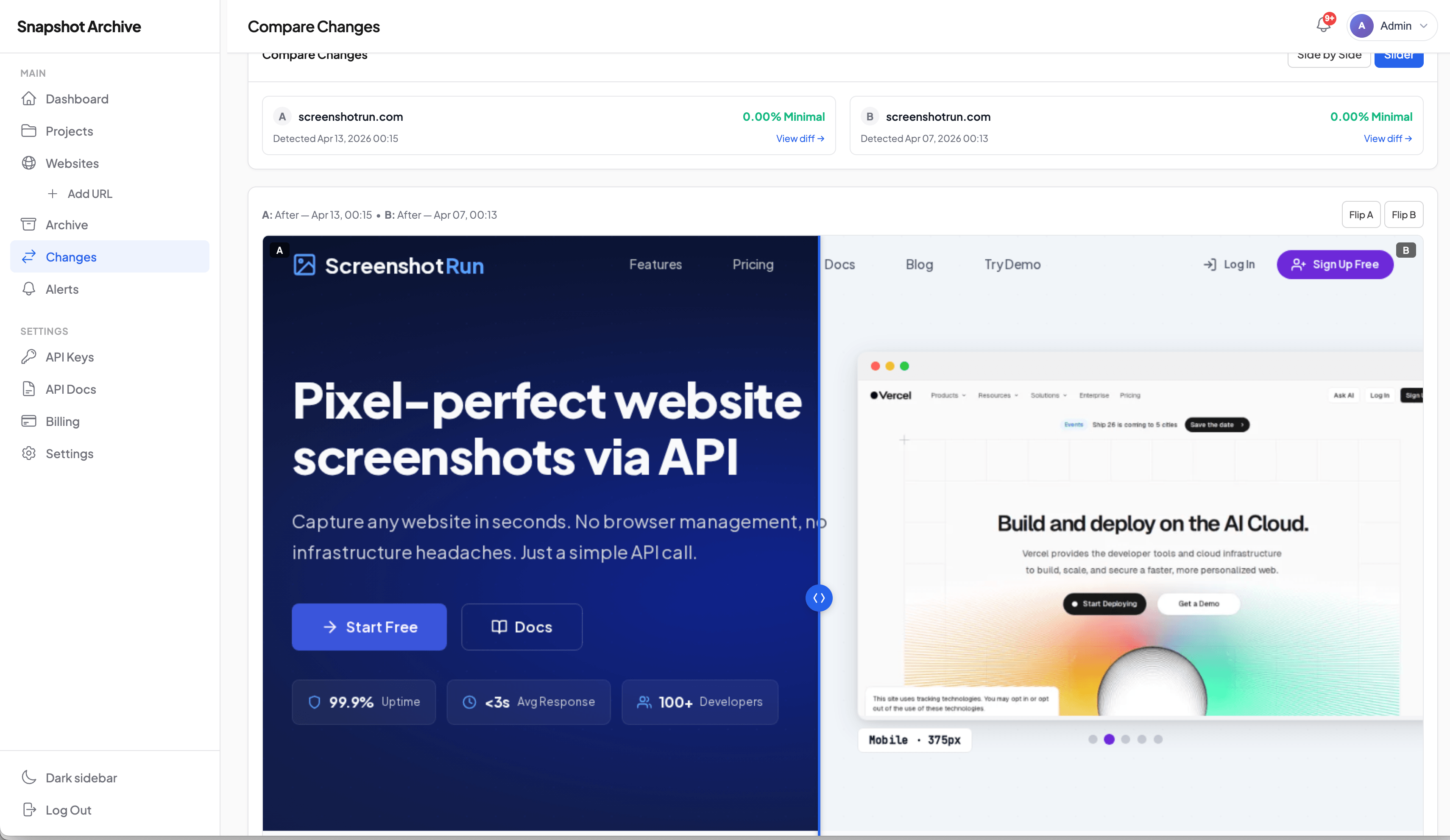
This is the part that matters for legal evidence and compliance archiving. When a regulator or a lawyer needs to see what a page looked like on a specific date and what changed since, what they need is the diff history: not just the screenshot, but the documented sequence of changes around it.
Alerts and the capture stack
When a diff exceeds your configured threshold, an email alert gets triggered. The email includes the change percentage, a link to the diff overlay in the dashboard, and a timestamp.
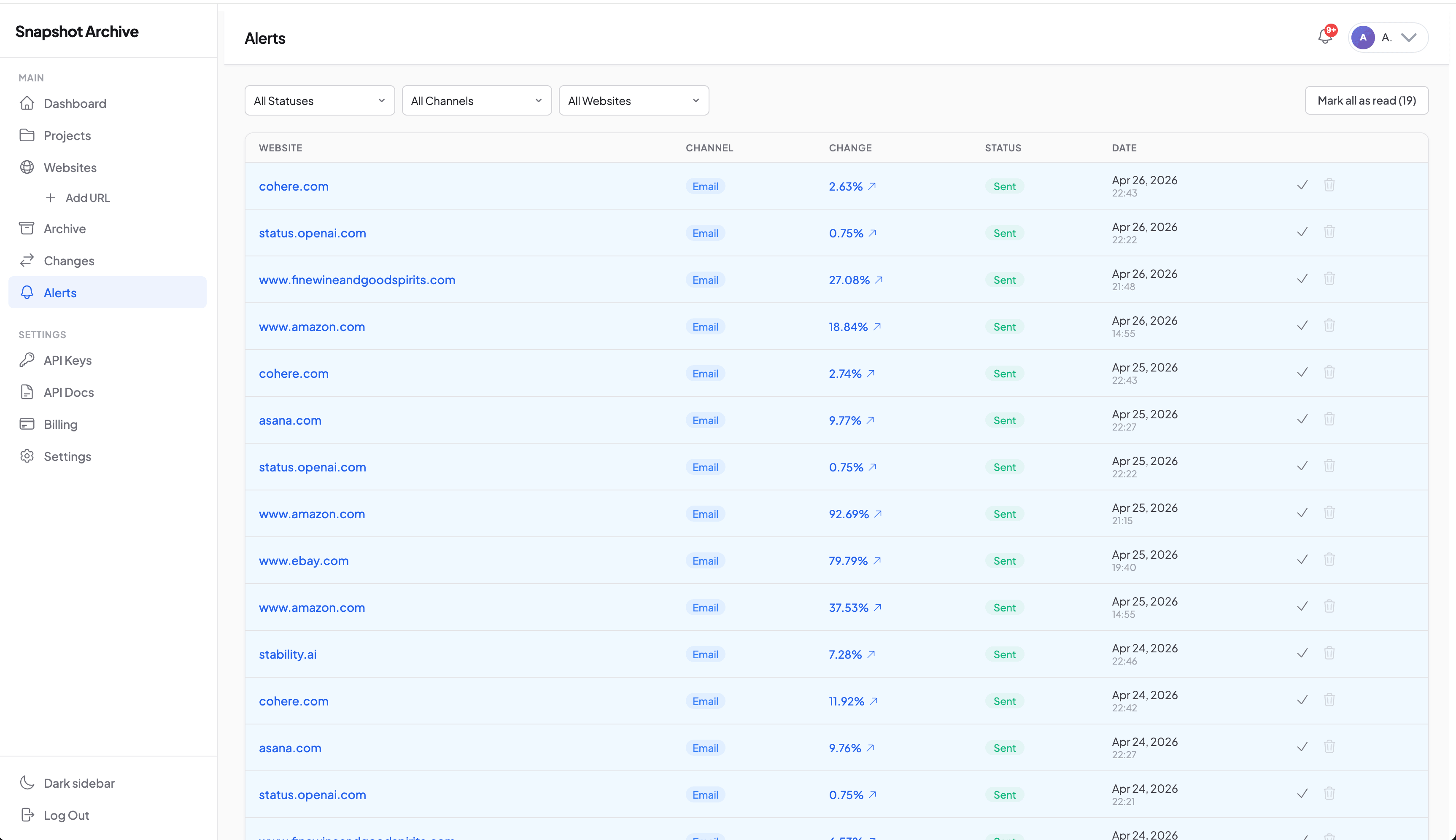
Capture frequency is set per monitor in the same settings panel as the diff threshold. Options range from every 15 minutes to once a week. The math worth keeping in mind: more frequent captures mean smaller individual diffs, which means a lower threshold becomes viable. Daily captures pair well with a 2–3% threshold. Hourly captures often work with 1% or below.
The short version on alerts: one diff above threshold equals one email, no batching, no daily digest.
The diff is one piece, the rest matters too, because what ends up in the two screenshots being compared depends on the capture stack. When a page has a cookie banner that comes and goes, or a popup that triggers on scroll, you need to handle that before the screenshot is taken. We have hide selectors for stripping elements before capture, click selectors for popups that need a click to dismiss, and custom cookies for pages behind a login or age gate.
If you only want to monitor part of a page, clip-to-element restricts the capture to a CSS selector. And noisy areas elsewhere on the page are physically not in the screenshot to begin with.
These features stack. A typical setup for a competitor pricing monitor: clip-to-element on the pricing section, hide selector for any chat widget overlapping it, click selector to dismiss a region-targeting popup, custom cookies if pricing is gated by country, monitoring zone over the actual price numbers, threshold at 1%. That combination produces alerts only when prices actually change, with almost no false positives.
Technical details (for those who care)
Skip this section if it's enough for you to know that diff works and is configurable. This is the part for people evaluating the tool against alternatives.
The comparison runs on PHP Imagick, pixel by pixel. No SSIM, no perceptual hashing: just direct pixel arithmetic. Every pixel at position (x, y) in the new capture gets checked against the same position in the previous one. If it differs, it's marked. The result is a percentage of changed pixels, a list of bounding boxes for the changed regions, and a diff overlay image with the differences highlighted in red.
We chose pixel-level over perceptual diff for one reason: perceptual algorithms are tuned around the question "do these two images look similar to a human eye?" That's the wrong question for monitoring. A price changing from $9 to $8 is visually identical to a human at thumbnail size, but for a competitor tracker, it matters. Pixel comparison catches it. Perceptual algorithms hide it.
What stops the comparison from flagging every microscopic rendering difference is a built-in noise filter. Before counting changed pixels, a 10% brightness threshold is applied at the pixel level: anti-aliasing artifacts, sub-pixel font rendering, and JPEG compression noise all sit below that line and get filtered out automatically. On top of that, you set your own diff threshold as a percentage. So two layers are at work: hardcoded noise filtering for differences a human eye wouldn't see anyway, plus a configurable threshold for changes a human eye would see but you don't care about.
The percentage in the dashboard isn't raw pixel count divided by total, it's the count after both filters are applied.
One more technical point: every diff record is accessible through the REST API, including the change percentage, region coordinates, and a URL to the diff overlay image. The full API is documented in the API reference.
Try it on a page you actually care about
Visual diff isn't the kind of feature you spec out and pick a tool for. It's the kind you set up once and forget about until the day it tells you something you needed to know. The right configuration (threshold, zones, hide selectors) depends on the page, and the only way to find it is to add a URL and watch what comes back over the first few days.
The entry plan is enough to test diff on a page you care about, a competitor's pricing page, your own checkout flow, a Terms of Service you need to track. Add the URL, set the threshold to 0.5%, and check back after the next capture. Cancel anytime if it doesn't fit, no contract.
Add a URL, set a threshold, and see your first diff after the next capture. Free plan available, no credit card.
Start freeFrequently Asked Questions
The first capture happens within about a minute after you add a URL — that's your baseline. The diff itself appears after the second capture, so the timing depends on the frequency you set: daily means tomorrow, hourly means in an hour, every 15 minutes means in 15–20 minutes.
Yes — through the custom cookies setting. You pass in a session cookie from your browser, and our capture service uses it when accessing the page. Limitation: this works for cookie-based auth (most SaaS sites). For OAuth flows or two-factor auth, it doesn't apply. More details in the post on custom cookies.
This is the most common problem, and there are three tools for it: raising the threshold (filter out small noise), monitoring zones (compare only specific areas), and hide selectors (remove noisy elements before capture). The post on false positives walks through the configuration for specific site types — pricing pages, news sites, e-commerce.
Sign up is free and lets you add a URL to see how captures and the archive work. Visual diff itself is part of the paid plans, with the entry tier enough to test it on one or two pages. No long-term contract, cancel anytime.
HTML diff compares the page's source code. Visual diff compares the rendered screenshot. HTML diff sees a meta tag change but misses an image swapped at the same URL, a CSS color change, or a JavaScript-rendered price update. Visual diff sees all of those, but misses metadata changes that don't appear on the visible page. A detailed comparison is in Visual Diff Explained.
If you only need an uptime checker (does the page open or not) — go with classic uptime monitoring, it's faster and cheaper. If you need to track changes in meta tags, robots.txt, HTML structure, or JSON API responses — go with HTML monitoring or watchcron for endpoint checks. Visual diff answers the question "did what a human sees change?" — if your question is something else, this isn't the feature.
The percentage is calculated by pixel area, not by visual significance. A banner is hundreds of pixels tall and spans the full page width — even a small visual change in it covers a lot of area. A price change from $9 to $12 only affects the area of the digits themselves, which might be 30 by 40 pixels. The diff is honest about pixel area and doesn't try to weight by importance.
For as long as the snapshots themselves are kept, which depends on your plan. Diffs aren't pruned independently: if both snapshots a diff was based on are still in the archive, the diff is too. The retention question is covered in the post on screenshot retention.