
How to Track Terms of Service & Privacy Policy Changes
Here is a scenario that happens more often than anyone likes to admit. You use an analytics service that promises in its Privacy Policy to store user data exclusively in the EU. Based on that promise, you wrote in your own Privacy Policy that customer data does not leave Europe. Three months later, the analytics provider quietly updates their document — now data can also be processed in the US. You don't know about it, because the notification came as a single line buried in a monthly digest that nobody reads. Meanwhile, your customers in Germany still see a "data stays in the EU" promise on your website. This is not a hypothetical — most GDPR violations involving third-party vendors look exactly like this.
Terms of Service and Privacy Policy pages are legally binding documents. When you click "I agree" during signup, you're agreeing to everything written in them — and when the vendor changes those documents three months later, you're still bound by the updated version, whether you noticed the change or not. The problem is that companies update these pages quietly. They change the text, put a fresh date in the document header, and move on. A notification email doesn't always follow, and even when it does, it's usually vague enough that nobody opens it.
The result: you find out about changes after the fact. During an audit, it turns out a vendor changed their data processing terms three months ago. A customer asks why your Privacy Policy references a provider you no longer use. Your lawyer asks to see what the terms looked like on a specific date — and you have no screenshot, no copy, nothing. In this article, we'll show how to set up automated monitoring for legal pages so you always know what changed and when, without checking anything manually.
Why changes in Terms of Service and Privacy Policy are so easy to miss
Most companies update their legal pages without fanfare. They change the text, set a new "Last updated" date, and move on. Technically they're within their rights — their own Terms of Service usually say the user is responsible for periodically checking for changes. In practice, that's unrealistic if you use even a dozen SaaS services, let alone the 20-30 that a typical company has subscriptions with.
Consider what happens when your payment provider updates their data processing agreement. You keep sending customer data under the old arrangement without knowing the terms are different. If you work with European customers, that's a potential GDPR violation — and you have no idea until someone points it out. Or imagine a competitor removes their free tier from their Terms of Service, and you're still referencing that tier in your marketing materials. The information is outdated, your comparison page is wrong, and you haven't adjusted because nobody told you.
It happens with your own documents too. You update your Privacy Policy but don't save the previous version. Six months later, in a dispute, you can't prove what terms were in effect when a specific user signed up. We covered why screenshots matter for legal evidence in a separate guide — but the short version is that without a timestamped archive, you have no proof of what any page said on any specific date.
How people usually track changes in legal documents (and why each approach breaks down)
Manual checking — bookmarks, calendar reminders, "I'll look at it on Friday" — works for the first week. Then the reminder gets snoozed, then turned off, then you forget which pages you were even monitoring. With legal pages this is especially painful because changes are rare, so every time you check it feels like nothing changed, which makes you less likely to check next time. We covered this pattern in more detail in our comparison of manual vs automated screenshots.
Text-based monitoring tools like Visualping or PageCrawl compare a page's HTML and show which text was added or removed. This works for purely textual changes, but it misses visual changes — blocks being rearranged, styles changing, payment provider icons being swapped. And if a vendor redesigns their legal page and restructures the HTML from scratch, text diff will show "everything changed" even if the actual content barely moved. For understanding what visual diff catches that text monitoring misses, we have a dedicated breakdown.
The Wayback Machine is a great resource for browsing web history, but you don't control when it takes a snapshot — popular sites might get daily captures, niche ones might get captured once every few months. There are no alerts, no way to search by changes, and no timestamps you can rely on for compliance documentation. We compared the two approaches in our Wayback Machine vs Snapshot Archive article.
The problem with all three approaches is scale. If you have 5 vendors, you can manage somehow. If you have 20-30, manual monitoring eats up hours every week — and things still slip through.
Scheduled screenshots with visual diff: a different approach
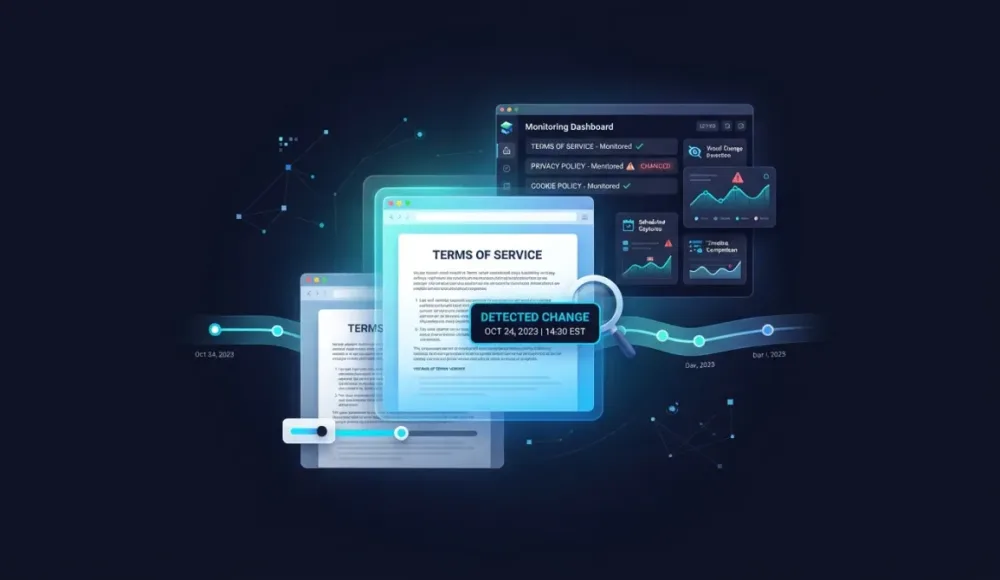
The idea is simple. Instead of comparing page source code, you take regular full-page screenshots and compare them visually, pixel by pixel. If nothing changed — silence. If something did — you get a notification showing exactly where the differences are.
The advantage over text-based monitoring is that you see the page the way a user sees it. Not HTML code, but the actual rendered result. A font change, a section being moved, a payment provider icon being swapped — all of this shows up in visual diff but stays invisible to text-based tools. Even a small one-word change gets flagged, because the pixels at that position are different.
Here is what this looks like in practice. We set up monitoring for a Privacy Policy page, and a few minutes after a text change (we swapped the name of the payment provider from Paddle to Stripe) we got this result — 0.20% of the page area changed. One word in one paragraph, and the system caught it and showed both versions side by side with timestamps.
How to set up Terms of Service and Privacy Policy monitoring step by step
The whole process takes a couple of minutes per URL.
Step 1. Add the URL and enable full-page capture
Go to the Websites section, click Add URL, and enter the address of the Terms of Service or Privacy Policy page. Give it a clear name — the company name works well — so things don't get confusing once you have dozens of URLs in your list.
For legal pages, enable Full page screenshot — terms of use tend to be long, and without this option you only capture the visible portion of the screen. A change buried in section 15 out of 20 would go unnoticed with viewport-only capture. We covered why full page matters in our comparison of capture modes.

For capture frequency, daily snapshots are usually enough — legal pages don't change every hour. The screenshot above shows "Every 5 minutes" because we used that for the demo to catch a change faster, but for real monitoring pick Daily or Weekly depending on how critical the vendor is to you.
Step 2. The first snapshot becomes your baseline
After saving, the system takes the first screenshot right away. This is your baseline — the starting point against which all future changes will be measured.

The "Tracking Changes" indicator means every new snapshot will be automatically compared to the previous one — you don't need to do anything manually from this point on.
Step 3. Changes appear automatically with timestamps
When the system detects differences between two consecutive snapshots, the change appears in the Changes section with both versions side by side, the percentage of change, and exact timestamps. In our test, 0.20% — one word — was enough to trigger a detection.

Step 4. Visual diff shows exactly what moved
For a detailed view, open Visual Diff. In Diff Overlay mode, changed areas are highlighted in red directly on the screenshot — you see not just "something changed" but the specific spot and context. In our case, the payment provider name changed in the "Account information" section, and the overlay marks the exact line where "Paddle" became "Stripe."

If compliance matters to you — and if you're reading this article, it probably does — this is the level of detail you need. Not "the page changed" but "this specific clause in this specific section was modified on this date at this time."
What to monitor beyond your own legal pages
Your own Terms of Service and Privacy Policy are the obvious starting point, but they're not where the biggest risk lives. The biggest risk is in your vendors' documents — because their changes directly affect your compliance posture, and they have no obligation to notify you in a way you'll actually see.
Start with vendors that handle customer data: payment providers (Stripe, Paddle, PayPal), cloud services (AWS, Hetzner, DigitalOcean), email providers (SendGrid, Mailgun, Resend), analytics (Google Analytics, Mixpanel). If you're sending them customer data, their Privacy Policy and DPA (Data Processing Agreement) directly affect whether your own compliance claims are still accurate. A vendor that quietly changes where they process data can invalidate the promises you've made to your own customers.
Competitor legal pages are worth tracking too, though for different reasons. A competitor's Terms of Service sometimes reveal product changes before they hit the landing page — a new pricing tier, a new feature limitation, an SLA change often shows up in the terms first, because the legal team works ahead of the marketing team. We covered this angle in our article on which competitor pages to monitor.
Regulatory pages matter if you operate in fintech, healthcare, or e-commerce. New requirements often appear on a regulator's website well before anyone writes about them in the news — and being the first to notice gives you time to adapt before enforcement starts.
On frequency: your own legal pages and critical vendors (payments, hosting) are worth snapshotting daily. Other vendors and competitors — once a week is usually enough. Regulatory pages depend on your industry, but in fintech or healthcare, daily monitoring is justified by the pace at which regulations move.
Common issues when monitoring legal pages and how to handle them
Cookie banners are the most common issue by far. If you monitor European websites, the consent banner shows up on every snapshot and can create false positives — the banner appearing or disappearing between captures triggers a visual diff that has nothing to do with the actual document content. We wrote a separate guide on handling cookie banners in automated screenshots, with ready-to-use CSS selectors for the five most common consent platforms.
Long pages can be tricky because some services have Terms of Service that go on for dozens of scroll lengths. Make sure Full page screenshot is enabled — otherwise changes buried deep in the document will go unnoticed because they're below the captured viewport.
JavaScript rendering is another gotcha. Some sites load legal page content dynamically, and you may need to add a delay before the snapshot (the "Delay before capture" setting) so the content has time to load fully. Dynamic elements like dates in the footer or session tokens can create small differences between snapshots, but the change percentage handles this naturally — if you see a 0.01-0.05% difference, it's almost certainly rendering noise rather than a real edit to the terms.
Turning your screenshot archive into a compliance-ready change log
When you monitor legal pages across multiple vendors, it helps to keep a simple table alongside your screenshots: date of the change, which vendor, what changed, and how critical it is. Snapshot Archive stores all captures with exact dates, so you can always pull up a specific screenshot and see what the page looked like before and after any change. If you're unsure how long to keep those screenshots, our retention guide has recommendations by industry — for compliance-related screenshots, 6-7 years is the typical minimum in regulated industries.
For compliance teams, a log backed by actual screenshots with timestamps and visual diffs is a different conversation in an audit than "we were keeping an eye on vendor terms." One is documentation, the other is a claim. During a GDPR audit in particular, being able to show the exact date when a vendor changed their data processing terms — and that you noticed and responded — demonstrates the kind of systematic oversight that regulators look for.
You don't need to monitor all 30 vendors at once. Start with the most critical one — the vendor you send the most customer data to. Add their Privacy Policy and Terms of Service, set up daily snapshots, and see how it works. Snapshot Archive's free plan covers up to 3 URLs, which is enough for one vendor's ToS and Privacy Policy plus your own Privacy Policy as a baseline.
If you have questions about getting set up, drop us a line — happy to help.
Start archiving websites today
Free plan includes 3 websites with daily captures. No credit card required.
Create free account

Vitalii Holben