Full page vs viewport screenshots: which capture mode to use for monitoring
When you set up automated screenshots for a website, one of the first decisions is whether to capture the entire page or just the visible portion. The difference feels minor until you get your first visual diff report and realize half the content never made it into the frame.
We ran into this ourselves: a user was monitoring a competitor's pricing page, and everything looked fine for weeks. Then the competitor moved their pricing table below the fold. Screenshots kept firing, visual diff kept saying "no changes," and the actual update went completely unnoticed — because the camera was pointed at the wrong part of the page.
This article breaks down the difference between full page and viewport capture modes, explains when each one makes more sense, and shows how your choice affects visual diff accuracy and archive storage.
What viewport and full page actually mean
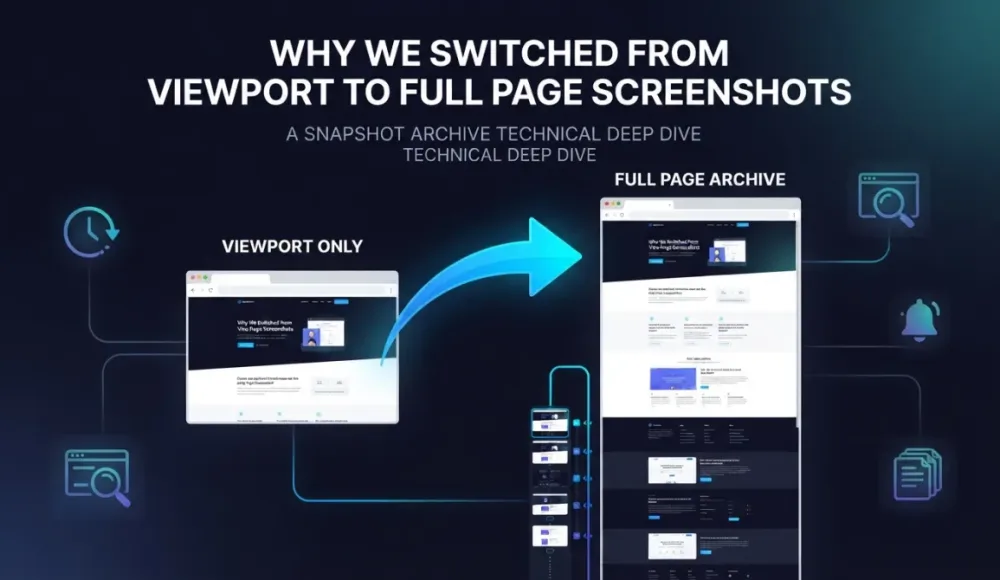
A viewport is the part of the page visible in the browser window without scrolling — a typical desktop viewport is 1280×800 or 1920×1080 pixels. Anything below that zone requires scrolling, and a viewport screenshot won't include it. A full page screenshot captures everything from the first pixel to the last: the browser scrolls through the content and stitches the result into a single image. For long landing pages, that can mean an image 5,000–10,000 pixels tall.
In practice, a viewport screenshot grabs the header, the hero section, and maybe the top of the next block. A full page screenshot grabs all of it — the footer, the FAQ, the pricing table, and every section a visitor would only reach after several scrolls. The difference matters because most of the actionable content on a website — prices, feature lists, legal text, testimonials — lives below the fold.
When viewport mode is the right call
Viewport mode doesn't mean "incomplete." For certain tasks, it actually works better than full page because it's faster, produces smaller files, and focuses on the content that matters most for that specific use case.
Header and navigation monitoring is the clearest example. If you need to track whether a brand changed its logo, rearranged menu items, or added a promotional banner, viewport covers it — the header sits in the visible zone by definition, and capturing the entire page just for that wastes storage and processing time.
Landing page hero tracking follows the same logic. Marketing teams A/B-test headlines and CTA buttons on the first screen constantly, and a viewport screenshot captures that zone faster while producing files 5–10× smaller than full page. When you're tracking dozens of landing pages across multiple competitors, that storage difference adds up.
Post-deploy checks are another strong case for viewport. After a release, you want a quick confirmation that the site didn't break above the fold — a viewport screenshot generates in seconds and immediately shows broken CSS, missing images, or a layout that shifted. We covered this scenario in more detail in our article on monitoring your website after deployment.
SPAs and infinite scroll pages are the practical limit of full page mode. Single-page applications that load content dynamically keep scrolling and loading new blocks, which can produce a screenshot tens of thousands of pixels tall — or just time out before finishing. Viewport is the safer option here because it captures a fixed, predictable frame regardless of how the page behaves below it.

Here's what the result looks like in practice. The screenshot captured the heading and the top of the pricing cards, but the actual prices, feature lists, and everything below them didn't make it into the image. If this page changed below the fold — a price increase, a removed plan, a restructured feature table — the diff would never flag it.
![Viewport screenshot result in Snapshot Archive showing a pricing page cut off at the fold with prices partially visible] [video-fullpage-demo - Video demonstration of a full page screenshot showing the complete pricing page with all plans, FAQ, and footer](https://snapshotarchive.com/storage/blog/content/amCdBfUa8WKcKCOxp6E3dfw8WBWCLRlW7JHJWsI4.png)
When full page is the only option that actually works
Viewport covers the first screen, but most of a website's content lives below it — and for most monitoring use cases, that's where the important changes happen.
Pricing page monitoring is the clearest example. Pricing tables almost always sit below the hero section, and if a competitor bumps the price on their mid-tier plan or removes a feature from the comparison list, a viewport screenshot won't catch it. We've covered pricing page tracking strategies in a separate article, and in every scenario there, full page is a must — because the numbers you care about are never in the hero section.
Terms of Service and Privacy Policy tracking is another case where full page is non-negotiable. Legal documents are long text — sometimes dozens of scroll lengths — and a single changed paragraph in the middle of the page can have real compliance consequences. Viewport will miss it every time, because it never sees past the first few hundred pixels. If you're using screenshots for compliance monitoring, full page is the only reliable option.
Full competitor site audits require full page for the same reason. When the goal is to capture the complete state of a competitor's page — testimonials, FAQ section, footer structure, trust badges — viewport leaves gaps in the archive. A competitor might add a new section below the fold, rearrange their social proof, or remove a money-back guarantee from the bottom of the page, and you'd never know.
Visual regression after updates benefits from full page because layout shifts and broken images can happen anywhere on the page, not just above the fold. A CSS change that looks fine in the hero might push a CTA button off-screen further down, or a missing image might only appear in a section that loads after scrolling. Our article on layout shifts and price monitoring goes into this in more detail.
Compare the viewport result above with a full page capture of the same URL. The video below shows the complete screenshot as you'd see it in Snapshot Archive — every pricing tier, every feature row, the FAQ, and the footer are all included in a single image.
How your capture mode choice affects visual diff accuracy
This is the part most people overlook. Visual diff compares two screenshots pixel by pixel, and if you switch from viewport to full page (or the other way around) between captures, the diff will flag a flood of "changes" that aren't real — one screenshot is just taller than the other, and every pixel below the viewport boundary looks like new content.
That's why we recommend picking a mode once and sticking with it for each URL. If you started monitoring a page in full page mode, stay in full page. Switching mid-stream breaks the comparison chain and produces the kind of false positives that make you question whether monitoring is working at all.
There's also a processing consideration. Full page screenshots of long pages produce large images, and visual diff takes longer to process them — on files over 5,000 pixels tall the difference is noticeable. For most use cases that's fine, but if you're monitoring hundreds of URLs at once, using viewport mode for simple above-the-fold checks keeps the processing queue moving faster.
Side-by-side comparison for quick reference
Parameter | Viewport | Full page |
|---|---|---|
What it captures | Visible area only (first screen) | Entire page, including everything below the fold |
File size | 30–100 KB | 200–800 KB (depends on page length) |
Capture speed | Fast (1–3 seconds) | Slower (3–10 seconds for long pages) |
Visual diff | Fast and precise | Reliable, but slower on long pages |
Storage | Lightweight | Requires more space |
Best for | Header, hero, quick checks, SPAs | Pricing, ToS, full audits, compliance |
Tricky cases | Misses content below the fold | Infinite scroll, heavy SPAs |
How to set the capture mode in Snapshot Archive
The capture mode is configured per URL — you can monitor one page in viewport and another in full page, depending on what you need from each one.

Open the URL settings, choose the capture mode, and set the viewport dimensions (width and height). In full page mode, the width controls how the page renders, and the final image height adjusts automatically to match the content length.
If you're not monitoring the entire page but a specific element — say, just the pricing table or a testimonials block — take a look at the clip to element feature. It crops the screenshot to a specific CSS selector, which is a third option between viewport and full page: you get exactly the section you care about, nothing more and nothing less.
When in doubt, start with full page. It captures more information, and you can always switch to viewport later if the files get too heavy or processing is slow. Going the other direction — from viewport to full page — breaks the visual diff chain, because the new screenshots will be much taller and every pixel below the old viewport boundary will look like a change. You'd have to start comparisons from scratch.
For quick checks like "did the site break after deploy" or hero section monitoring, viewport does the job. For anything related to archiving, compliance, legal evidence, or competitive analysis, go with full page — the extra storage and processing time are a small price compared to missing a change that happened below the fold.
Start archiving websites today
Free plan includes 3 websites with daily captures. No credit card required.
Create free account

Vitalii Holben