
PDF snapshot certificates with SHA-256 and full metadata
A PNG snapshot is a fine format if you just want to remember how a page looked yesterday. For a lawyer, a regulator, or someone settling a contract dispute, a plain image is weak evidence. There's no URL inside the file, no timestamp, nothing that separates it from a screenshot you cropped in Photoshop ten seconds ago.
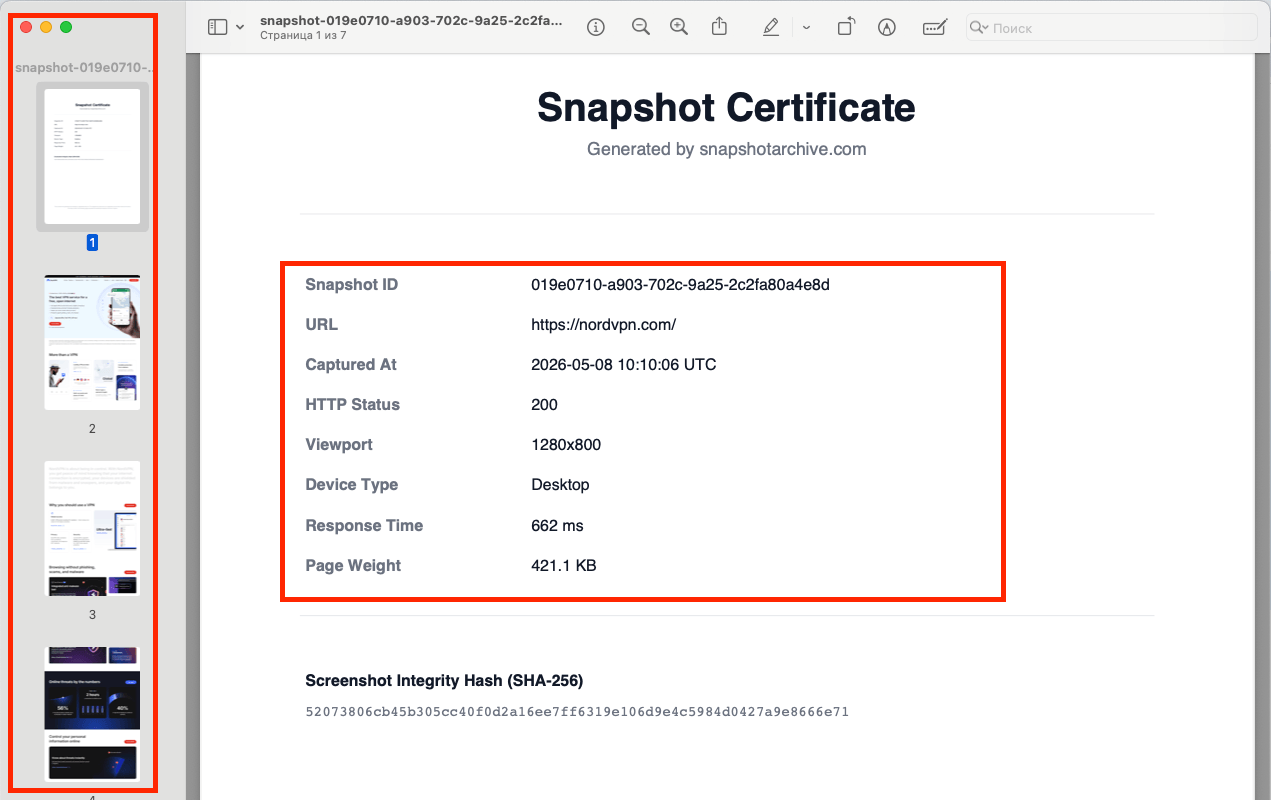
So every PDF you export from snapshotarchive starts with a separate page, the Snapshot Certificate. It carries the snapshot ID, the URL, the exact UTC capture time, the HTTP status, the viewport, the device type, the response time, the page weight, and a SHA-256 hash of the PNG screenshot file. It also includes a short note that the snapshot was generated automatically, with no manual edits. After the certificate, the screenshot itself begins: a pixel-perfect copy of the PNG, split across A4 pages.
One PDF, one document. Open it next year and you have the full picture: which page, when it was captured, what the server returned, and a hash you can use to confirm the original PNG hasn't been swapped.
What lives on the Snapshot Certificate page
The certificate is the first page of every PDF, and it's what makes the file usable on its own. No need to pull anything else from the dashboard. It includes:
- Snapshot ID: the UUID we use to look up the snapshot internally and via the API.
- URL, the exact address that was captured.
- Captured At. Date and time in UTC, not whatever timezone your laptop happened to be in.
- HTTP Status: what the server actually returned: 200, 301, 404, 503. This is the field that ends "but the page worked for me" arguments.
- Viewport, for example, 1280×800. The window size the page was rendered at.
- Device Type. Desktop, Mobile, or Tablet.
- Response Time: how long the server thought before responding, in milliseconds.
- Page Weight, the total weight of the page resources.
- Screenshot Integrity Hash (SHA-256). The hash of the PNG screenshot file. If someone pulls the same snapshot through the API a year from now and wants to confirm the file hasn't been tampered with, they recompute the hash and compare. Done.
At the bottom of the page is a one-line statement that the snapshot was created automatically, without manual editing. That matters in a legal context: without that line, the PDF is just a file. With it, the file becomes a record of how it was made.
From page two onward, you get the screenshot itself. Long pages get split across multiple A4 sheets, edge to edge, with no margins and no quality loss.
Who actually needs PDF export over a plain screenshot
PDF export is built for specific situations where a screenshot doesn't cut it:
- Legal records in disputes with vendors or clients. A contract was breached, a page was deleted, a promise vanished from a landing page. Your lawyer wants a document with a fixed date, URL, and HTTP status: so the other side can't say "well it didn't load like that for me."
- Compliance in regulated industries. Pharma, fintech, gambling, crypto. Anywhere ad claims on a website have to be kept for years and pulled back up for any specific date.
- Client reports at agencies. A marketing agency shows a client how their site changed over the quarter. The client wants one PDF per change, not a folder of 60 PNGs.
- Site availability disputes. A vendor says the page worked. The client says they got a 404. The HTTP Status field on the certificate ends the argument: at the moment of capture, the server returned exactly what's recorded.
- Internal audits of public terms. Once a month, in-house lawyers grab PDFs of the public Terms, Privacy Policy, and rate cards. In case anyone ever asks "what did that page actually say in April."
One thing worth being upfront about: technical guarantees about how a file was made are one thing, and how that file holds up in a specific dispute depends on your jurisdiction. For serious cases, talk to a lawyer. We give you a document you can build a case on, but we don't replace legal advice.
How this differs from "Save as PDF" in your browser
Browsers can export pages to PDF too. Cmd+P, done. So why bother with anything else?
A few things just don't work in the browser version:
| Save in Chrome | snapshotarchive | |
|---|---|---|
| Automated capture on a schedule | You do it manually every time | Snapshots run hourly, daily, or weekly |
| Snapshot Certificate with metadata | No, just the page | First page of every PDF |
| HTTP status from the server | Not recorded | Stored in the certificate |
| SHA-256 hash for integrity checks | None | Hash of the PNG, written on the certificate |
| Capture without your involvement | No, DevTools is open, you could edit anything | The snapshot is made on our server |
| API access | None | Every PDF can be pulled by snapshot ID |
What changes here isn't the PDF on its own. A PDF saved in Chrome proves you had that PDF, and not much else. A snapshot made on our server, with a certificate carrying the hash and the timestamp, with the raw HTML stored next to it. That gives you a paper trail you can pull up a year later through one API call.
How this differs from the Wayback Machine and why that matters
The Wayback Machine is a great archive: we link to it ourselves sometimes when the original page is gone. But it's a different tool, and it doesn't cover the cases PDF export is built for.
For one, Wayback indexes pages on its own schedule. Your URL might end up there once a month, or never. If you need a snapshot of payment terms at 10:23 on April 14, Wayback most likely won't have one.
It also doesn't give you a PDF. You get a link to a page saved inside their interface. You can take that to court, but it isn't a standalone document you can attach to a filing or a report.
Wayback stores HTML, but in its own format, with rewritten links pointing back to its own resources, and with no guarantee the page will keep opening five years from now. With snapshotarchive, the HTML archive of every snapshot belongs to you: a gzip file you can download via the API and keep wherever you want, your own vault, your own S3, somewhere on disk.
Wayback is also public. Pages behind a login won't be saved. Internal client dashboards, account pages, anything with dynamic state. Those don't make it in.
Our setup is the inverse. You tell us which URLs matter, you set the schedule, and the result comes back in three forms: a PDF with a certificate, the PNG screenshot, and a gzip archive of the source HTML.
How it works in three steps
Add a URL to the dashboard and pick how often we should capture it: hourly, daily, weekly, depending on your plan. From that point, snapshots run on their own.
Each snapshot is stored in several formats at once: the PNG screenshot, the gzip HTML archive, and the technical metadata (HTTP status, headers, load time, console errors if any showed up). The PDF version with the certificate is available on paid plans from Starter and up.
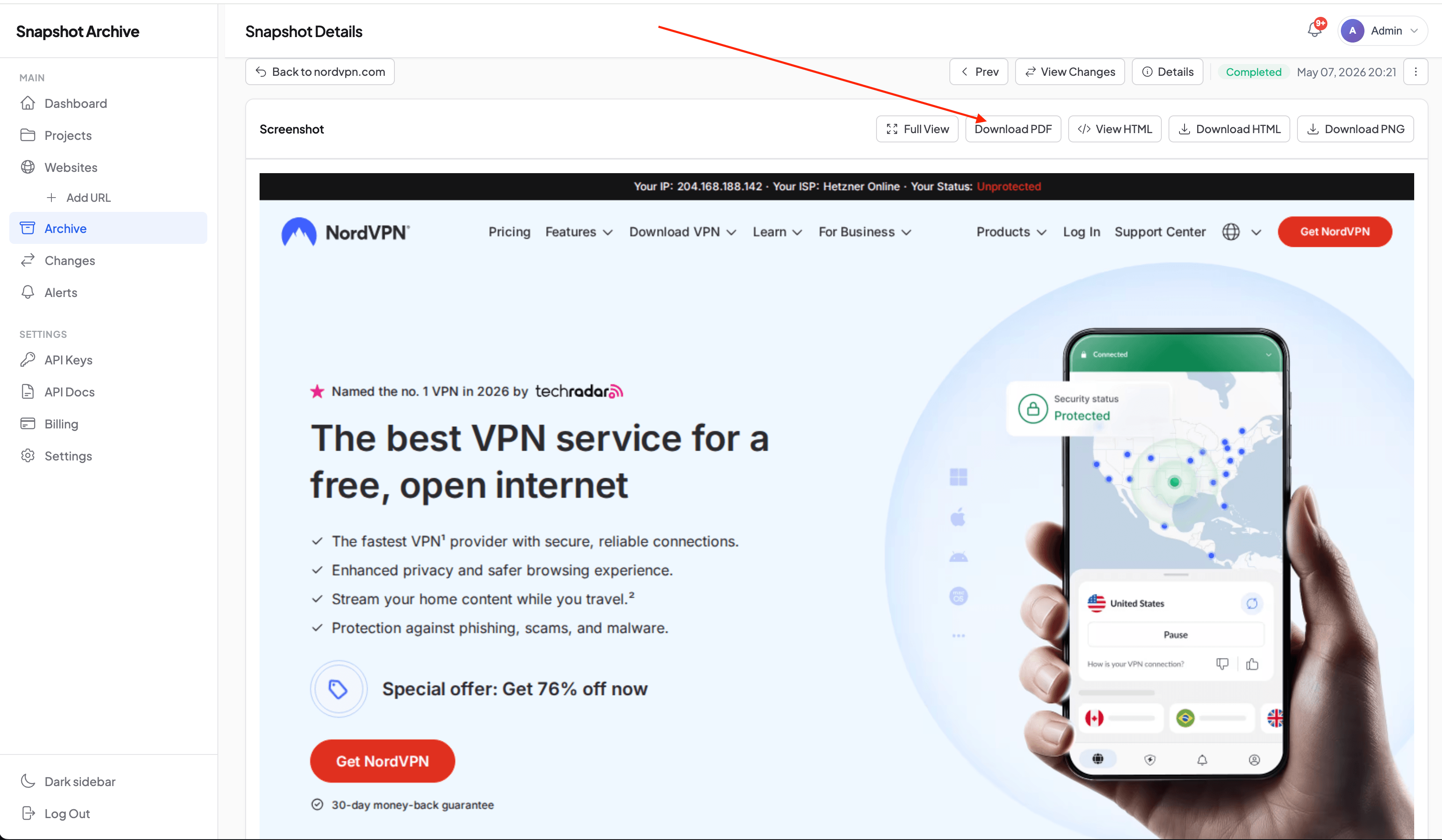
You can grab the PDF either from the snapshot card with the Download PDF button, or through the API.
GET https://snapshotarchive.com/api/v1/snapshots/{snapshot_id}/pdf
Authorization: Bearer YOUR_API_KEY
The endpoint responds with an HTTP 302 redirect to a temporary signed URL on our S3 storage. Most HTTP clients follow the redirect automatically, so in your code it just looks like a regular request: you ask for the PDF, you get the file.
Where this works less well, and what to know upfront
A few things are worth being clear about before you commit. PDF export covers the main cases well, but it isn't magic.
You can't select or search the text inside the PDF. That's by design. The PDF is built from the PNG screenshot itself, so the document is a pixel-perfect copy of what our server captured. We tried generating PDFs through Chromium's native print mode at first, and the text was searchable, but the visual didn't match the screenshot. Print stylesheets kicked in, layouts shifted, blocks got squeezed. For legal records, having the document look exactly like the page looked at capture mattered more than Ctrl+F support.
Very long pages (tens of thousands of pixels tall) turn into PDFs that span a lot of A4 sheets. A single "virtual page" of a website can stretch across ten or fifteen sheets in the document. For long feeds, the PNG snapshot is often the more practical artifact, and the PDF makes more sense where the format itself matters. Attaching to a contract, including in a report.
Pages with heavy animation or video: the PDF captures one frame. If the content is genuinely dynamic, a static document won't tell the full story. For "the site looked like this at that moment," the PDF works fine. For "the video on the page played without bugs," it doesn't, and a screen recording is the better tool.
The free plan doesn't include PDF export. You get 3 URLs, daily snapshots with PNG, the HTML archive, and HTTP metadata, enough to see how the system behaves on your pages. PDFs with certificates, full-page screenshots, and faster schedules are on the paid plans starting with Starter.
What you actually walk away with
Every PDF from snapshotarchive is a document you can open a year later and get the full context from one file. Which page, when it was captured, what the server returned, and a hash you can verify against the original PNG. Not a folder of PNGs. Not a Wayback bookmark. Not a screenshot someone "thinks they took in April." One file, everything in it.
From there, you can use it however fits. Snapshots can be compared with each other through visual diff, marked with watermarks for extra protection on the PNG, or pulled (both PDFs and HTML archives) straight into your own document system through the API. Each piece works on its own, but together they handle the kind of work PDF export was built for: being able to show that on a given day, a given page really did look this way.
The simplest way to try it is to add a couple of your URLs on the free plan and see how the system handles them. When you decide you need a PDF with a certificate and the full-height screenshot, the pricing page is right there.
Start archiving websites today
Free plan includes 3 websites with daily captures. No credit card required.
Create free account