
Automated website screenshots: you set the URL, we handle the rest
Every 30 minutes or once a week. Pick the schedule, and the snapshots accumulate in the archive without your involvement. No gaps, no missed deadlines, no manually-named folders by date.
Four jobs scheduled screenshots do best
Before we get into settings: four scenarios where automated scheduling really earns its keep. We tried all four ourselves on Snapshot Archive and wrote up the results in separate posts.
Long-term competitor archive. A competitor's pricing page once a day for a year, that's 365 snapshots showing the history of their experiments with prices, tiers, and packaging. Six months in, you have data nobody but the competitor themselves has. What we found monitoring SaaS pricing pages is exactly about this.
Compliance archiving for Terms and Privacy. Regulators ask you to prove what your or someone else's page looked like on a specific date. A daily schedule plus retention in the archive give you that by default. No need to remember the capture, no risk of a gap. The workflow for Terms and Privacy shows how this comes together in a couple of minutes.
SEO snapshots and SERP monitoring. A list of your top 50 pages plus the SERP for your key queries: once a week for a year. When Google does an algorithmic update, you have an archive of how the pages and the SERP looked before and after. Manual monitoring won't last a week at this scale.
Weekly client reports for agencies. Ten client sites, each captured once a week. Monday morning the agency has a fresh archive ready to send out, with no work over the weekend. The watermark with date and URL on each snapshot makes the archive ready for an official report without further processing.
How it works in practice
From account to first record in the archive, six steps, about five minutes of real time. After that the system runs on its own, and your involvement is only needed when you want to change settings or pull a snapshot for a report.
Create an account
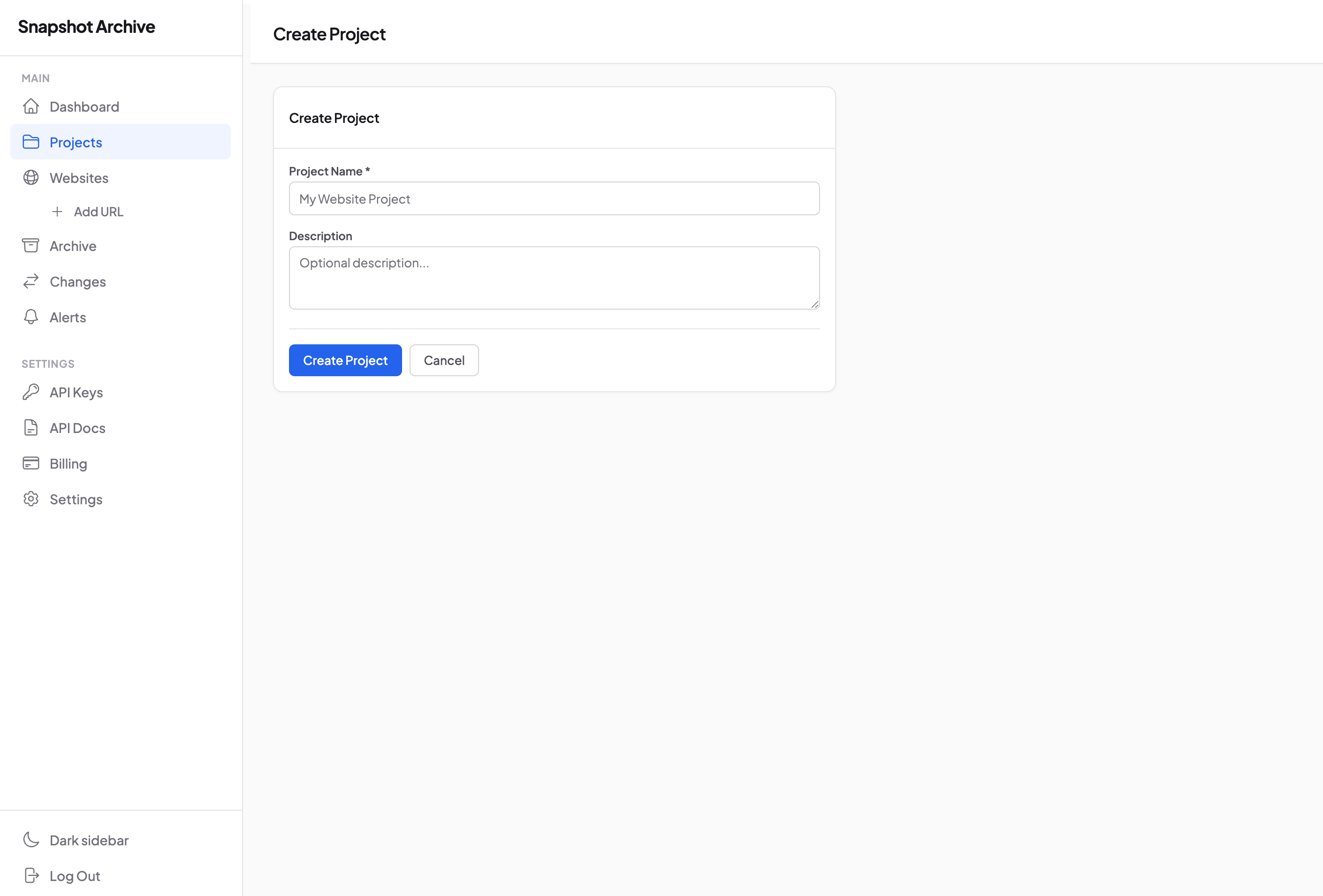
Create a project (optional)
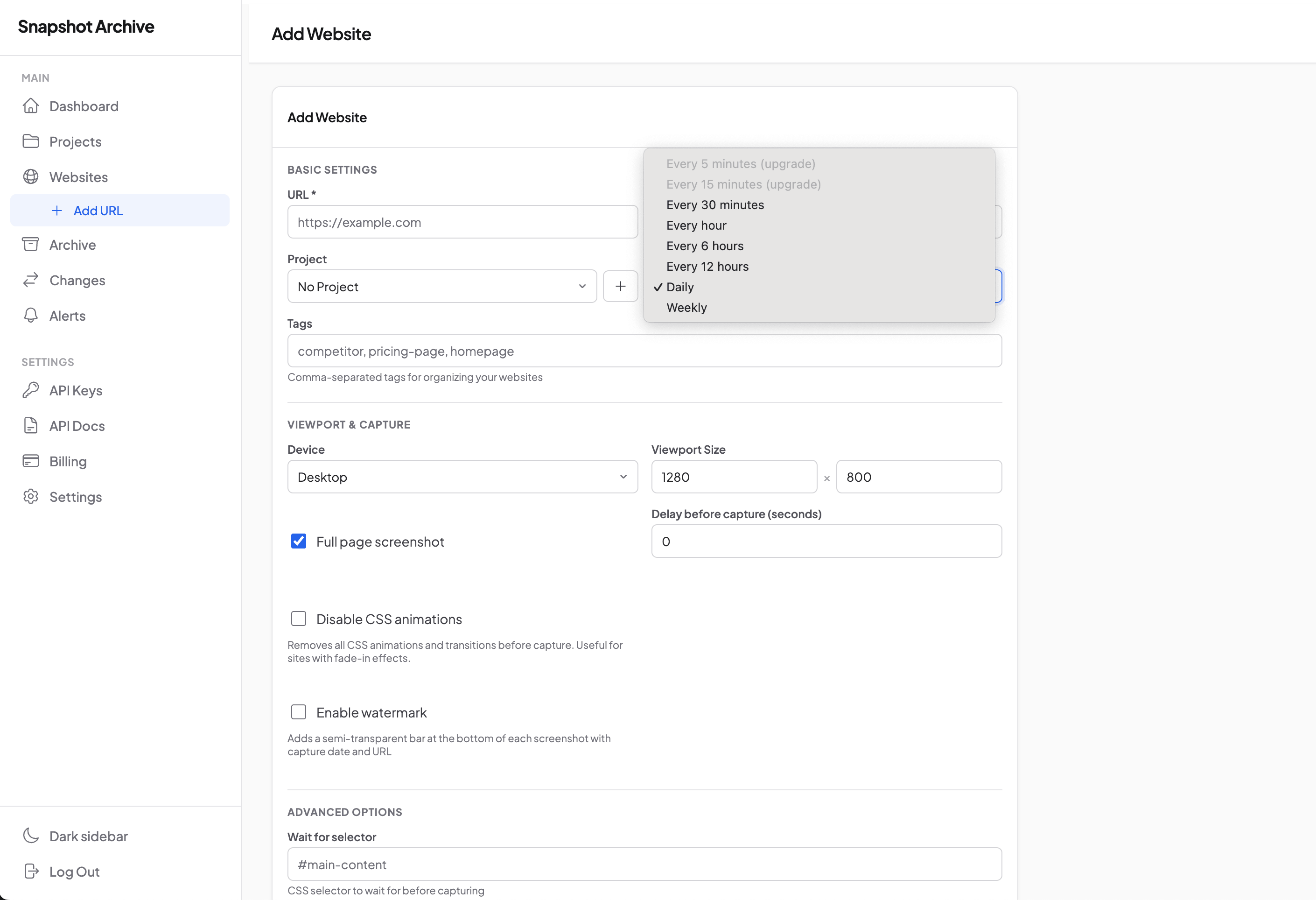
Add a URL and pick a frequency
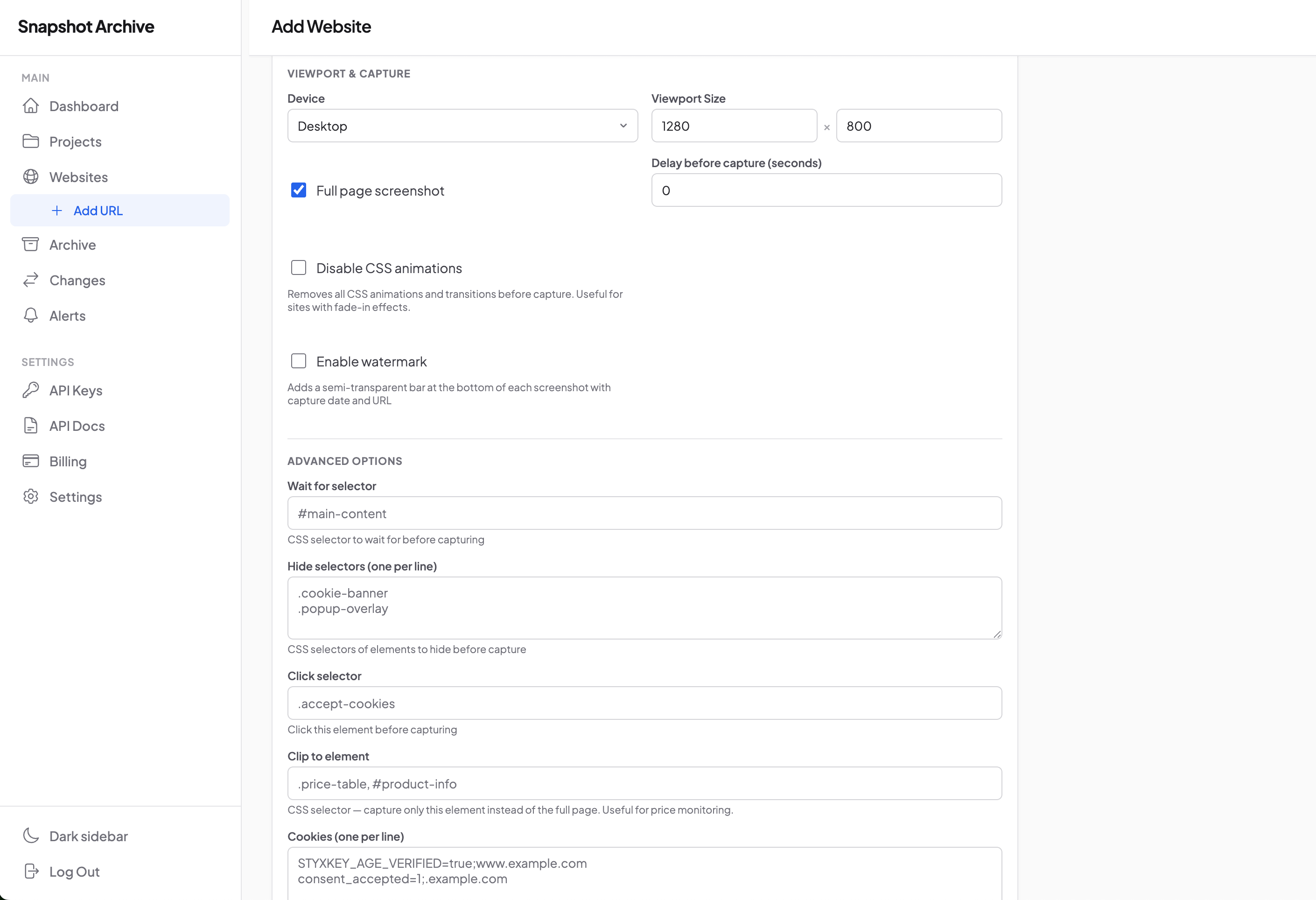
Configure viewport and advanced options
You
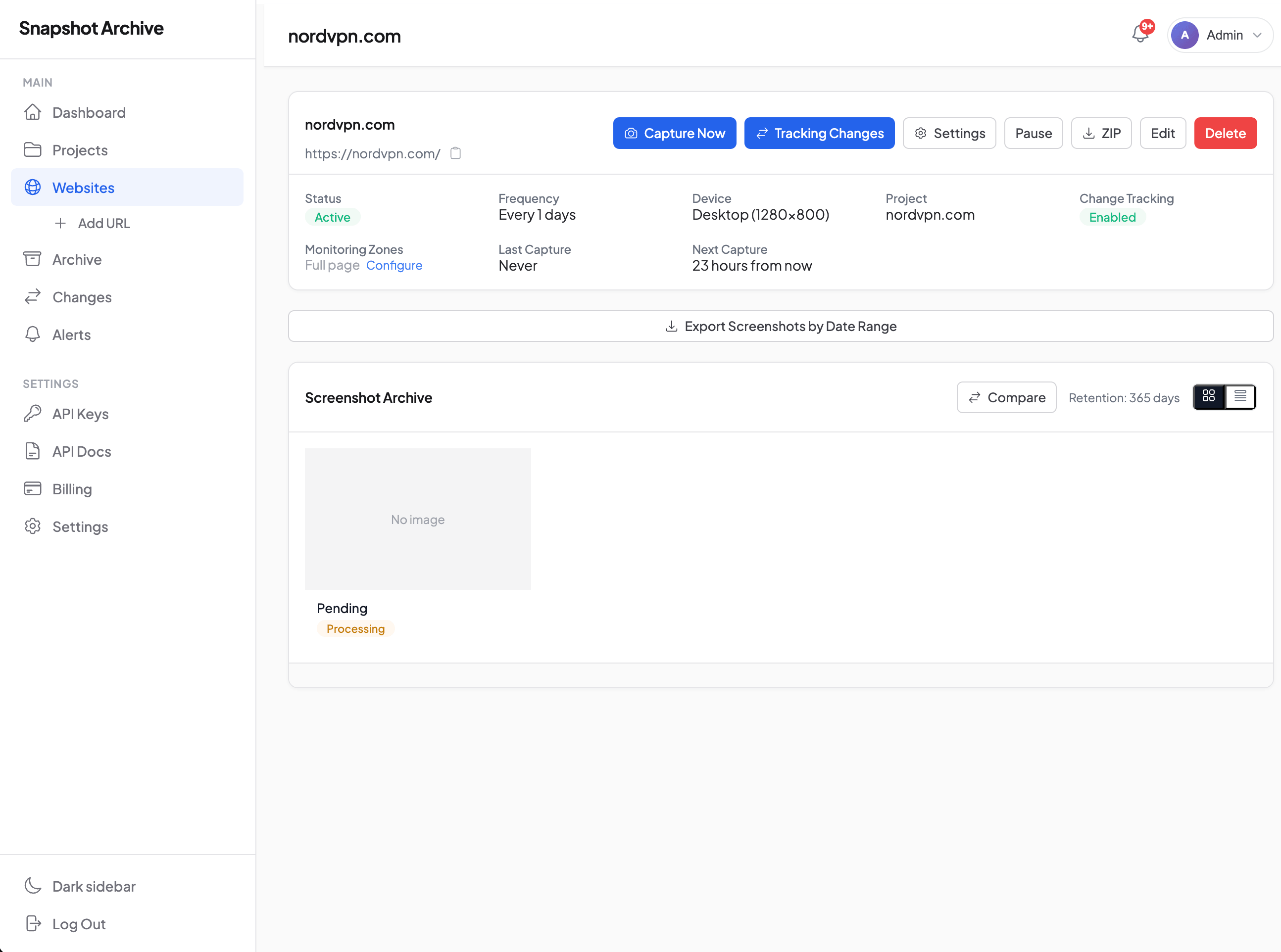
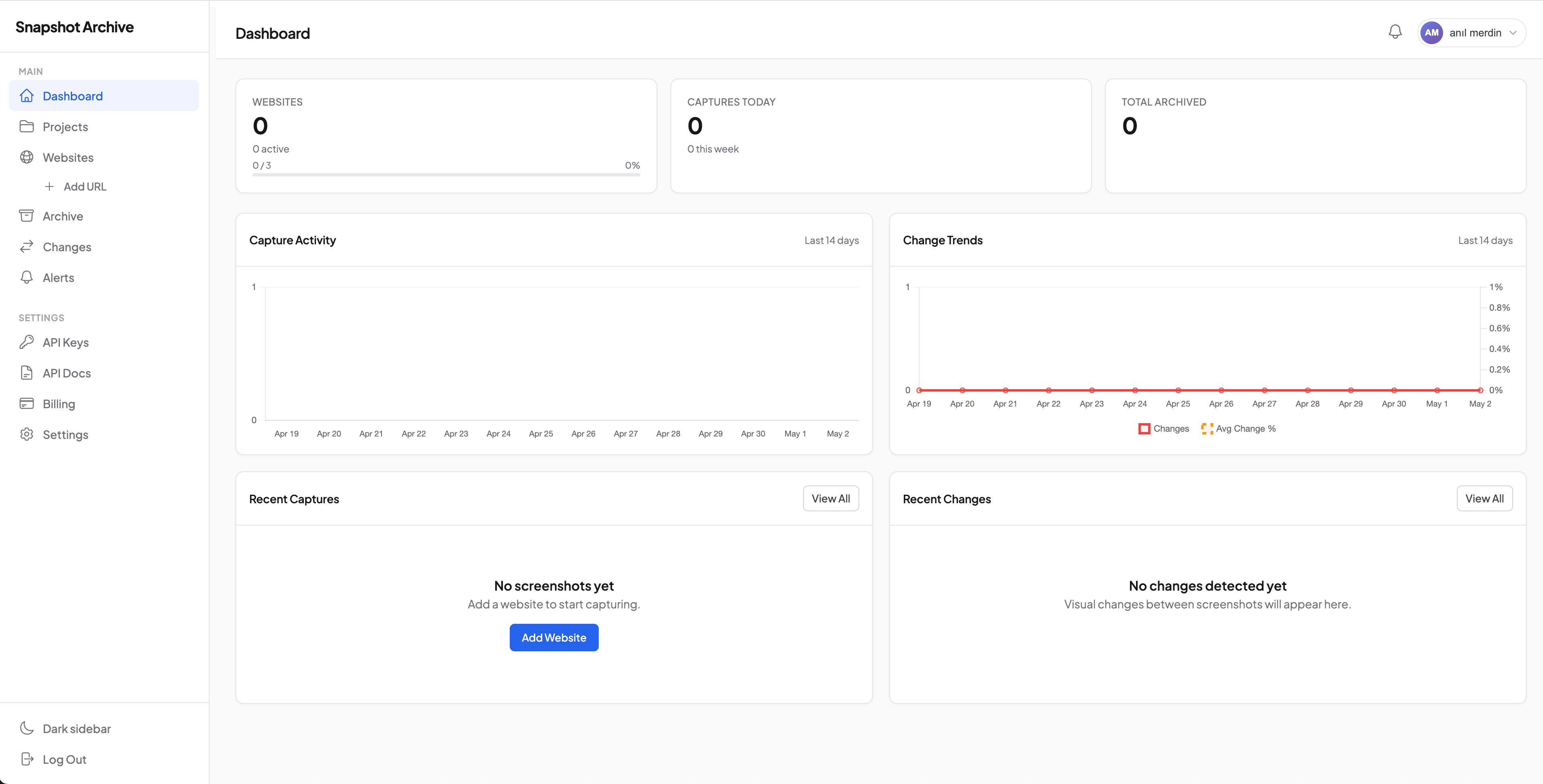
The archive fills up on its own
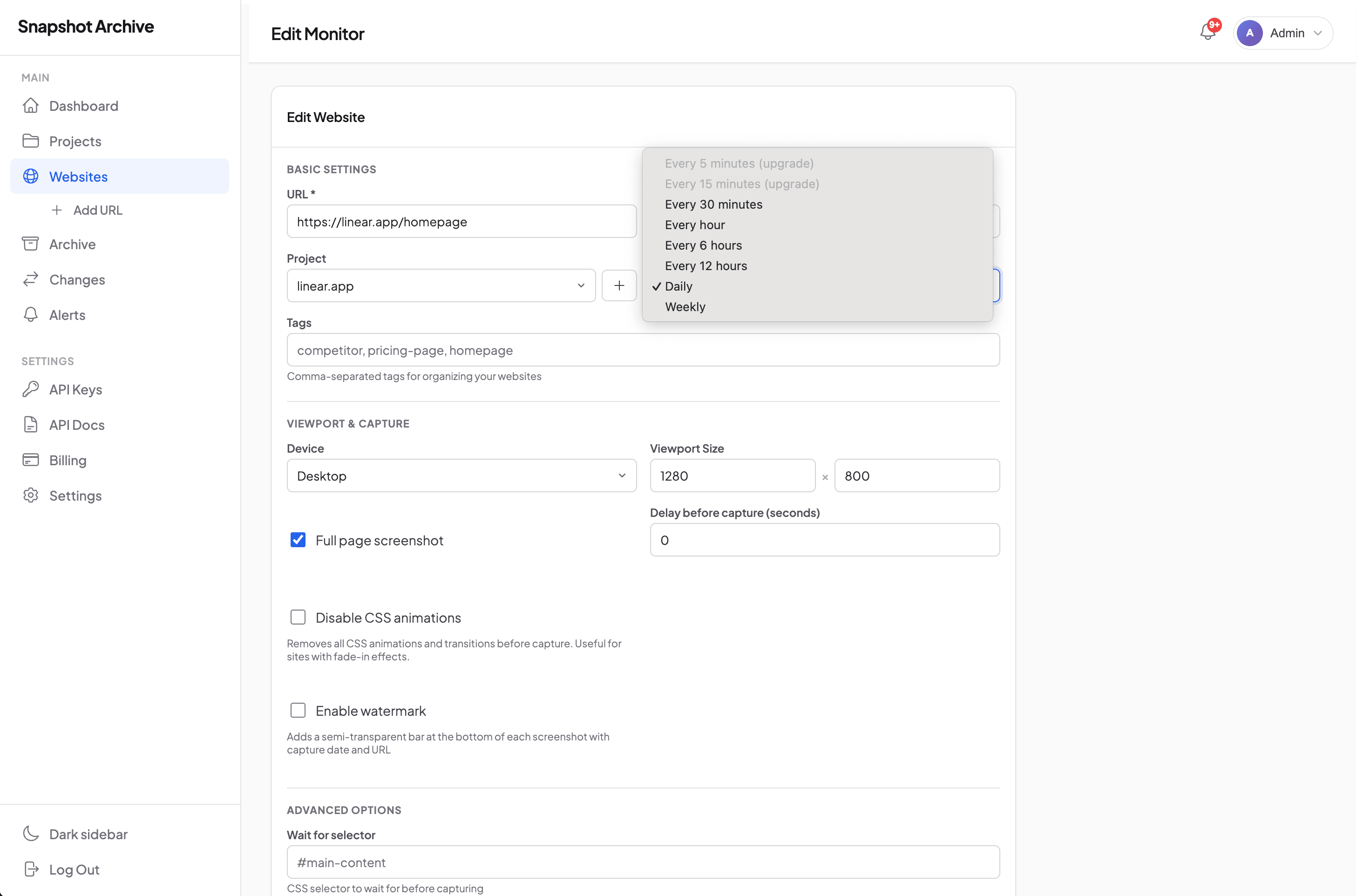
Schedule: from 30 minutes to weekly
Six intervals to pick from. Which one fits depends on what you're monitoring and how much granularity matters. Available intervals depend on the plan.
| Interval | Minimum plan | When it fits |
|---|---|---|
| Every 30 minutes | Business | News sites with fast flow, breaking news monitoring |
| Every hour | Growth | Competitor pricing pages during an active product launch phase |
| Every 6 hours | Pro | Regular pricing monitoring, release tracking |
| Every 12 hours | Starter | Corporate homepages, content pages |
| Once a day | Free | Terms, Privacy, blog landing, static pages |
| Once a week | Free | SEO snapshots, agency client sites, slow-moving content |
The schedule is calculated from the moment of the last successful capture, not from a fixed time of day. If you added a URL at 14:30 with a 6-hour interval, the next captures will be at 20:30, 02:30, 08:30, and so on. This simplifies planning and removes the "everything captured at midnight, queue jammed" problem.
If several captures in a row fail, the schedule doesn't try to "catch up": it waits for the next successful capture and counts the interval from there. So after the site comes back online you don't get a series of delayed captures all at once.
Capture Now outside the schedule. If you need to capture right now (after a page redesign, before a client presentation, to verify settings), the Capture Now button or a POST /api/v1/monitors/{id}/trigger call runs the capture immediately. The next scheduled capture shifts, it's recalculated from the moment of the manual trigger, not from where it was before. This is intentional: after a manual capture there's no point doing the next scheduled one in 10 minutes if the interval is 6 hours.
What ends up in the snapshot
When you add a URL, you decide how exactly to capture the page. Most options can stay at their defaults, but for non-trivial cases everything you need is right here in the form.
Viewport. Desktop 1280×800 by default. Can be changed to any size. Mobile 375×667 for a separate mobile capture of the same page, or custom for specific cases (tablet, ultra-wide, retina).
Full page or viewport. By default it's full page, a capture of the entire page including content below the fold, not just the first screen. This is the right default for most tasks, especially for archiving. When you only need the viewport. we capture what the user sees without scrolling. Full page vs viewport mode comparison covers when to pick which.
Delay before capture. A delay in seconds before the snapshot itself. Useful for pages with slow asset loading, lazy-load images, or animations that need to finish playing. From 0 to 30 seconds.
Disable CSS animations. On sites with fade-ins and complex animations, two adjacent captures can land on different frames of the same animation, producing false diffs. Turning off animations before capture removes the problem.
Enable watermark. A semi-transparent strip at the bottom of the snapshot with the capture date and the page URL. This is the option that makes snapshots usable for compliance and legal: no doubts about when and where the frame was taken. Particularly valuable for archiving Terms, Privacy, and any regulated documents.
Wait for selector. A CSS selector whose appearance we wait for before capturing. The solution for SPAs, pages with slow JavaScript rendering, and lazy-loaded content. Until the selector appears, capture doesn't run.
Hide selectors and Click selectors. Removing noisy elements before capture, and clicking on elements that need to be dismissed. Covered in detail in separate posts, on hide selectors for cookie banners and on click selectors for popups.
Custom cookies. Session cookies for pages behind a login or age gate. How it works and how to bypass age verification.
Custom headers and HTTP auth. Arbitrary HTTP headers and Basic Auth. For pages on staging servers, pages behind corporate auth, and API endpoints with non-standard authorization. Available on Pro and above.
Clip selector. When you need a snapshot not of the whole page but of one specific element: clip_selector restricts the capture to the bounding box of the given CSS selector. Useful when monitoring a specific card, section, or widget while there's a lot of noisy content around it that you don't want to redraw every time.
Reliability you can document
A schedule only matters if you can rely on it being executed. A failed capture, a quietly slowing server, a forgotten error, all of that turns the archive into something with holes, and useless for compliance.
A few layers of defense that keep the system from failing silently:
30-second capture timeout. If the page hasn't loaded in 30 seconds, the attempt is interrupted. This is a working compromise: long enough for slow pages with heavy graphics, but not so long that one stuck site blocks the queue. On top of that, a 40-second HTTP timeout on the request to the renderer and a 120-second hard cap on the worker, so a hung process can't stay in the system forever.
Three retries with growing delay on system-level failures. If a capture fails because of an unhandled error (renderer unavailable, network blip, worker restart), the job is automatically re-queued after 30 seconds, then after 60, then after 120. Most transient issues resolve on the second or third try. If the renderer responded but the capture didn't go through (page returned 500, ignored Wait for selector, blocked the bot), the snapshot is marked failed immediately with no retries. This is intentional: retrying a known-failing capture in hope of a miracle wastes minutes and clogs the queue. A snapshot tagged failed with the exact reason is more valuable than three useless retries.
Automatic switch to error state after 5 consecutive failures. If five consecutive captures fail, the monitor moves to status error and the owner gets an email notification. Captures on this monitor stop running until you sort out the cause. That means a broken monitor doesn't silently accumulate a hole in the archive: you find out about the problem within a couple of cycles after it appears.
Full log on every snapshot. For each capture, we save the HTTP status (200, 308, 404, 500), response time in milliseconds, page weight, link statistics, and completion status (pending | processing | completed | failed). On the Business plan, browser console errors are also recorded, useful when monitoring your own production site and you want to see JavaScript issues in the archive too. If something went wrong, you can see when and why, no guessing required.
This means the archive over six months has no "holes of unknown origin." Every day is either a successful snapshot with metadata, or a clear error with a recorded cause, or an automatic stop on the monitor with notification.
Where the screenshots live
Each snapshot lands in an archive organized by projects and tags. All snapshots of one URL sit on a single page in chronological order. Open it and you see the history of the site by day, week, month.
Export in three formats. The snapshot page has buttons Download PDF, Download PNG, Download HTML, and Download Package (a zip with everything at once).
- PDF: for archiving into compliance systems and forwarding to clients.
- PNG, for reports, presentations, documents.
- HTML. The source code of the page at capture time, for text analysis and content search.
- Package: everything in a single archive for long-term storage.
Watermark on snapshots. When the Enable watermark option is on, every PNG carries a semi-transparent strip with date and URL. This is the key detail for legal evidence: a snapshot without a watermark can be challenged as "unclear when it was taken," a snapshot with a watermark cannot.
Projects + Tags for organization. Projects group related URLs (by client, by topic, by product). Tags are a flexible cross-cutting dimension (competitor, pricing-page, homepage). The archive can be filtered by any combination.
Sharing links for reports. Each snapshot gets a public link (no login required) that you can send to a client, a lawyer, or a colleague. The link shows the snapshot, capture date, and watermark, without giving access to the rest of the archive. This covers the agency use case: hand specific snapshots to a client in a report without creating a separate account for them.
How long snapshots are kept
Retention is one of the key properties of the archive. If snapshots are deleted after a week, the archive is useless for compliance, legal evidence, and long-term competitor trends. That's why retention scales with the plan. From 30 days on Free to 3 years on Business.
| Plan | Retention | Fits for |
|---|---|---|
| Free | 30 days | Testing the product on your own tasks before upgrading |
| Starter | 90 days | Regular monitoring with a 3-month horizon: competitor pricing, post-deploy regression |
| Pro | 1 year | Full archive with a yearly horizon, annual client reports, tracking seasonal campaigns |
| Growth | 2 years | Multi-year tracking. Long-term SEO trends, legal evidence up to 24 months |
| Business | 3 years | Maximum archive: enterprise compliance (SOC 2, GDPR), regulatory requirements |
What happens to snapshots after retention expires. Snapshots older than the term are deleted automatically by background jobs in full, both the file and the database record. So when picking retention it's worth thinking about how far back you actually need access. If a five-year trail matters for your compliance case. Business at 3 years doesn't cover the task, you'll want to export through the API into your own long-term storage.
What's not separately counted in retention. Diff records are tied to snapshots: every diff lives exactly as long as both linked snapshots live. When one of them goes by retention, the diff is deleted with it. This is reasonable: "before ↔ after" is meaningless without one of the sides.
When retention becomes critical. For everyday pricing monitoring, 90 days on Starter is more than enough. For compliance cases retention matters specifically, for example, GDPR requires keeping evidence of privacy policy changes for 3 years, which falls only into Business. SEC 17a-4 requires 6 years. that's not covered by any plan, and for such cases there's a workflow with S3 export (see the API section).
Can you download the archive before retention expires. Yes, at any time. The ZIP package (GET /api/v1/snapshots/{uuid}/package) bundles PNG, PDF, and HTML of one snapshot into a single archive. To download a monitor's full archive there's pagination via the API. This doesn't reset retention: snapshots stay in the system until their term, downloading doesn't extend it.
Access through the REST API
Beyond the web interface, all the same things are available through the API. This is a strong side of the product, Stillio and Visualping have limited APIs, ours has near-full coverage.
What you can do through the API:
- Create and manage monitors.
GET/POST/PUT/PATCH/DELETE /api/v1/monitors(full CRUD) - Trigger capture immediately:
POST /api/v1/monitors/{id}/trigger - Get the list of snapshots,
GET /api/v1/monitors/{id}/snapshotswith pagination - Download snapshots in any format. PNG, PDF, HTML, or a ZIP package
- Get diff data:
GET /api/v1/monitors/{id}/diffswith the list of visual comparisons andchange_percent - Manage projects, full CRUD on
/api/v1/projects - Check current usage and plan limits.
GET /api/v1/accountandGET /api/v1/account/usagefor tracking how many snapshots and sites are already used relative to quota
Authentication uses Bearer tokens, rate limit is 60 requests per minute per key. Every response carries X-RateLimit-Remaining for monitoring. Full documentation is in the API reference.
What this means is that Snapshot Archive can be integrated into your internal systems: pull snapshots into your Slack channel, attach the latest snapshot to a Jira ticket, generate reports in an agency's client portal, export the archive to S3 for long-term storage beyond retention.
Paired with Visual Diff
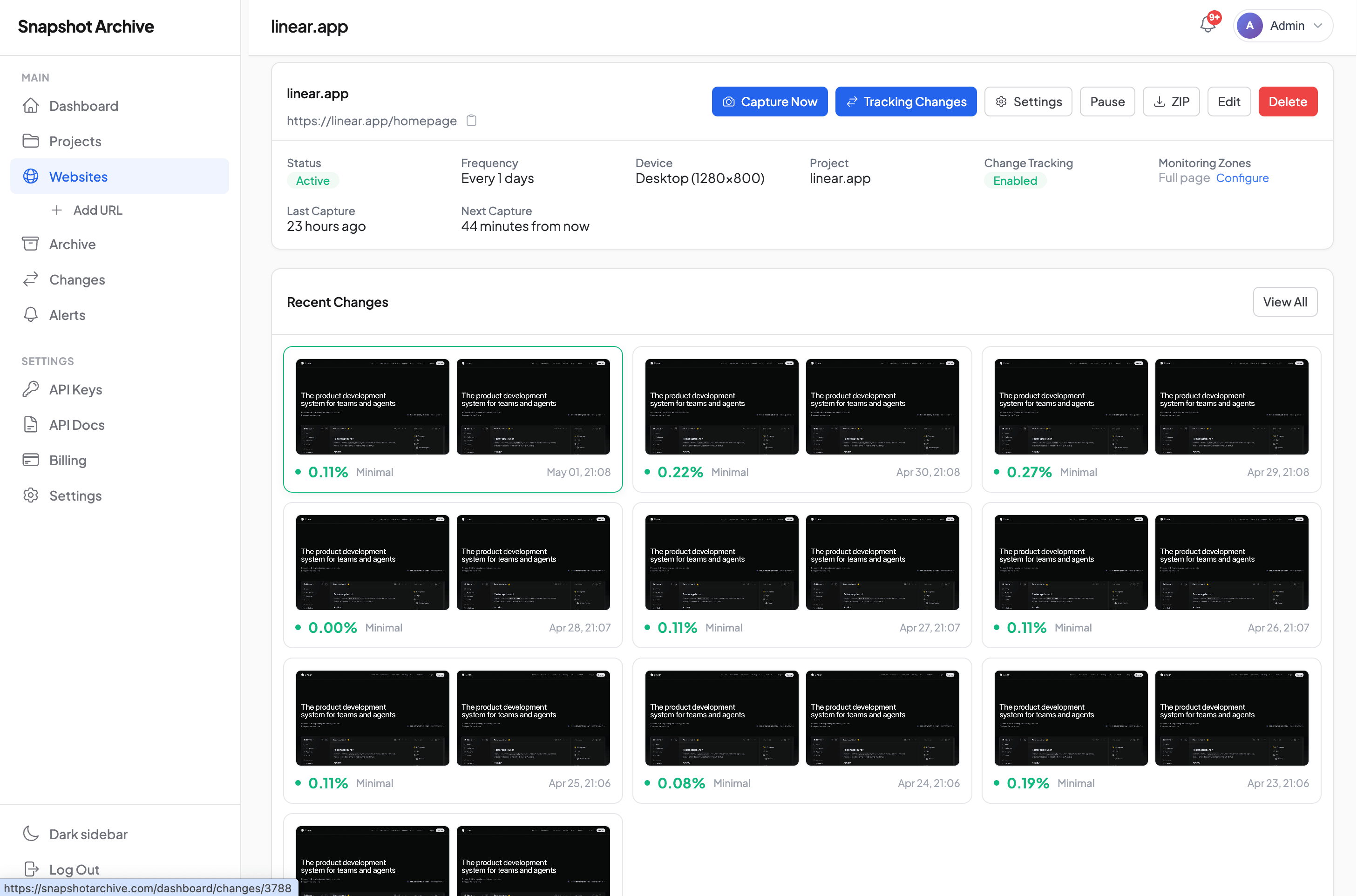
The schedule is half the story. When two adjacent snapshots come in, Visual Diff finds what changed between them and sends an alert if the change is meaningful. Without Visual Diff, the schedule gives you an archive. Together they give you monitoring.
You can use just the schedule, if the task is archiving and compliance, and you'll look at changes manually when needed. Or with diff. when you need to know about changes as soon as they happen. Visual Diff is included on every plan.
Try it without the risk
Scheduled screenshots are a feature that runs idle for the first couple of days and then starts paying off. After a week you have an archive, after a month (data, after six months) material that wouldn't exist with manual monitoring.
The free plan is enough for a test: 3 sites, daily captures, 30-day archive. Enough to put monitoring on a real task and see how the automated archive behaves after a week of running. For PDF export, more frequent intervals, and long retention, move to Starter at $14 per month. Nothing to configure, no cron expressions, no infrastructure. Add the URL, get the first record in the archive in 24 hours.
Start archiving websites today
Free plan includes 3 websites with daily captures. No credit card required.
Create free accountFrequently Asked Questions
Free gives 3 sites, daily captures, 30-day archive, and email notifications. The limits: no PDF and HTML export, no webhook and Slack, no API access, no Visual Diff. Free is for testing the product on your own tasks. For working use — particularly compliance, where you'll want PDF archives and longer retention — go with Starter or above.
The schedule is recalculated from the moment of the last successful snapshot. If the interval was 6 hours and the last snapshot was at 12:00, switching to 1 hour means the next snapshot will be at 13:00, not at 18:00. Old snapshots stay in the archive as they are.
Limits are determined by site count and frequency. Pro, for example, gives 50 sites with intervals down to every 30 minutes — that's potentially 2,400 snapshots a day if all sites were on the maximum frequency. In practice most monitors run on a 6-hour or daily interval, and the site limit matters more than the snapshot limit.
Yes. The Pause button on the monitor card stops captures but keeps the archive accessible. Resumes with one click. Useful when you're monitoring seasonal campaigns or want to save quota.
The snapshot is saved with the error HTTP status (404, 500, etc.) and a failed mark. The archive sees that the site was down at that moment — sometimes a more valuable piece of information than a successful snapshot. After 5 consecutive failed captures the monitor moves to status error, captures stop, and the owner gets an email notification. Once the cause is resolved, monitoring resumes with one click.
You set the Viewport to the desired resolution, for example 375×667 for iPhone format. The capture is taken with a mobile User-Agent, and respects mobile-specific layout. If you need both desktop and mobile at once — add the URL twice with different viewport settings.
Snapshots older than the new retention will be deleted. For example, going from Pro (1 year) down to Starter (90 days) will remove snapshots older than 90 days. Metadata and timeline remain accessible. Before downgrading, it makes sense to export important snapshots through ZIP package or the API.