
 Vitalii Holben
How to bypass age verification on websites using custom cookies

Some websites won't show you any content until the visitor confirms their age. Alcohol brands, tobacco companies, certain gaming platforms. On the first visit, a form appears asking for your date of birth. Until you fill it in and hit confirm, the page stays locked. For a real person, that's five seconds. For a headless browser taking automated screenshots, it's a dead end.
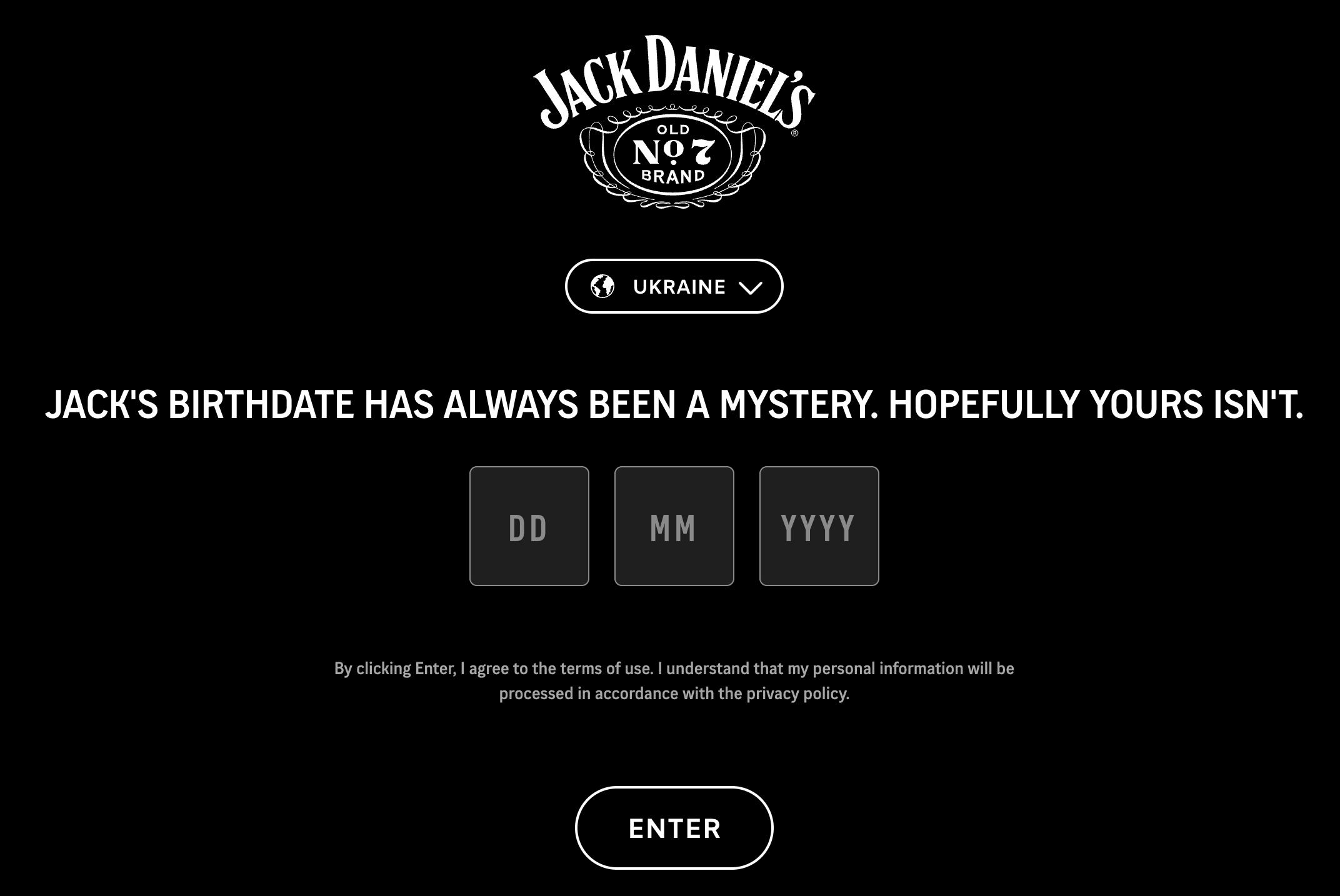
We've dealt with similar situations before: in our cookie banners article we showed how to hide consent popups using hide selector, and in the click selector guide we showed how to click the "Yes, I'm 21" button on liquor stores like CWSpirits and Fine Wine & Good Spirits. Both approaches work as long as there's a single button to press. But what do you do when there's a form with three input fields instead, and click selector can't handle it?
We ran into this on jackdaniels.com and solved it a third way: by setting a cookie directly, before the page even loads. The site checks for the cookie, sees that the visitor already passed verification, and skips the form entirely.
Why click selector won't work here and hide selector will make things worse
On sites like cwspirits.com and finewineandgoodspirits.com, age verification comes down to a popup with a "Confirm & Enter" button. One click and the page opens. But jackdaniels.com takes a different approach: instead of a button there's a full-screen form with three input fields: DD, MM, YYYY. Until all three are filled in, the ENTER button won't fire. Click selector can press elements, but it can't type text into fields, which makes sense because that's not what it was built for.
Hide selector (just hiding the form with CSS) is an even worse option here. The content behind the form isn't loaded. The site doesn't render the main page until age verification is complete, so if you hide the overlay, the screenshot shows a black screen with a logo instead of actual content. We needed a way to tell the site "verification is already done" before the page even starts loading.
How age verification cookies work under the hood
The principle is simple. After you enter your date of birth and press ENTER, the site writes a cookie to your browser: a marker saying "this visitor already confirmed their age." On the next visit, the browser sends that cookie with the request, the site checks for it, and skips the form. That's why when you come back to jackdaniels.com a second time, you land straight on the homepage with no verification screen.
If we find out the exact name and value of that cookie, we can set it in the headless browser before loading the page. The site receives the cookie, decides the visitor is already verified, and serves the content without the form. In Snapshot Archive, we built this as a dedicated setting, a "Cookies" field in the monitor configuration. The format is straightforward: name=value. Domain, one cookie per line. Before each screenshot, our browser sets the specified cookies, and the page loads as if the visitor has been there before.
Finding the right cookie on jackdaniels.com: step by step
The problem with no settings configured
We added https://www.jackdaniels.com to monitoring with default parameters, no selectors, no cookies. The first screenshot confirmed what we expected: a full-screen form with the Jack Daniel's logo, country selection , fINLAND. our server is in Helsinki, and three empty fields for DD / MM / YYYY.
Nothing useful in the screenshot. Visual diff in this scenario just compares two identical forms and shows 0.00%, no changes detected, because the actual content never loaded in the first place.
Passing verification manually and finding the cookie in DevTools
We opened jackdaniels.com in a regular browser, entered a date of birth, and pressed ENTER. The age gate disappeared, and we were looking at the full page. Navigation, video, content. Now we needed to see what the site wrote to the cookies.
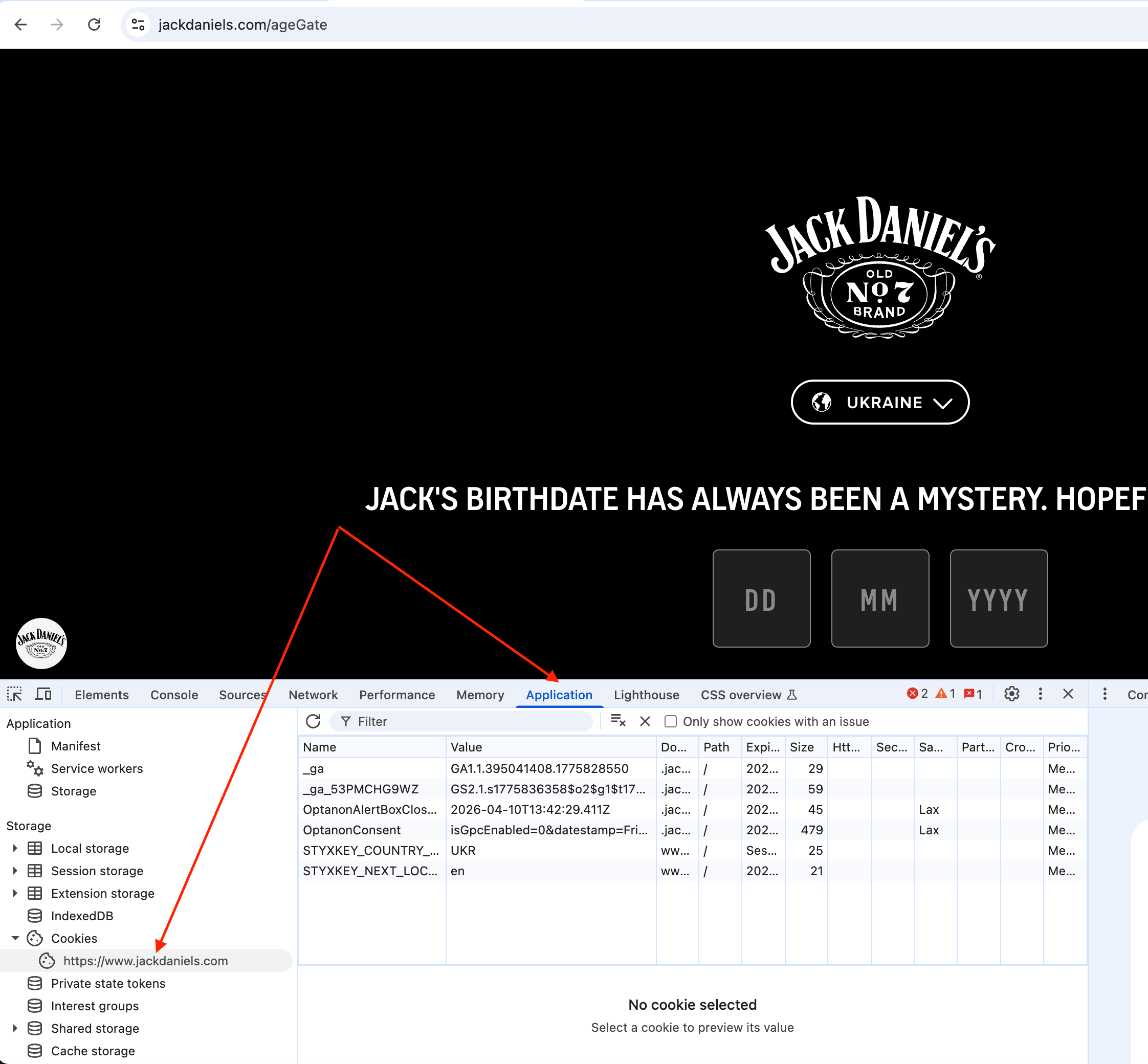
DevTools (F12) → Application → Cookies → www.jackdaniels.com. Among several entries, one stands out immediately: STYXKEY_AGE_VERIFIED with the value true, domain www.jackdaniels.com.

Next to it sit OptanonAlertBoxClosed and OptanonConsent: those belong to OneTrust, a cookie consent management platform that we covered in our cookie banners article with ready-to-use selectors. The other two cookies, STYXKEY_COUNTRY_COOKIE and STYXKEY_NEXT_LOCALE. Handle localization and aren't relevant for bypassing the age gate.
For comparison, here are the cookies on the same site before passing verification:
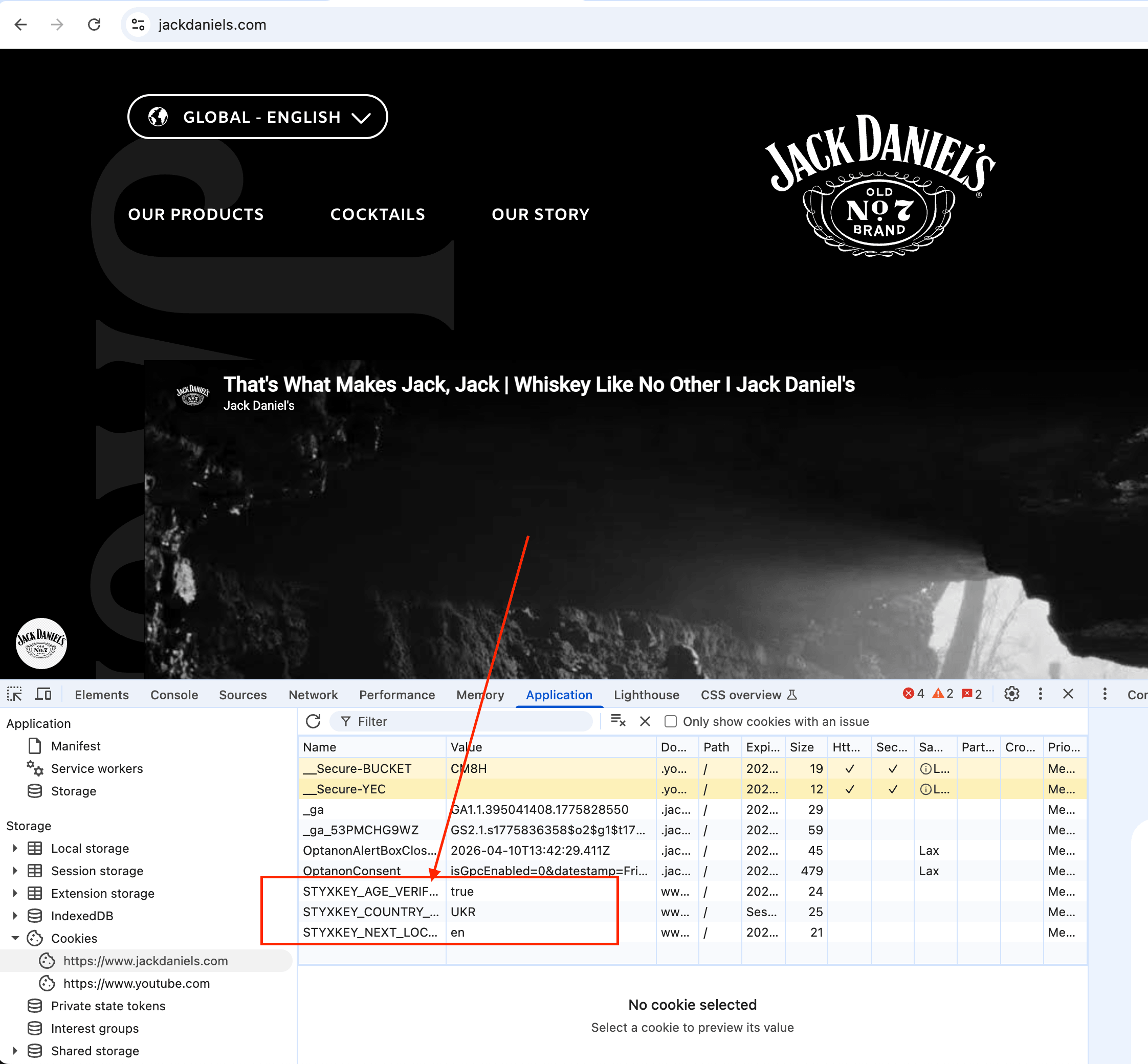
Google Analytics and OneTrust cookies are already there, but STYXKEY_AGE_VERIFIED is missing. That single cookie is what gives you the main content.
Adding the cookie to the monitor settings
In Snapshot Archive, we opened the monitor settings (Edit Monitor) for jackdaniels.com and added one line to the "Cookies (one per line)" field:
STYXKEY_AGE_VERIFIED=true. Www.jackdaniels.com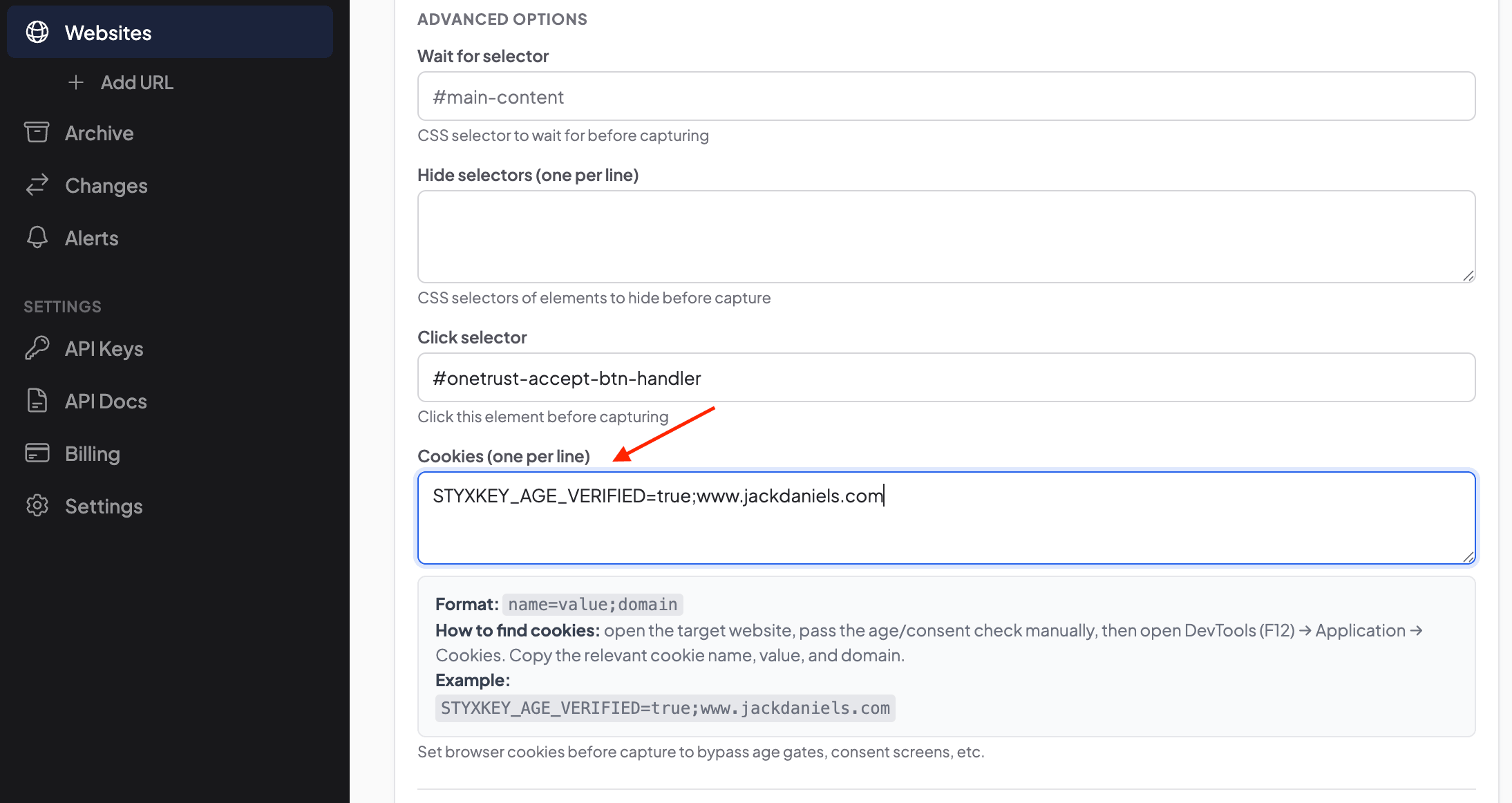
The format is name=value. Domain. If you need multiple cookies: say, to also dismiss the OneTrust consent banner by setting OptanonAlertBoxClosed, put each on a separate line. For the age gate alone, one cookie is enough.
Clean screenshots from the first capture
We pressed "Capture Now," waited a couple of seconds. The new screenshot came back clean. The site showed the full homepage with video and navigation, exactly as it would for a returning visitor who already passed verification.
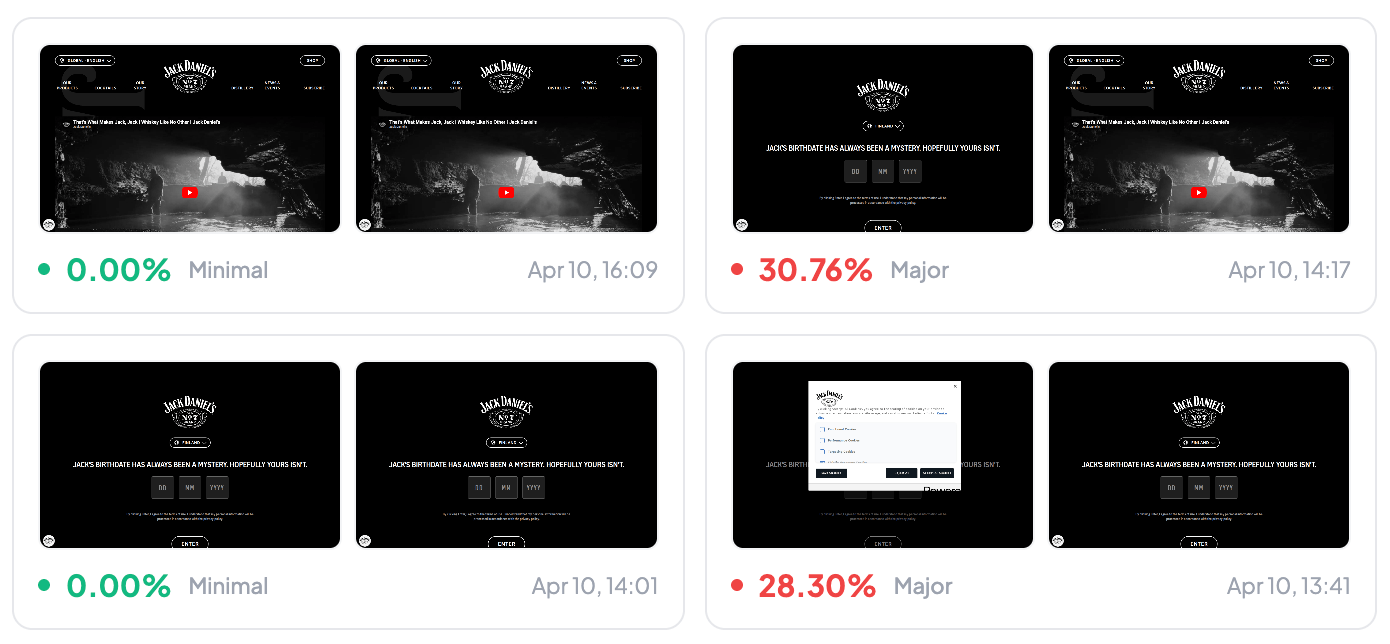
In Recent Changes, a pair appeared with 30.76% Major: because the diff compared the old screenshot (the age verification form) with the new one (actual content). That's a one-time transition. All subsequent pairs compare content against content, and visual diff catches only real changes from that point on, if Jack Daniel's updates a banner, changes a promotion, or restructures the navigation.
How to find the age-verification cookie on any site
The process is the same regardless of the site, and it takes a couple of minutes. Open the site in a regular browser (not incognito, so cookies get saved), pass the age verification, enter the date, hit confirm. Then open DevTools → Application → Cookies and look at what appeared. Age cookies are usually easy to spot by name. look for words like age, verified, gate, or adult in the cookie name.
If you want to double-check that you found the right cookie, open the same site in an incognito window, add the cookie manually through the DevTools console , document.cookie = "STYXKEY_AGE_VERIFIED=true", and refresh the page. If the age gate is gone, that's the one. If it's still there, you might need additional cookies, some sites check for both an age cookie and a locale cookie before showing content.
Three tools for dealing with popups and gates: when to use which
With custom cookies added, we now have three approaches for dealing with popups and gate screens, each covering its own class of problems:
Approach | When it works | Typical example |
|---|---|---|
Hide selector | Banner sits on top of already-loaded content | Cookie consent strips, promo overlays |
Click selector | Popup with a single confirmation button | "Yes, I'm 21" on liquor stores, "Accept cookies" |
Custom cookies | Form requiring field input, or you need to skip verification entirely | Age verification with DD/MM/YYYY, multi-step consent |
All three can be combined on a single monitor without conflicts. A site that shows both an age gate and a cookie consent banner is a common scenario: the custom cookie skips age verification, click selector closes the consent popup, and hide selector removes the leftover overlay in case the closing animation doesn't finish before the screenshot fires. Each tool handles its layer of the problem, and they don't interfere with each other.
We covered hide selector in detail in our cookie banners article. Including a table of CSS selectors for OneTrust, Cookiebot, TrustArc, Didomi, and Quantcast. Click selector and its real-world usage on Hetzner, CWSpirits, and Fine Wine are in a separate guide. And if visual diff starts showing false positives after configuring popup handling (usually from dynamic elements that appear once the gate is dismissed) we have a write-up on tuning thresholds and hiding noisy elements.
If you're monitoring alcohol or tobacco brand websites and are tired of screenshots showing nothing but an age verification form, give custom cookies a try. The free plan lets you track up to 3 URLs, which is enough to test the approach on a couple of sites and verify that the cookie you found actually works before scaling up.
Start archiving websites today
Free plan includes 3 websites with daily captures. No credit card required.
Create free account

7% of Amazon Pages Returned Errors With HTTP 200. Here's the Proof.
We added a handful of Amazon pages to track product prices. Instead of price changes, we started getting alerts about error pages. Turns out scheduled screenshots double as availability monitoring, and they catch things Pingdom never will.

How to Monitor a Specific Section of a Website (Without the False Alert Noise)
Full-page screenshots on e-commerce sites catch too much noise. Clip to element lets you capture only the block you care about — for cleaner diffs and fewer false alerts.