
 Vitalii Holben
How to Hide Cookie Banners, Popups and Age Gates From Automated Screenshots
When we first started testing Snapshot Archive on real websites, one of the first things that stood out was popups. We'd add a URL, wait for the first screenshot, open it. And there's a cookie banner covering half the page. Or an "Are you 21?" verification window. Or a "Subscribe to our newsletter" overlay. The content we wanted to archive was somewhere behind all of that, but the screenshot showed none of it.
For a regular visitor, this is a non-issue: click "Accept," click "YES, I'm 21," close the X, move on. But automated screenshots are taken by a headless browser that opens the page as a completely new visitor: no cookies, no session, no history. Every time, it sees the same popup. Every capture, the same modal blocking the same content.
We ran into this on hetzner.com (cookie banner), then on two liquor stores (finewineandgoodspirits.com and cwspirits.com (age verification). In each case, the fix turned out to be the same: a single CSS selector in the monitor settings. That's what Click selector is for) you specify the selector of a button, Snapshot Archive clicks it before taking the screenshot, the popup closes, the page loads fully, and the capture shows the real content.
Hetzner: a cookie banner that covers half the page
Hetzner is a European hosting provider: and the one we run our own servers on, so we added their homepage to monitoring to keep an eye on changes. The first screenshot came back looking like this:
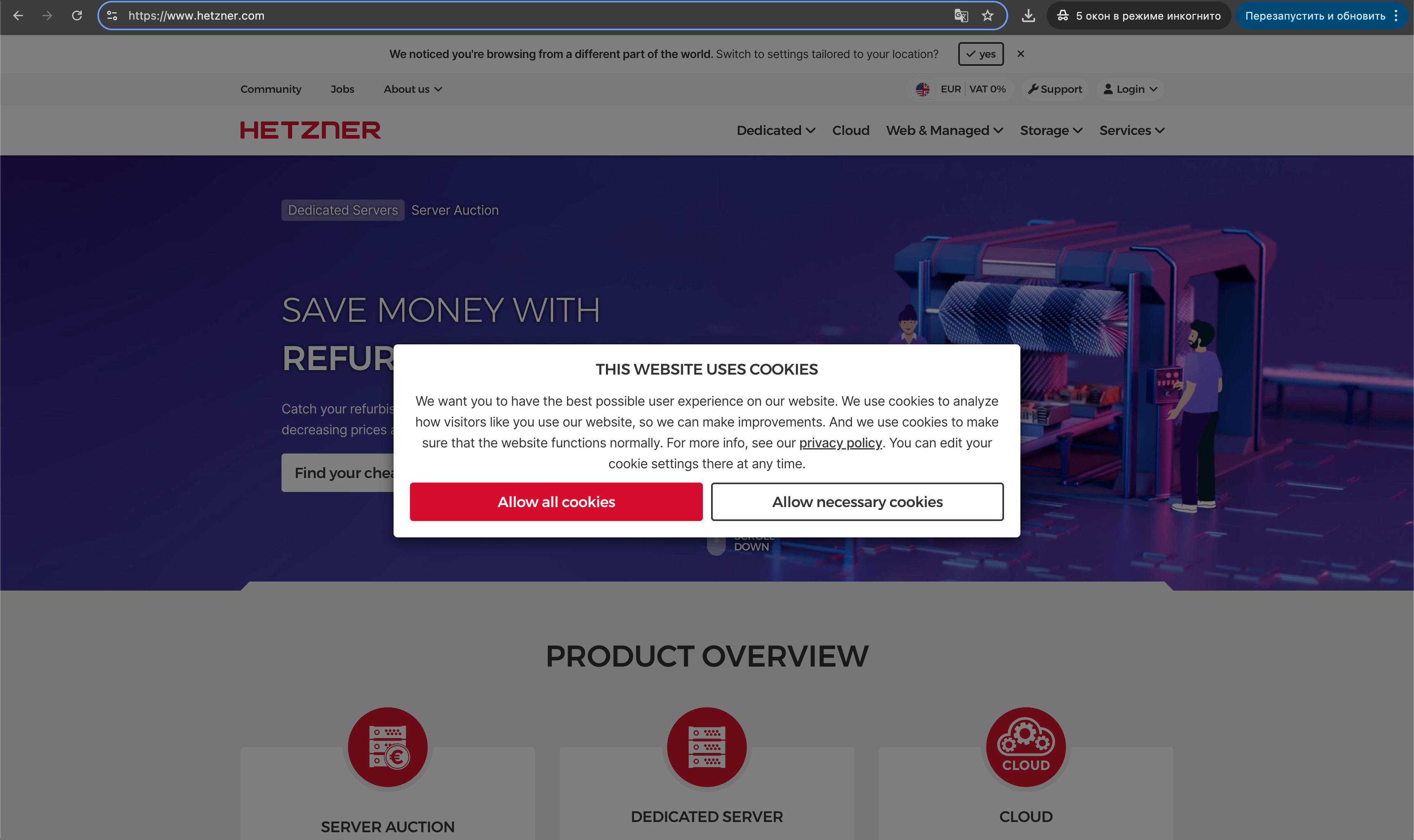
The banner covers most of the page. Visual diff is useless here, it just compares two identical modals every time and reports 0% change.
We opened hetzner.com in incognito and inspected the popup. The banner is a div with class .modal, and the accept button has id #AcceptCookies.
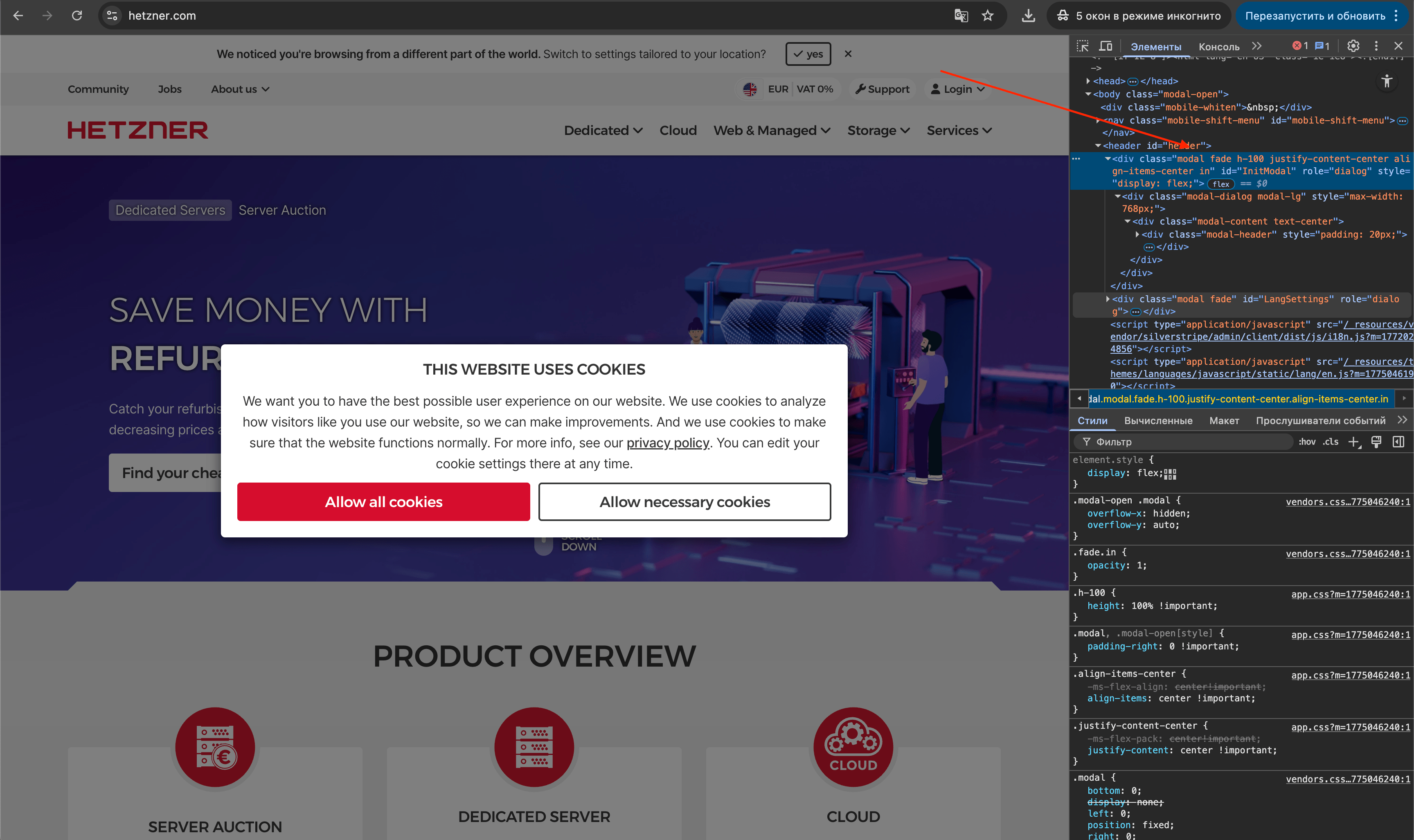
We added both to the monitor settings. Hide .modal and click #AcceptCookies:
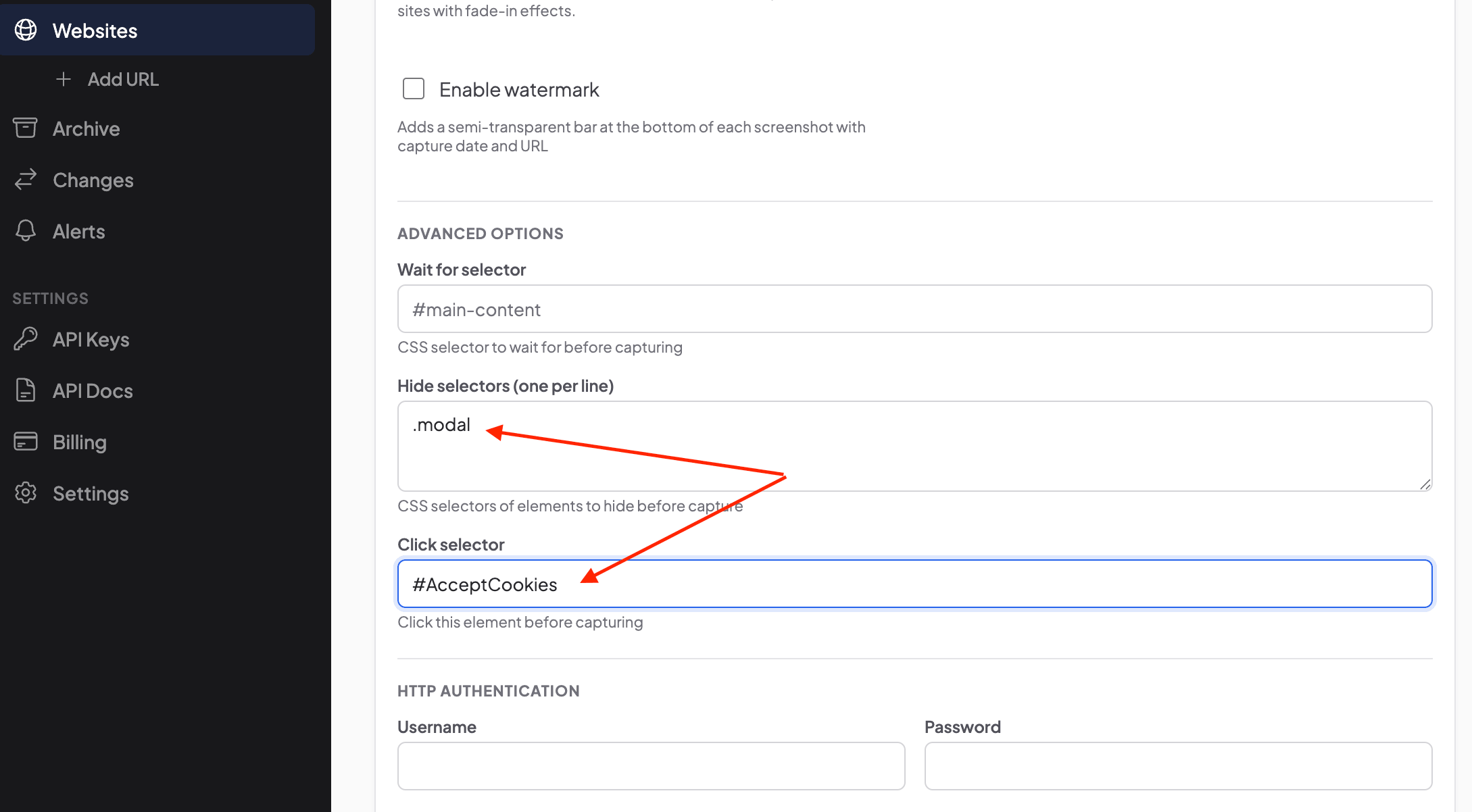
Why both? Click selector clicks the button and closes the popup "for real", the site treats it as if the visitor agreed, which means any content that was deferred until consent is now loaded. Hide selector is a safety net in case the click doesn't fire before the screenshot is taken. some sites have a half-second closing animation, and the capture might happen in that gap. With hide selector on top, the banner simply won't appear in the frame regardless of timing. Here are the standard selectors for the five most common consent platforms:
| CMP | Hide selector | Click selector (Accept) |
|---|---|---|
| OneTrust | #onetrust-consent-sdk | #onetrust-accept-btn-handler |
| Cookiebot | #CybotCookiebotDialog | #CybotCookiebotDialogBodyLevelButtonLevelOptinAllowAll |
| TrustArc | .truste_box_overlay, .truste_overlay | .pdynamicbutton .call |
| Didomi | #didomi-host | #didomi-notice-agree-button |
| Quantcast | .qc-cmp2-container | .qc-cmp2-summary-buttons button[mode="primary"] |
Result: clean screenshot on the left, the original with the banner on the right:
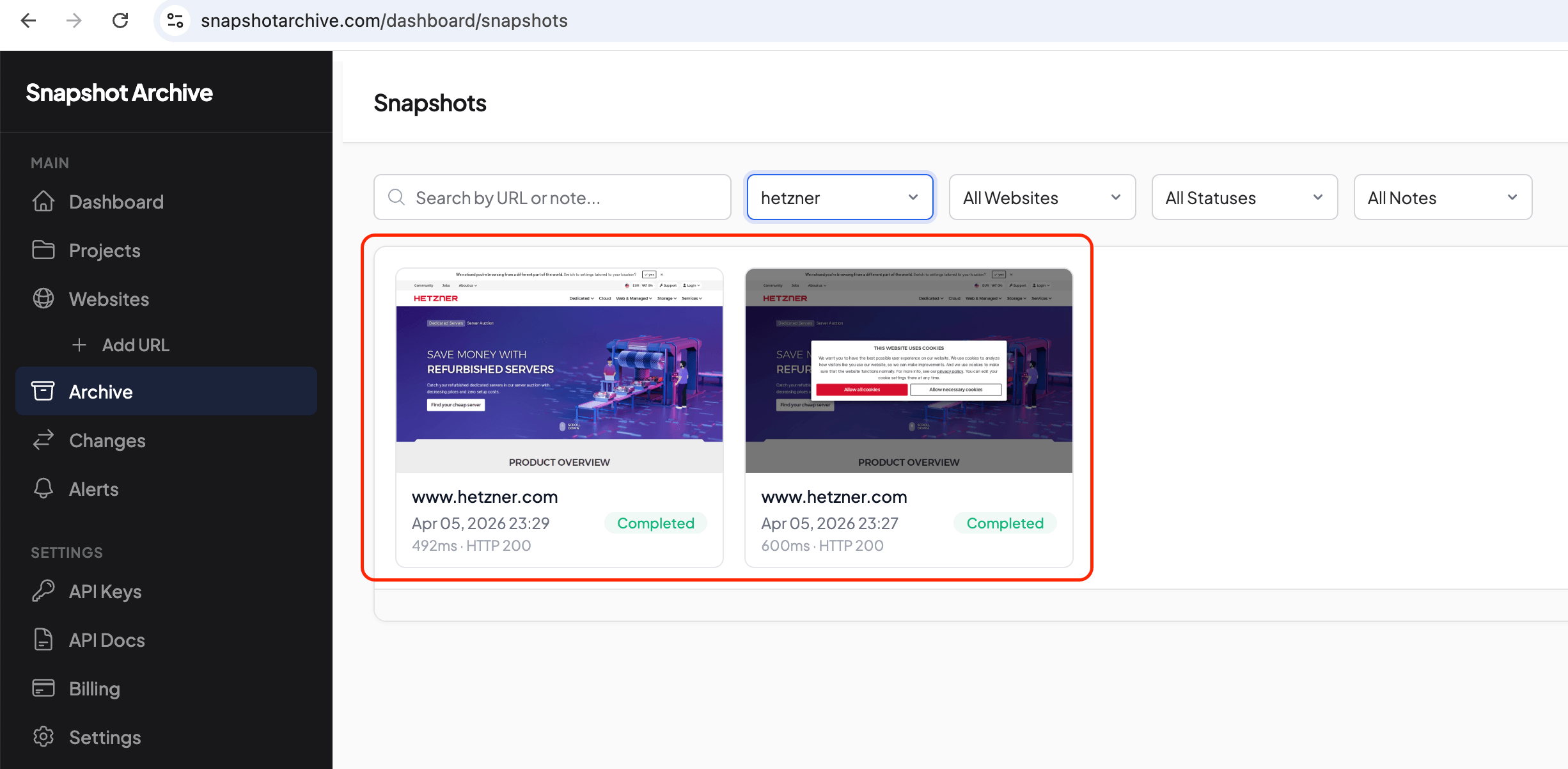
Now every capture shows the actual content, and visual diff compares what matters, not two identical cookie modals.
Liquor stores: age gates that block everything until you confirm
After Hetzner, we wanted to try something trickier. Liquor stores in the US are required to verify age at the door, and they do it with a popup and a confirmation button. Nothing loads until the visitor confirms they're old enough.
We picked two sites: finewineandgoodspirits.com and cwspirits.com. Both showed an age gate on the first visit, with the entire page blocked behind it.
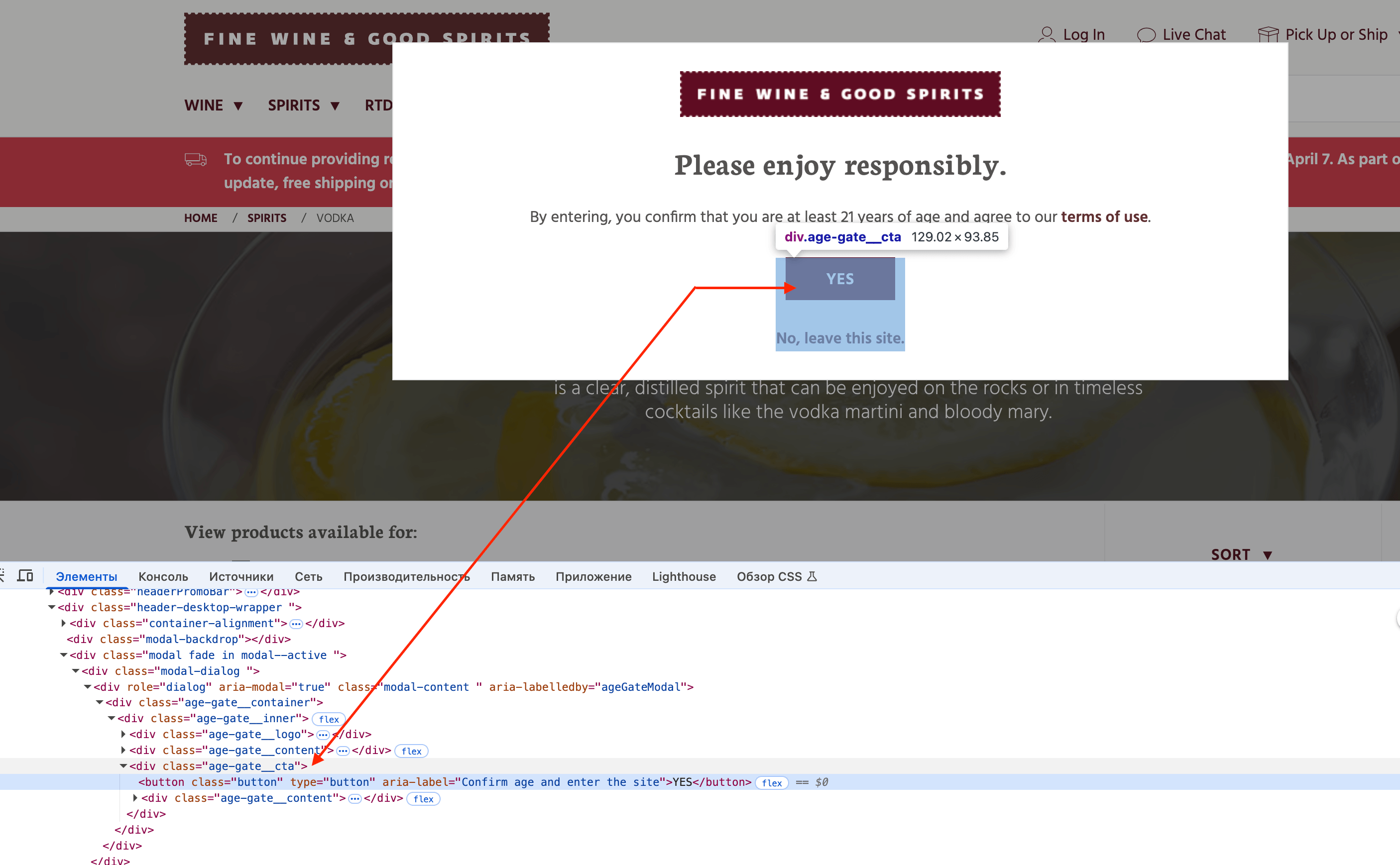
We opened the inspector on each. On Fine Wine & Good Spirits, the confirmation button lives inside div.age-gate__cta:
On CWSpirits, different markup: the button has button.close.age-popup:
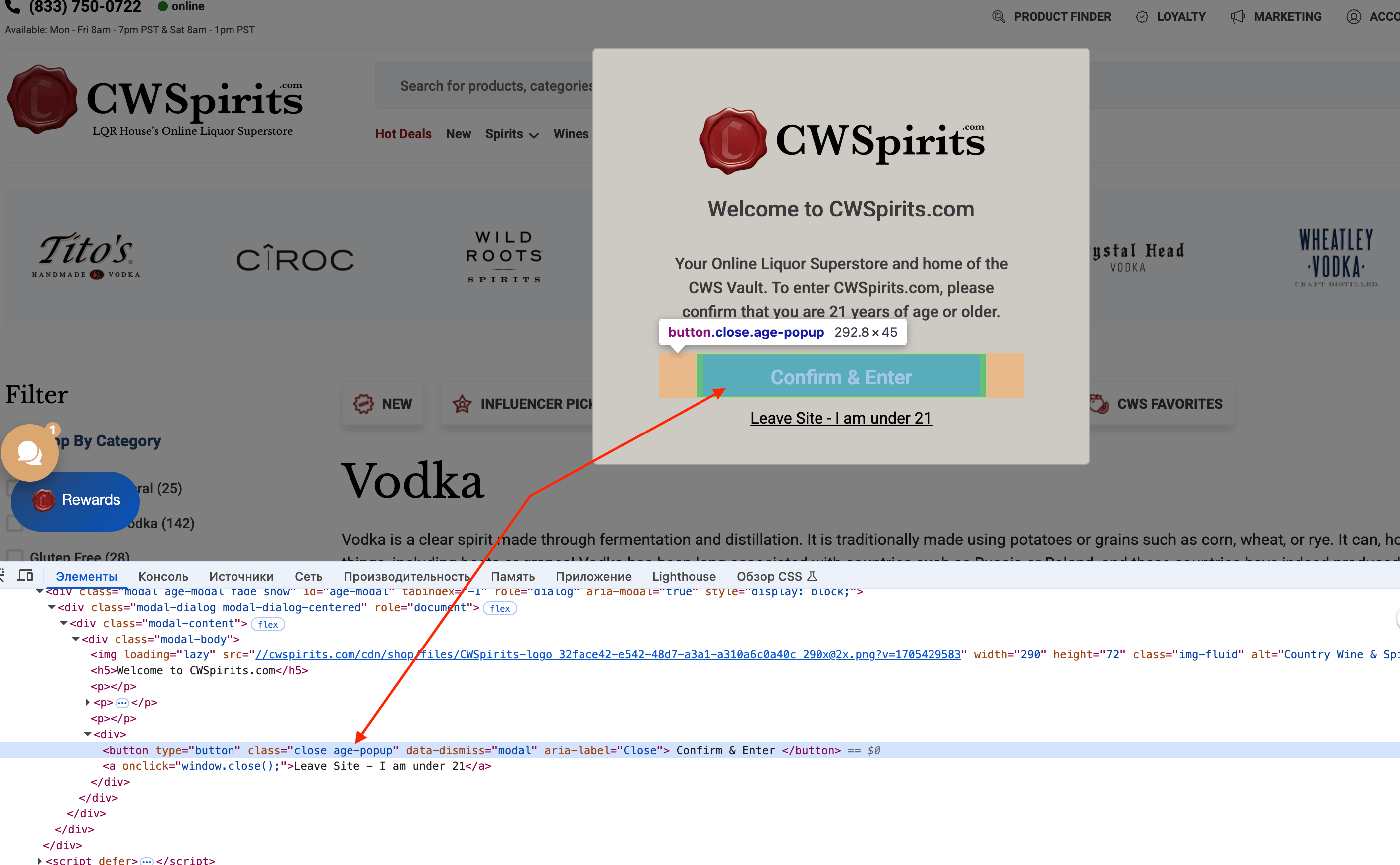
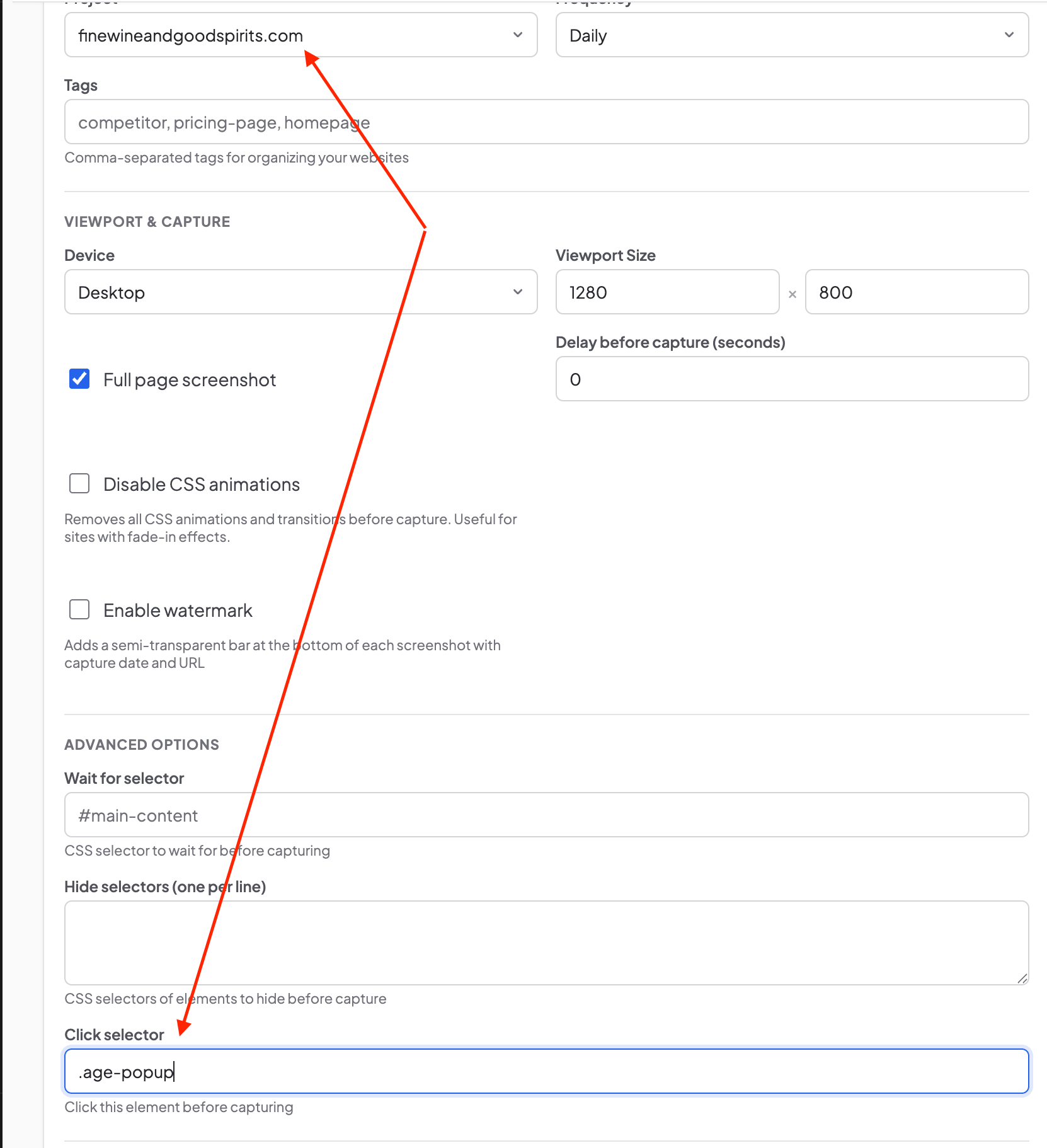
Each site had its own markup, so we needed different selectors. For CWSpirits we used .age-popup. For Fine Wine & Good Spirits, a more specific .age-gate__cta .button, because the button didn't have a unique class on its own, so we had to target it through its parent container. That's a normal CSS thing. sometimes you get a clean class on the button itself, sometimes you need to go one level up and write a compound selector.
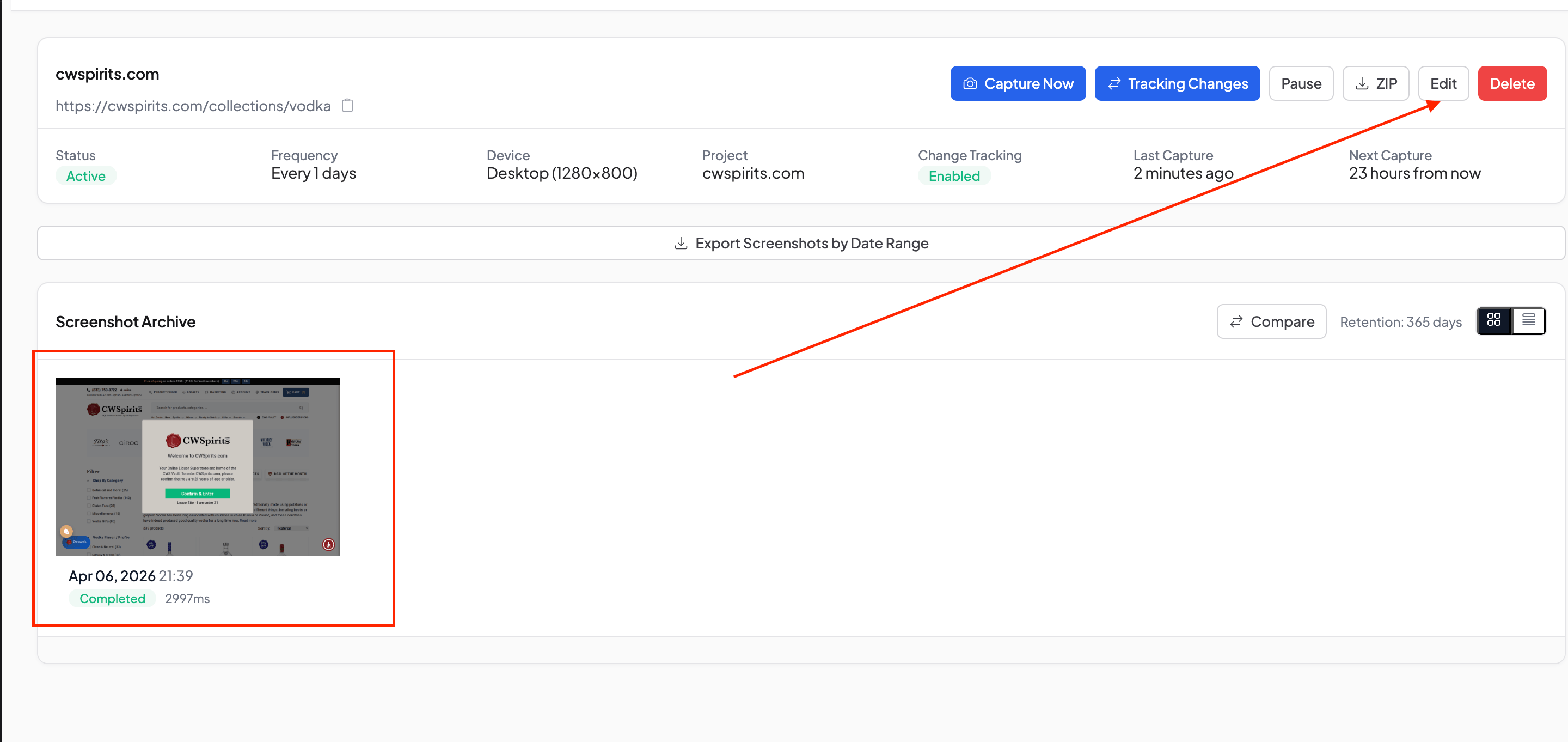
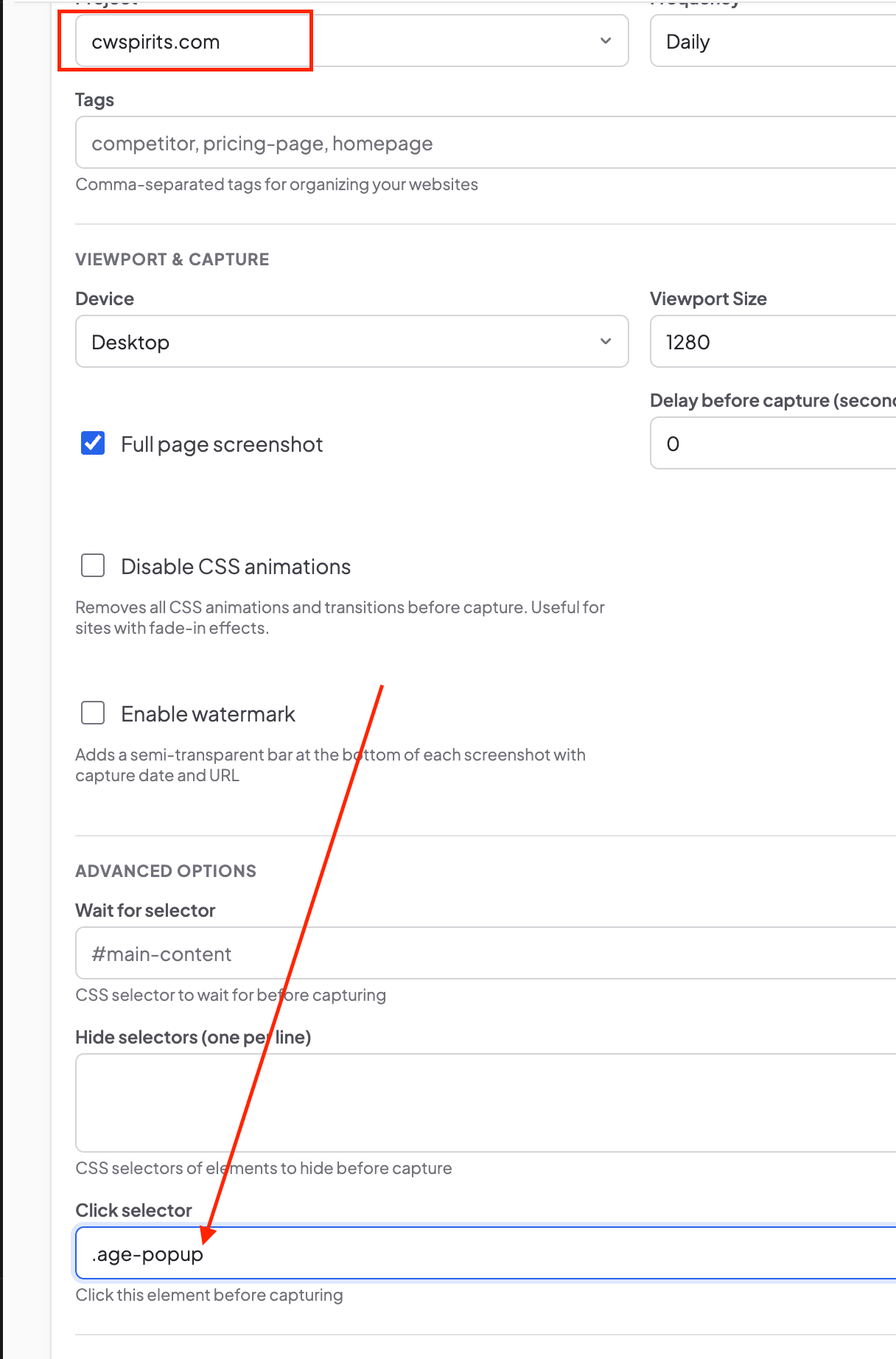
Here's the Changes view after setup: before and after, side by side:
And the archive side by side, clean captures on the left, the originals with age gates on the right:
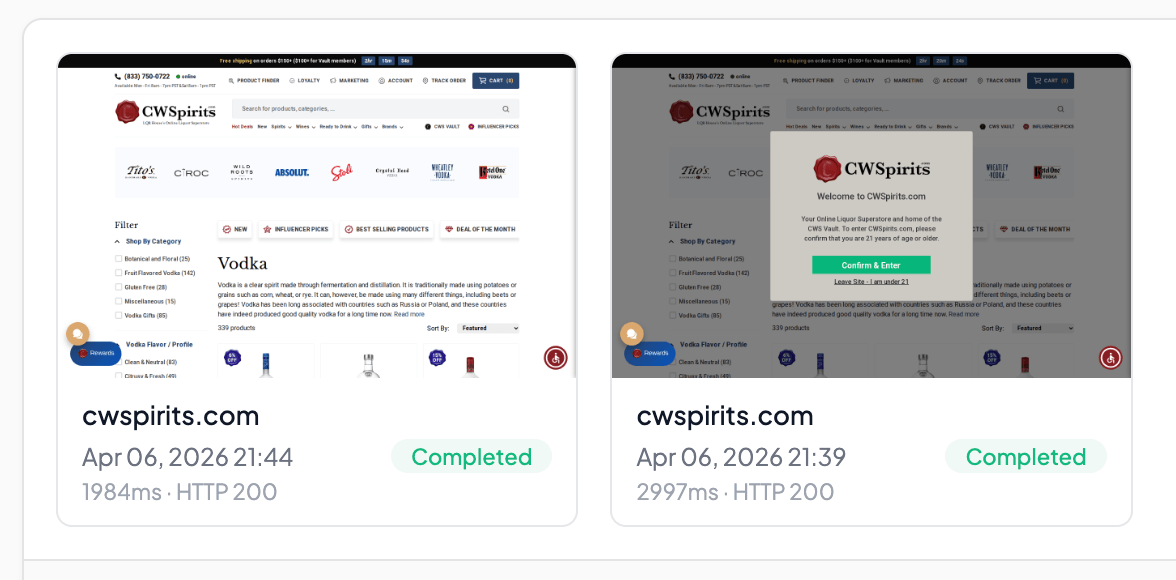
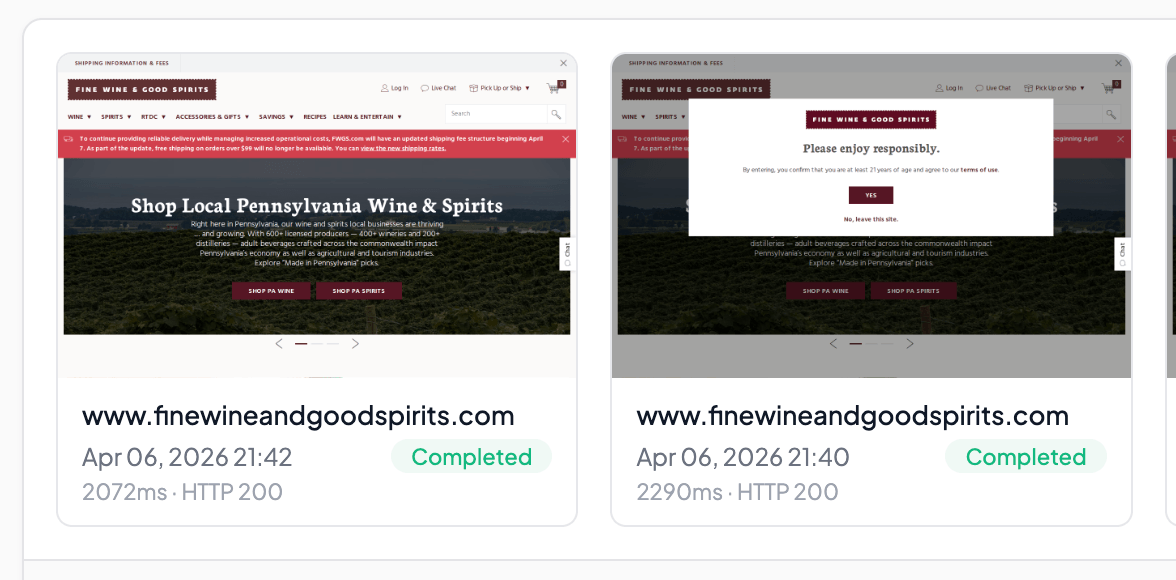
Two sites, two different selectors, same result. Setup took a couple of minutes each.
How to find the right selector: the process we use every time
The process we used for Hetzner and the liquor stores works for any popup, and after doing it a dozen times we've settled into a repeatable routine.
Open the site in incognito mode. This matters, because a regular browser session might not show the popup if you already clicked "Accept" at some point and the cookies stuck around. In incognito, the browser behaves like a headless one: fresh visit, all popups present. When the popup appears, right-click on the button that needs to be pressed and choose "Inspect." The browser opens the inspector and highlights the HTML element of the button.
Look at the element for one of two things. If the button has an id (like #AcceptCookies on Hetzner), use that: an id is unique on the page, so there's no way to target the wrong element. If there's no id, look for a class , like .age-popup on the liquor stores. Classes are less unique, but for popup buttons they usually work fine because there's typically only one instance of that button on the page.
Copy the selector, paste it into the "Click selector" field in the monitor settings, hit "Capture Now," and check the result. If the popup is gone and the content is visible, done. Across three sites (Hetzner, Fine Wine & Good Spirits, CWSpirits), this process never took us more than five minutes per site. The longest part was opening incognito and waiting for the page to load.
Click selector vs hide selector: a simple rule for choosing
We have two tools for dealing with popups, and after a few weeks of using both we've landed on a straightforward rule.
Click selector is for situations where the site won't show content without a button press. Age gates are the textbook example, until you click "YES," the page is blank. Hide selector won't help here because hiding the popup doesn't make the content behind it load. Cookie walls work the same way. sites that fully block access until you accept cookies need a click, not a hide, because the content is gated behind the consent action.
Hide selector is enough when the popup is just a visual nuisance and the content behind it is already rendered, a small cookie strip at the bottom, a chat widget in the corner, a promo banner saying "10% off your first order." The page underneath is fully drawn, you just need to remove a distracting element from the screenshot. We went deeper on how hide selectors help reduce noise in our article on false positives.
Both together give you maximum reliability. Which is exactly what we did with Hetzner. Click #AcceptCookies closes the banner for real, and hide .modal removes it from the frame in case the closing animation doesn't finish before the capture fires. In practice, it's one extra line in the settings, and it covers edge cases you'd rather not debug at 2 AM.
Common popup types and what to expect from each
Over the course of testing, we ran into several popup types. What to expect when you encounter each one.
Cookie banners are the most common by far: most European sites show a GDPR consent dialog. Popular CMPs like OneTrust, Cookiebot, Didomi, and TrustArc use standard selectors, and you can find the standard selectors for each platform in the CMP table above. For custom implementations like Hetzner's, you'll need to find the selector manually, but that's a two-minute job in the inspector.
Age verification comes up on alcohol, tobacco, and some entertainment sites. Click selector works when there's a simple button like "YES" or "Confirm & Enter." It doesn't work when the site asks you to type in your date of birth, we tried Heineken, and their age gate has three input fields for day, month, and year. For sites like that, setting a custom cookie before the page loads is the only reliable approach.
Newsletter popups typically show up with a delay (3-5 seconds after the page loads) as "Subscribe to our newsletter" with an X button or a "No thanks" link. If your monitor doesn't use a delay before capture, the popup might not even appear in time for the screenshot, which means there's no problem to solve. But if you do use "Delay before capture," the popup might show up right before the screenshot fires, and you'll need either a click or hide selector to deal with it.
Location notices like "We noticed you're browsing from a different part of the world" (Hetzner shows one of these too) aren't popups in the strict sense, but they add visual noise to the screenshot. A hide selector is usually enough, since the content behind them is already loaded.
What click selector can't do (and what to use instead)
Click selector doesn't solve every popup problem, and we want to be upfront about its limits.
Form-based gates are the main gap. We tried heineken.com, and their age gate asks you to type your date of birth into three separate fields: day, month, year. Click selector can press a button, but it can't fill in a form. For sites like Heineken, jackdaniels.com, and similar alcohol brands, the workaround is to set a custom cookie that tells the site the visitor already passed verification, we covered this approach with a step-by-step walkthrough on Jack Daniel's.
Sequential popups are another edge case. Click selector clicks one element. If a page shows two popups in sequence (a cookie banner first, then an age gate behind it), the click will only dismiss the first one. The second needs a hide selector or a separate approach. In practice, we haven't encountered a site with two sequential popups that both require a click, but it's worth keeping in mind.
Timing can also be a factor. Click selector fires after the page loads, but if a popup appears with a long delay (say, 10 seconds in) and the screenshot happens sooner, the button might not exist on the page yet when the click fires. Adding 3-5 seconds to "Delay before capture" gives the popup time to appear before the click executes.
One CSS selector in the settings. And popups stop being a problem
Out of everything we've added to Snapshot Archive, click selector is probably the simplest feature in terms of how it works: but one of the most useful in practice. We set up three sites in about 15 minutes total, and every screenshot since then has come back clean.
The process is the same every time: incognito, inspector, copy the selector, paste it into the settings. If you're monitoring European sites, alcohol brands, or any pages that throw modals at first-time visitors, this will save you from an archive full of consent dialogs. And if the popup type is too complex for a click (like a date-of-birth form) check our custom cookies article for the alternative approach. Click selector is available on all plans, including free.
Start archiving websites today
Free plan includes 3 websites with daily captures. No credit card required.
Create free account
CCPA Privacy Policy Change Tracking: What You Need to Watch
CCPA requires your privacy policy to stay current — and your vendors' too. Here's how to catch silent changes before regulators do.

How to bypass age verification on websites using custom cookies
Some websites block content behind an age verification form — three input fields for date of birth, no simple button to click. Click selector can't help here. We show how to bypass these gates using custom cookies, with jackdaniels.com as a real example.

How to Monitor a Specific Section of a Website (Without the False Alert Noise)
Full-page screenshots on e-commerce sites catch too much noise. Clip to element lets you capture only the block you care about — for cleaner diffs and fewer false alerts.