
Website change alerts that reach you the same morning
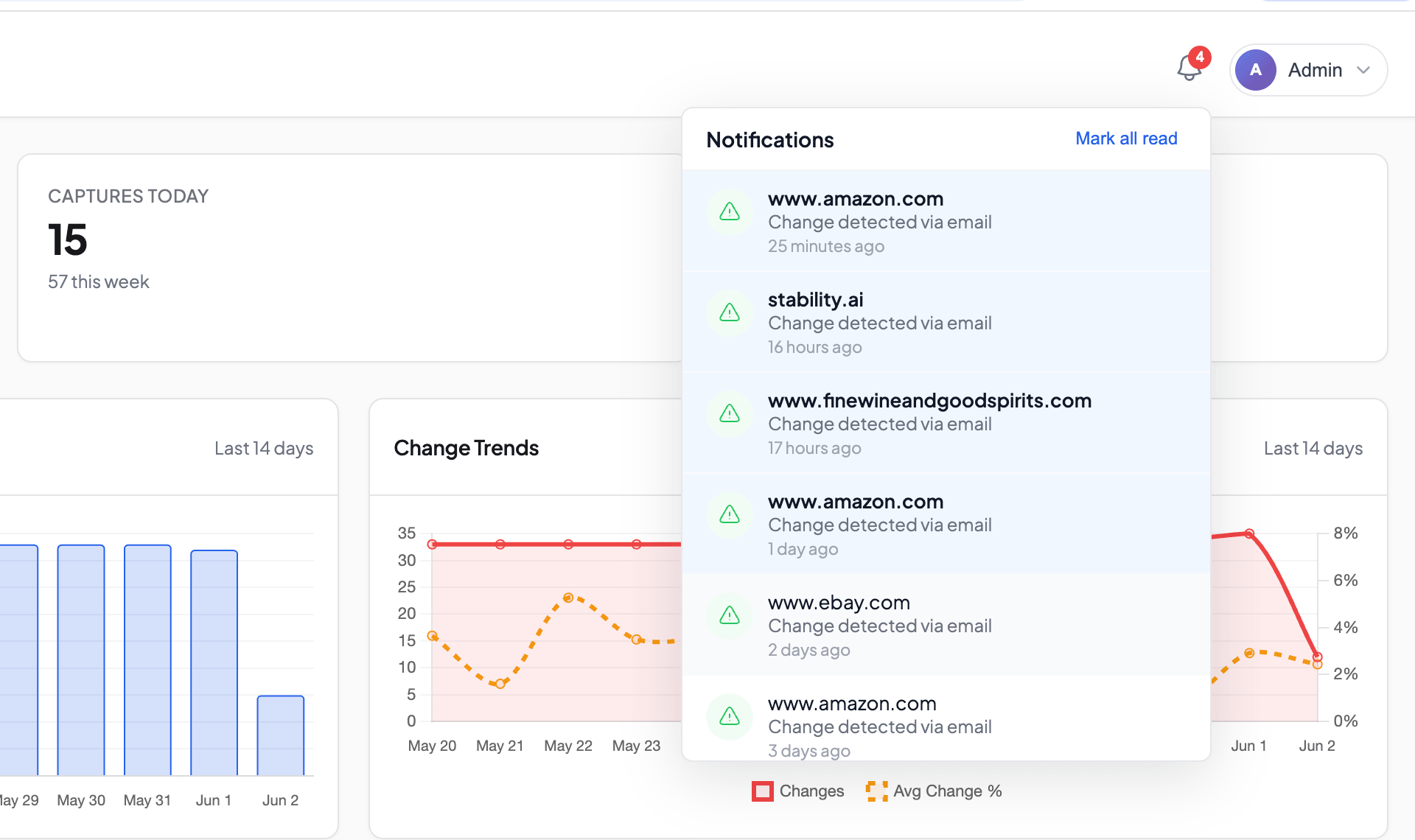
Snapshot Archive watches your pages on a schedule, and the moment a change crosses the threshold you set, it sends a notification by email, webhook, Slack, Discord, or Telegram. You don't have to keep checking the dashboard. The alert finds you.

The problem alerts actually solve
A competitor rewrites their pricing page overnight. No announcement, no email blast. At some point the Pro tier just quietly goes from $29 to $39, and the free plan gets trimmed. If you open that page by hand every couple of weeks, you find out a couple of weeks late. You should have known the same morning. (If you're wondering which competitor pages are worth watching, we went through that separately.)
This is the line between an archive and monitoring. An archive answers "what did the page look like back then." Monitoring answers "something changed, do I need to react to it right now." Change detection on its own is only half the job: it spots the difference, but if nobody tells you about that difference, it doesn't help much. Alerts are the part most of our users set monitors up for in the first place.
Five delivery channels, set per monitor
Notifications go out through one of five channels: email, webhook, Slack, Discord, or Telegram. SMS and other channels are on the list, and we'll add them as people ask.
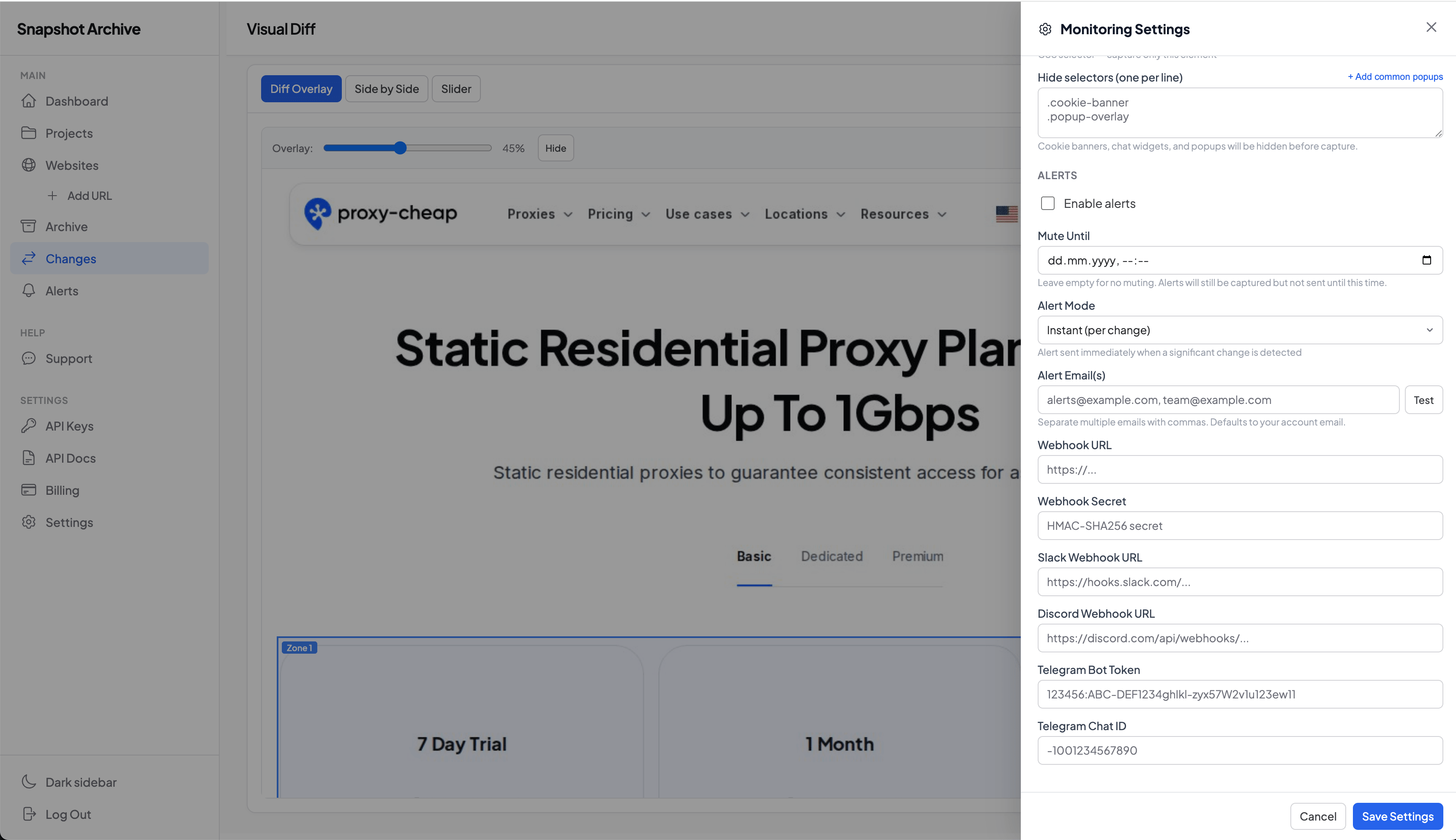
The thing we care about most here is that channels are set per tracked URL, not for the whole account. They live in the Monitoring Settings panel for each monitor, under the ALERTS section. It sounds like a small detail, but it saves real headaches. One monitor can send alerts to a manager's email, another to the design team's Slack channel, a third to your own webhook that writes changes into a database. Routing per page, not one big pile.
For email you can list several addresses separated by commas, which helps when both you and a client need to know. Leave it blank and the mail goes to your account email by default. Webhook, Slack, and Discord take one URL per monitor.
What actually triggers an alert
Two kinds of events send a notification.
The first and main one is a visual change that crossed your sensitivity threshold. The threshold is a percentage: how many of the page's pixels have to change before it counts as significant , the exact pixel-by-pixel math lives on the visual diff page. The default is 0.5%, so if less than half a percent of the page moved, we treat it as noise and stay quiet. You set the threshold per monitor. Bump it to 1% for a page full of dynamic content like rotating banners and widgets, or drop it to 0.1% on something critical like a terms-of-service page, where even a small edit matters.
The second event is a monitor error. If the site fails to respond several times in a row when we try to capture it (down, serving a captcha, moved to a new address), the monitor pauses itself and you get a heads-up. There's no separately configurable "site is down" alert yet. That behavior is built into the auto-pause.
What gets watched: selectors and zones
To keep alerts from firing on every little thing, a monitor gives you control at two levels: what makes it into the shot when we capture, and which part of the shot we compare.
At capture time, two fields work off CSS selectors.
Clip to element takes a CSS selector , say .price-table or #product-info, and the screenshot is taken of that element only. The header, footer, and sidebars never reach the comparison. If you only care about the pricing block, drop in its selector and edits to the navigation stop bothering you. We walked through this approach in the post on capturing a single element.
Hide selectors is a list of selectors, one per line, that get hidden before the shot. Cookie banners, chat widgets, promo popups: anything that moves on its own and creates false positives. There's an "Add common popups" button that fills in the usual selectors so you don't type them out by hand. Cookie banners are the usual culprit, and we have a whole breakdown of why.
Once the shot is taken, visual zones come into play: rectangles you draw with the mouse right on the comparison. There are two kinds. Monitoring zones (blue outlines) narrow the comparison down to the areas you mark, so only changes inside them count and everything else is ignored. Handy when you want to watch one price card without digging into the markup or hunting for a selector. Ignore zones (red outlines) do the opposite: changes inside them get thrown out of the comparison, which is what you want for ad banners, counters, and cookie bars that shift around on their own. You can use both on the same monitor.
Comparison mode: against the previous snapshot, or a fixed baseline
The detection settings have a Comparison Mode dropdown. By default it's set to Sequential (compare with previous): each new snapshot is checked against the one before it, and the page answers "what changed since yesterday." Sometimes you want a different question: how far has the site drifted from a state you approved once. For that, instead of Sequential you pick a specific snapshot from the same list as the baseline (it holds the last twenty, each with a date and time, like Baseline: Jun 01, 2026 14:30), and every new snapshot is compared against that one. Useful for checking a deploy, or for making sure an agreed-on version of the page hasn't slipped.
What lands in the email
A change email gives you the monitor name and page URL, the change percentage , something like "3.7% pixels changed", the date and time, a preview of the diff image with the changed area highlighted, and a button into the dashboard for the full comparison. Every email goes out in both HTML and plain text, so it reads fine even in a mail client that doesn't do HTML. Sending runs through MailerSend, and we wired up SMTP, Amazon SES, Postmark, and Resend as options too, but MailerSend is the default.
Email has two modes, switchable per monitor. Instant sends a separate email for each change, which is the default. Digest sends one email a day listing every significant change from the last 24 hours, with the percentage and time for each. When you've got a lot of monitors and Instant turns into a firehose, Digest clears your inbox.
Webhooks: payload format and signature checking
The webhook is the most flexible channel. It hands you structured JSON that you parse on your end and do whatever you like with: write it to a database, ping your own Slack bot, kick off a pipeline. The request body looks like this:
{
  "event": "snapshot.change_detected",
  "monitor": {
    "id": "mon_a1b2c3",
    "url": "https://example.com/pricing",
    "name": "Competitor pricing"
  },
  "snapshot": {
    "id": "snap_98xz",
    "captured_at": "2026-05-31T09:14:22Z",
    "screenshot_url": "https://cdn.snapshotarchive.com/.../signed?expires=..."
  },
  "diff": {
    "change_percent": 3.74,
    "diff_image_url": "https://cdn.snapshotarchive.com/.../diff-signed?expires=...",
    "regions": [
      { "x": 120, "y": 540, "width": 380, "height": 96 }
    ]
  },
  "previous_snapshot": {
    "id": "snap_97ab",
    "captured_at": "2026-05-30T09:14:18Z",
    "screenshot_url": "https://cdn.snapshotarchive.com/.../signed?expires=..."
  }
}
The images, both the screenshot and the diff, aren't sent as bytes in the body. They come as temporary signed links to object storage, each good for 60 minutes, which is long enough to download or forward the image right when it arrives.
The request comes with Content-Type: application/json, User-Agent: SnapshotArchive-Webhook/1.0, and X-Event-Type , snapshot.change_detected for real changes, or test for test sends. If you set a secret for the monitor, we sign the body with HMAC-SHA256 and put the signature in the X-Signature-256 header, in the form sha256=.... You recompute the signature on your side with your copy of the secret and compare. That's how you confirm the request actually came from us and wasn't forged.
Slack, Discord, and Telegram in a couple of clicks
Slack and Discord connect the same easy way: you create an incoming webhook in your workspace (Slack) or on your server (Discord), copy the URL it gives you, and paste it into the monitor's settings. Slack gets a formatted message with the change details, Discord gets an embed with the same. Both have a test-send button right in the settings, so you can check the connection without waiting for a real change.
Telegram connects through your own bot. You create a bot in @BotFather, get a token, add the bot to the chat or group you want, and find its chat_id (the ID of the chat the bot will post to). Paste both into the monitor's settings, hit Test, and a test message lands in the chat. After that, on every visual change the bot posts the change percentage, the page URL, and a link to the dashboard.
Muting, test sends, and the alert history
A few things in the interface make alerts easier to live with.
If you know a redesign or a big release is coming, turn on mute: you set a date and time until which notifications won't go out. Snapshots still get taken and changes still get recorded. Only the notifications go quiet. Next to it there's a plain on/off toggle for alerts, and you can pause the monitor entirely if you want, which stops the snapshots too.
A Test button sits on every channel, so you can fire off a test email, webhook, Slack, or Discord message and confirm it's set up right.
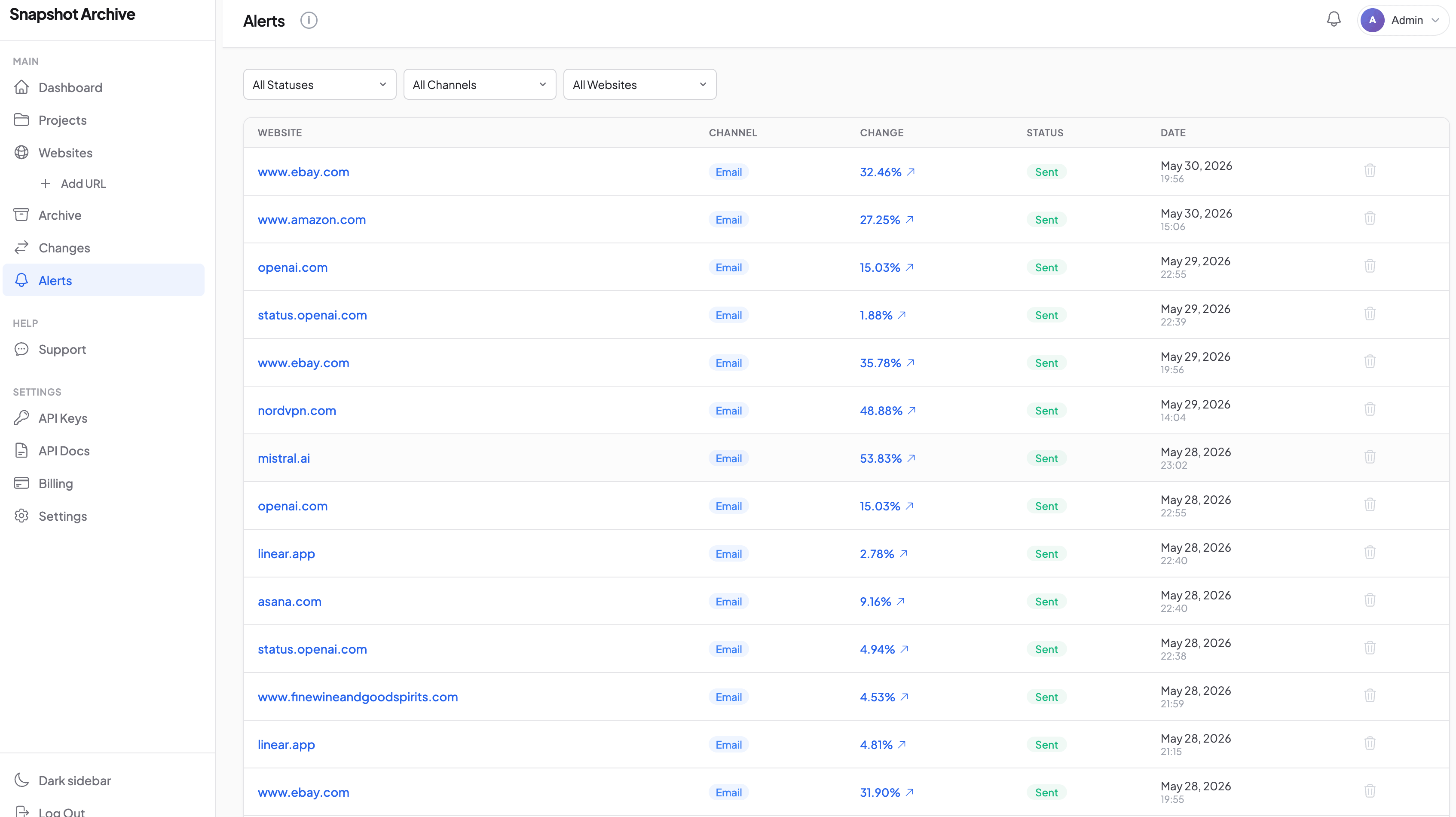
Every alert that's been sent collects on a dedicated Alerts page: which monitor fired, through which channel, at what change percentage, and what state it's in (sent, failed, queued). There are filters by status, channel, and monitor, an unread counter, and a way to mark things read. A failed alert can be resent by hand.
What happens if a delivery fails
Alerts run on their own queue, separate from taking snapshots and running comparisons, so a burst of notifications doesn't slow down the real work. If a delivery fails, the system retries up to three times with growing gaps: after 1 minute, 2 minutes, then 5. If it still doesn't go through, the alert is saved with a failed status and the error text, and you can resend it from the dashboard by hand. Nothing gets lost quietly.
Which channels come with which plan
Email works on every plan, including the free one, so basic alerting is there from the start without paying. The messengers (Slack, Discord, Telegram) come in on the paid plans. Signed webhooks open up on the higher tiers and arrive together with REST API access, since a webhook is a developer's channel and it makes sense for it to sit next to programmatic access. There's no cap on the number of alerts within a plan. You're limited by how many monitors you have, not how often they fire. We keep the current plan-by-plan breakdown and prices on the pricing page, where it stays up to date.
Setting up alerts takes a couple of minutes: add a URL, pick a channel, set the threshold. From there Snapshot Archive captures the page on a schedule, compares each new snapshot to the previous one, and writes to you only when there's something worth writing about. The free plan covers 3 sites with daily snapshots and email alerts, which is enough to see how it works on a real competitor's page.
Frequently Asked Questions
By email, yes: several addresses, comma-separated, on one monitor. For webhook, Slack, and Discord it's one URL per monitor, but the channels combine, so the same monitor can send to email, Slack, and a webhook all at once.
A few tools: raise the sensitivity threshold, limit the capture to one element with clip to element, hide the dynamic blocks with hide selectors, or draw a monitoring zone right on the snapshot. We covered why the change percentage sometimes lies, and what to do about it, in detail.
Set a secret for the monitor and every request gets signed with HMAC-SHA256, which you verify from the X-Signature-256 header on your side.
After a run of consecutive errors the monitor pauses itself and sends an error notification, so you don't get a flood of junk alerts from a page that's down.
Email, webhook, Slack, Discord, and Telegram. SMS and new delivery channels are on the way.