
 Vitalii Holben
False Positives in Screenshot Monitoring: What Causes Them and What to Do

Last week we added stripe.com to our monitoring. We wanted to see how often their homepage changes. Added the URL, set capture frequency to once per hour, and forgot about one thing: the visual diff sensitivity threshold was left at zero.
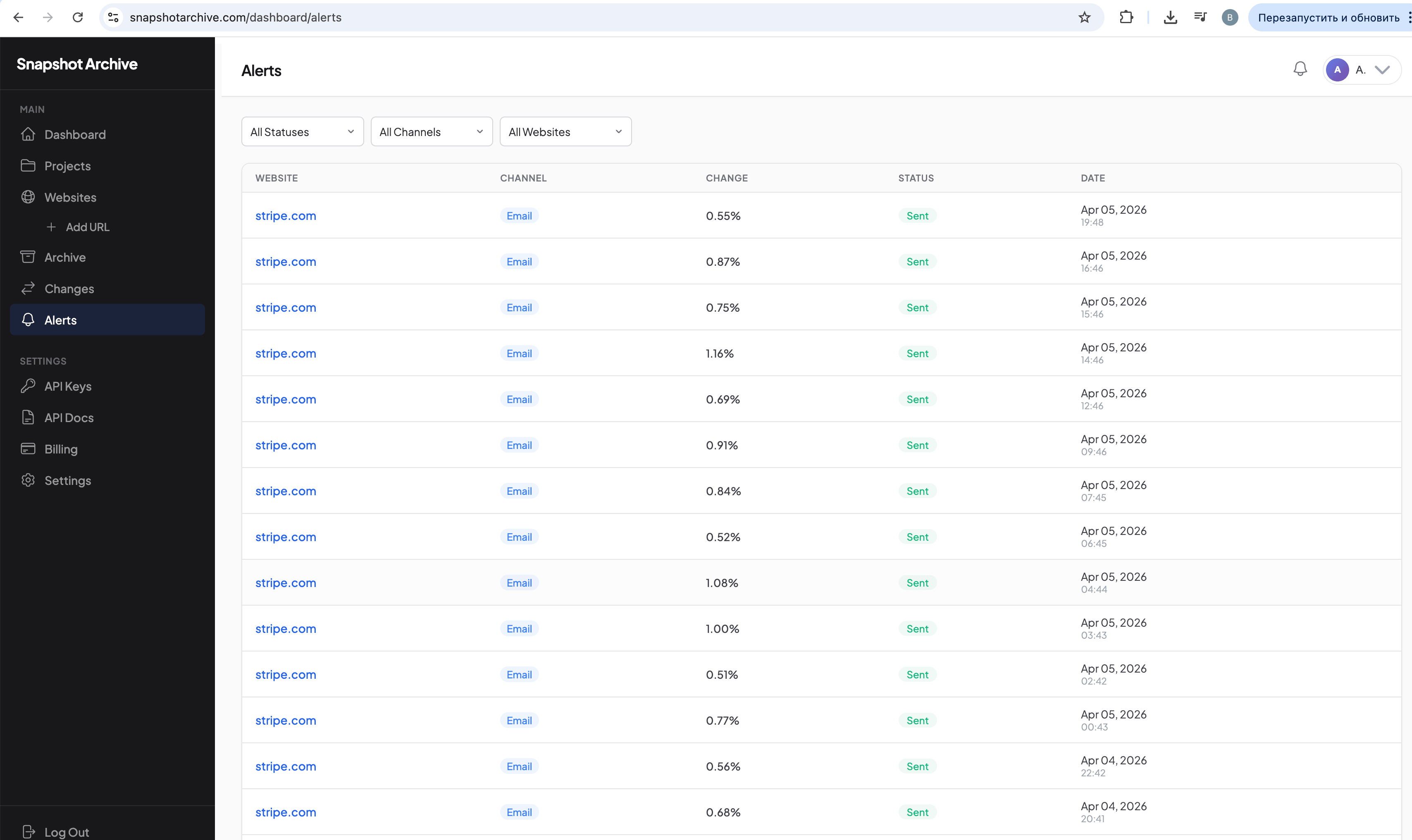
The next morning we had 14 notifications in our inbox. All from stripe.com. All marked "Sent." Changes: 0.55%, 0.87%, 0.75%, 1.16%… A new alert every hour, all night long.
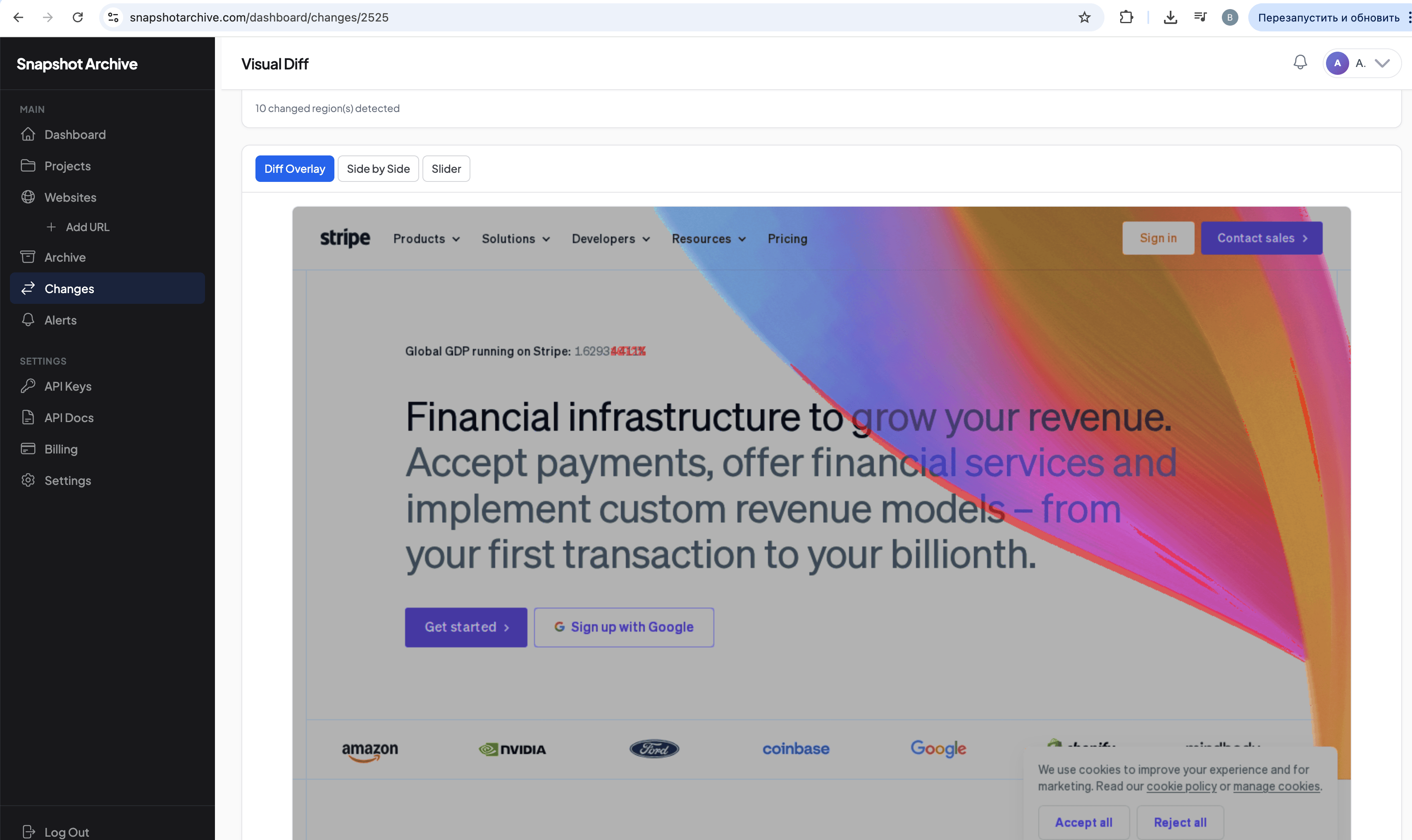
We opened the Changes page, looked at the before/after screenshots, and immediately understood what was happening. Stripe's homepage has a line that reads "Global GDP running on Stripe: 1.6293...": a live counter that updates in real time. Every hour the number is slightly different, visual diff catches this honestly, and sends an alert. Technically correct. Practically useless.
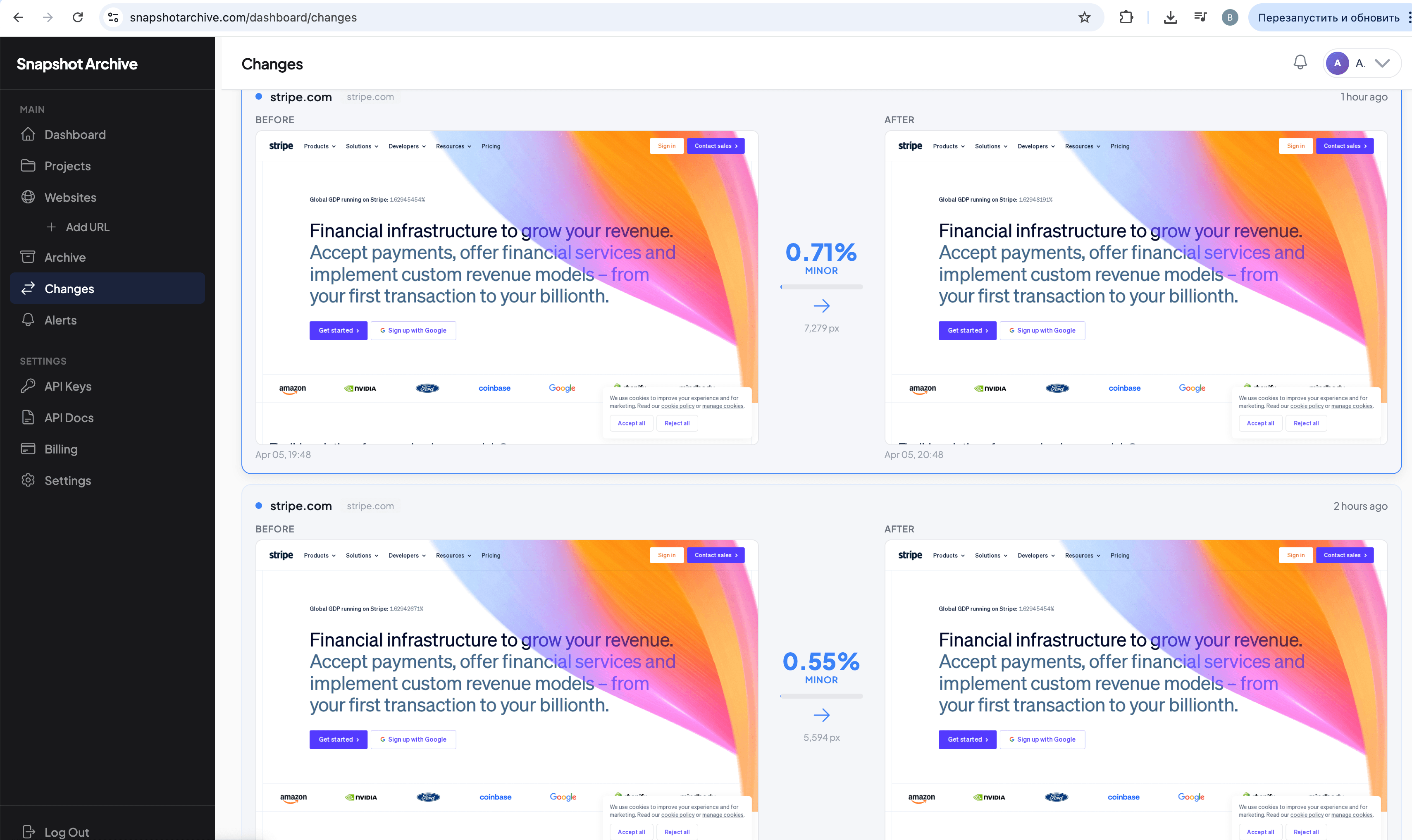
We don't need to know that Stripe's GDP counter updated by 0.0001%. We need to know if Stripe changes their headline, adds a new product, or redesigns their pricing page. The counter was drowning out the signal with noise.
This is a textbook example of false positives in screenshot change detection, and it happens to everyone who starts monitoring websites without fine-tuning their settings. What causes the noise and how to get rid of it.
Why websites "change" every hour even when nobody touched anything
When we say "the website changed," we usually mean something meaningful: new copy, a different price, an updated design. But for visual diff, a "change" is any pixel-level difference between two screenshots. And modern websites are full of those differences, even when nobody touched the content.
Live counters and timers are the most common source. Like that GDP counter on Stripe, or "Trusted by 10,432 companies" when the number updates in real time, or countdown timers like "Sale ends in 2:43:17." Every screenshot will differ from the previous one simply because time passed.
Rotating content creates the same problem from a different angle. Customer testimonial carousels, case study sliders, banners that show different images on every page load, Stripe's homepage has a logo carousel with client logos that showed a different set on every capture, and it generated noise on top of the counter noise.
Personalization and A/B tests add another layer. Some sites show different content depending on geolocation, time of day, or a random A/B test variant. Your screenshot from a server in Helsinki might differ from one taken in Amsterdam, even if nobody updated the site. Ad blocks and third-party widgets like Intercom rotate messages independently of the site owner. And cookie banners might appear or disappear between captures depending on whether cookies from a previous session are still stored.
Dates and timestamps round out the list: "Last updated: April 5, 2026" in the footer, a copyright line that will change from "© 2026" to "© 2027" in January, even a publication date in a blog feed when a new post appears between captures. Each of these elements on its own produces a tiny diff. 0.3%, 0.5%, maybe 1%. But when three of them sit on the same page, you'll get an alert on every single capture.
Two tools against noise: sensitivity threshold and element hiding
You have two main ways to filter out false positives. They work differently and complement each other well: in most cases you'll end up using both.
Setting a visual diff sensitivity threshold
The simplest approach. You set a percentage, if the difference between two screenshots is below that threshold, no alert is sent. The screenshot still gets saved to the archive and the diff is still calculated, but you don't get a notification. In our case with Stripe, the first thing we did was raise the threshold to 2%.
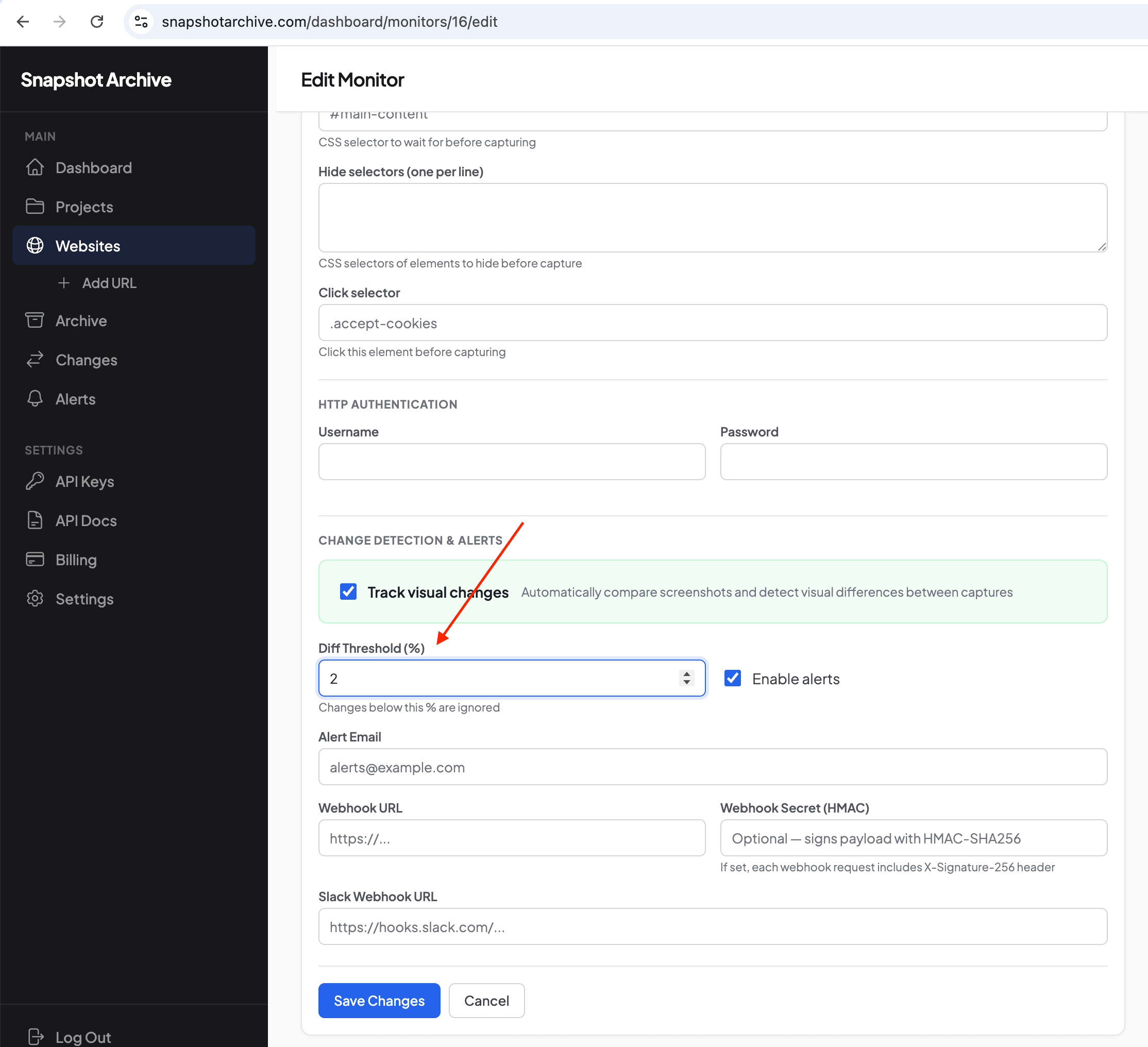
That helped, but didn't fully solve it. Some alerts stopped, but certain changes still exceeded 2%. Because of the client logo carousel, which showed a different set of logos on every page load. A threshold cuts out small noise effectively, but when a page has multiple dynamic elements at once, their combined diff can exceed any reasonable threshold.
What threshold to set depends on the page type. For static pages like pricing, about, or Terms of Service, 1–2% works well, these pages change rarely, and when they do, the changes are usually visible enough to clear a low threshold. For corporate homepages like Stripe, 2–5% is a better starting point because of all the dynamic elements, though in our case even 3% wasn't enough without element hiding. E-commerce product pages with review counters, recommendation widgets, and rotating images do well at 3–5%. News sites and blog feeds where content updates constantly by nature need 5–10%. a high threshold catches only major structural changes like a redesign. And for competitor pages that change once a month, set the threshold to 1%. Every change there is a signal you don't want to miss.
Hiding noisy elements before capture (hide selectors)
A more precise tool. Instead of ignoring small changes entirely, you remove a specific element from the screenshot before it's captured. The element doesn't appear in the image, so it can't trigger a false diff: the noise is eliminated at the source rather than filtered after the fact.
This is exactly what we did with Stripe after the threshold alone wasn't enough. We opened the page in the browser inspector, found the CSS classes of the noisy elements, and added two selectors to the monitor settings: .hero-section__eyebrow for the GDP counter that changed every hour, and .logo-carousel__marquee-container for the client logo carousel that showed a different set on every page load.
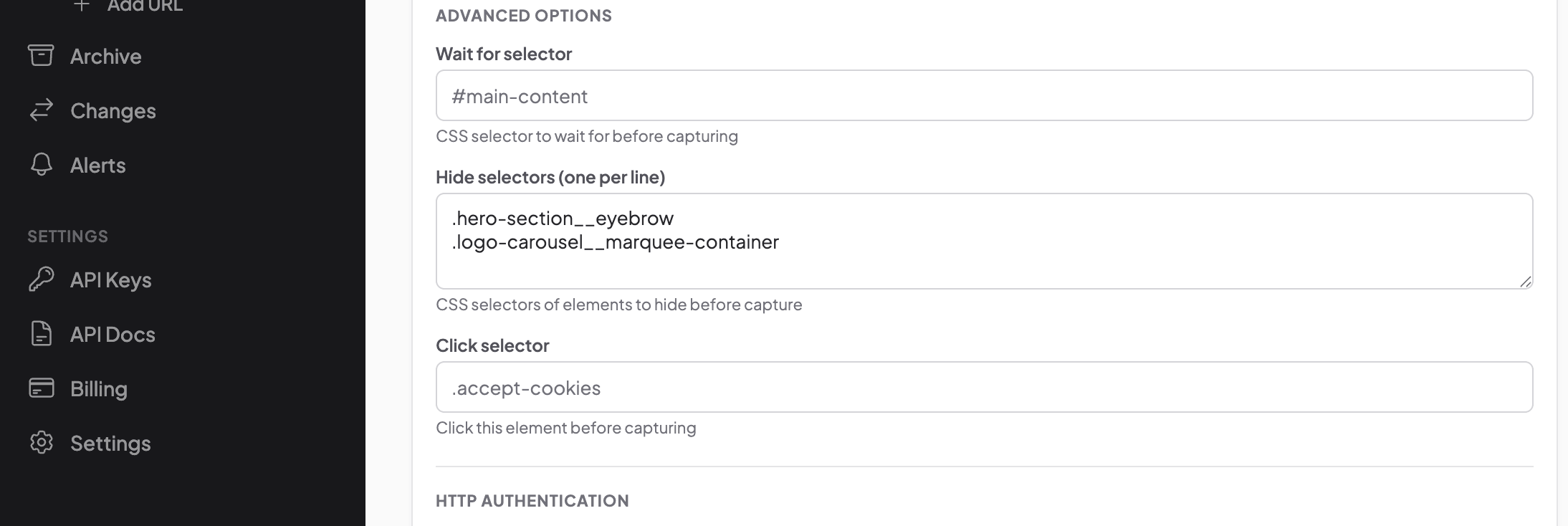
The most common elements worth hiding: cookie banners , we covered the standard selectors for OneTrust, Cookiebot, Didomi, TrustArc, and Quantcast in our cookie banners article, chat widgets like Intercom (#intercom-container) or Drift , .drift-widget-container that change on every page load, testimonial carousels and sliders if you don't care which specific testimonial is shown, ad blocks that are irrelevant for content monitoring, and live counters and tickers like our Stripe case.
To find the right selector, open the site in your browser, right-click on the noisy element, choose "Inspect," and copy the CSS class or id. We covered this process step by step (with real DevTools screenshots) in our guide to click selectors.
The result: from 14 alerts per day to silence
After we added hide selectors for the GDP counter and the logo carousel, the result changed dramatically.
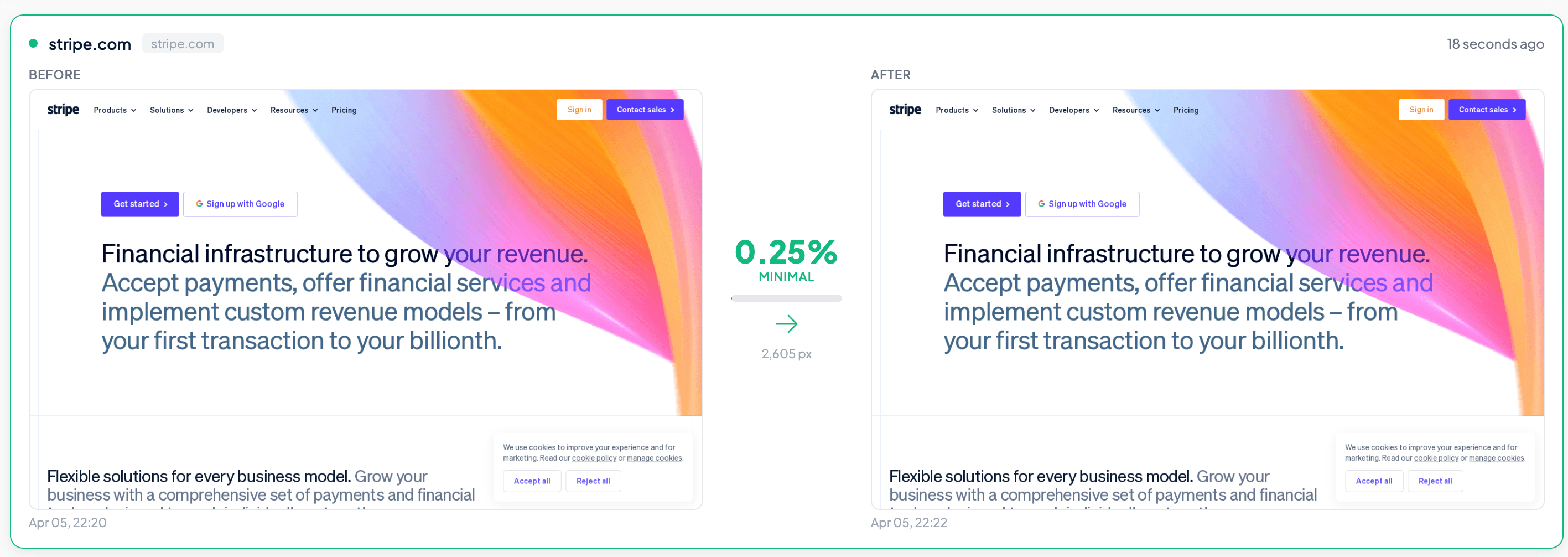
The diff dropped to 0.25%: labeled MINIMAL instead of MINOR. That's residual noise from the cookie banner, which sometimes shifts by a pixel or two. At a 2% threshold, this isn't nearly enough to trigger an alert.
What the diff overlay looks like after the setup, the GDP counter and logo carousel are gone from the screenshot, and the page looks virtually identical between captures:
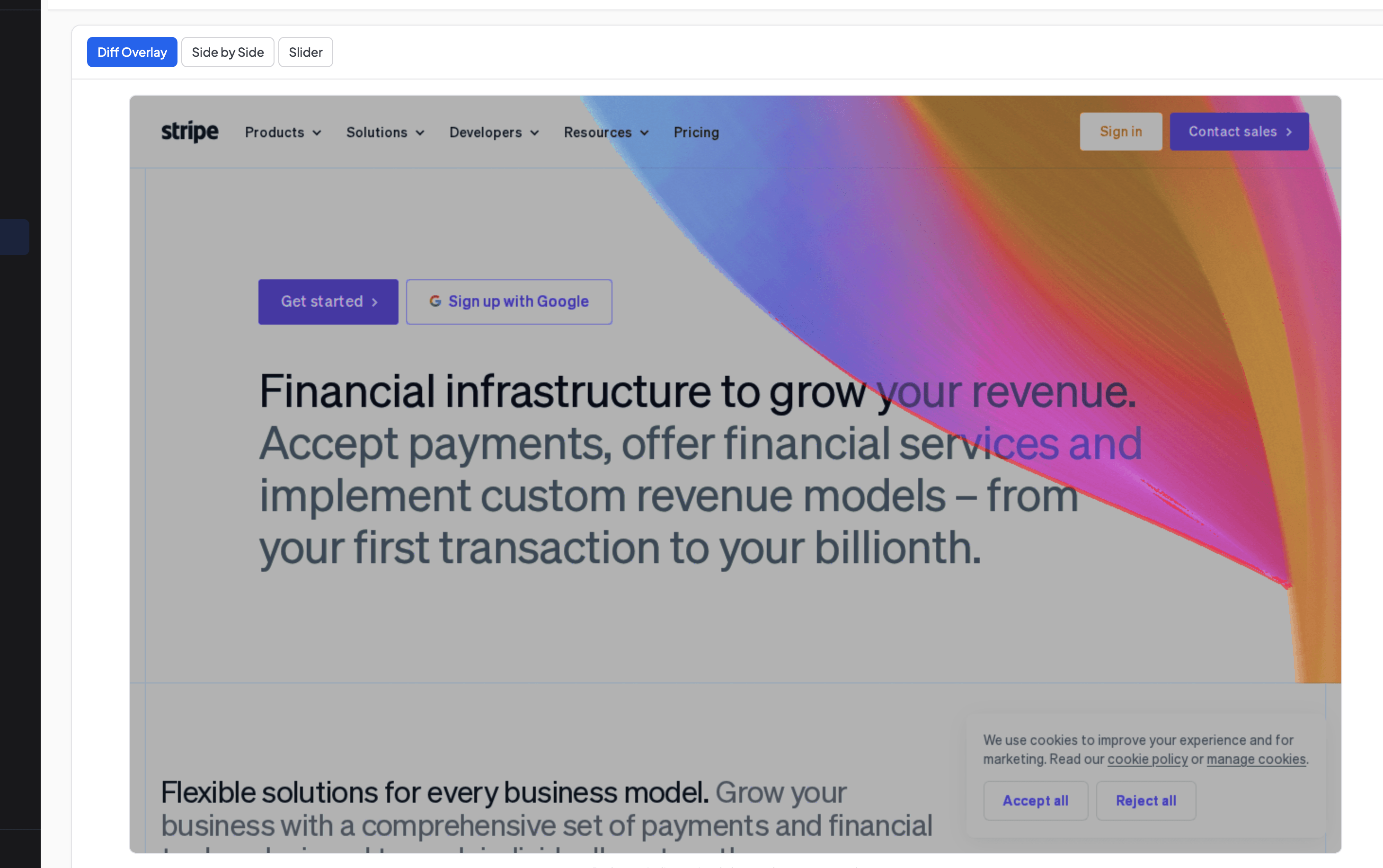
Between 14 alerts per day and silence. The difference was two CSS selectors and one number in the threshold field. The setup took five minutes.
How to combine threshold and hiding for the best results
In practice, a combination of both approaches works best. What we took away from our Stripe experience.
Start with a threshold. Set 2–3% on a new monitor and observe for a couple of days. If alerts keep coming, open the diff and see what's actually triggering them: this will show you which elements on the page are "noisy." Then add hiding for those specific elements: the counter, the carousel, the banner, whatever keeps showing up in the diff overlay. After that, you can lower the threshold back to 1–2% to catch smaller real changes, because the noise sources are now excluded.
Our journey with Stripe followed exactly this path. Threshold at 0% with no hiding gave us 14 alerts per day. Raising the threshold to 2% reduced the volume but didn't eliminate it, because the carousel alone produced more than 2% diff. Adding hide selectors for .hero-section__eyebrow and .logo-carousel__marquee-container dropped the diff to 0.25%, and alerts stopped completely. Now if Stripe actually changes their headline or adds a new section, we'll catch it immediately, because that kind of change will be well above the 2% threshold.
Five page types that almost always produce noise (with recommended settings)
Certain page types consistently generate false positives. Here are the most common ones with setup recommendations we've tested ourselves.
SaaS company homepages. Hero sections with live metrics, rotating testimonials, dynamic banners. Set the threshold to 3–5% and hide carousels, chat widgets, and counters. We verified this firsthand with Stripe: without hiding the carousel and counter, an alert came in every hour.
Search results pages on sites like Google or Amazon: results change constantly because ad blocks rotate, product positions shift, and new recommendations appear. A threshold of 5–8% catches major changes like a new search layout or a new section, but filters out the constant reshuffling. For monitoring specific elements on noisy pages like these, consider using clip to element to capture only the section you care about.
News homepages where content updates multiple times per day by design, that's normal operation, not a change worth alerting on. A 10% threshold catches a redesign or structural change but skips feed updates.
Product pages and dashboards you're monitoring after deployment. Pages with live data will constantly trigger diffs. Focus your post-deploy monitoring on specific static pages like pricing, docs, and landing pages where any visual change is meaningful.
E-commerce category pages where products reshuffle by sales rank, prices update, and "Bestseller" or "New" badges appear and disappear. A 3–5% threshold filters out reshuffling and leaves only meaningful changes like a price change.
What to do if you're already drowning in alerts
If you're in the same situation we were with Stripe (inbox flooded with notifications and you're thinking about turning off monitoring entirely) don't turn it off. Here's a five-minute fix.
Open the Alerts page and look at which sites generate the most noise. Usually 80% of it comes from 1-2 URLs. For each noisy URL, open the latest diff in the Changes section and see where exactly the changes are highlighted. Those are your noisy elements. Go to Edit Monitor for that URL, raise the threshold to 3–5%, find the CSS selectors of the noisy elements through your browser inspector, and add them to Hide selectors. Check the next day: alerts should stop. If they're still coming, raise the threshold further or add more selectors.
All screenshots continue to be saved in the archive throughout this process: you're not losing data, just stopping useless notifications. If you ever want to review what changed on a page over the past week, the archive is there. We covered how long to keep screenshots and why, even "quiet" screenshots with no alerts can turn out to be useful later when you need to check what a page looked like on a specific date.
Good monitoring is quiet monitoring
The ideal setup is when you forget about monitoring for a week, and then one alert arrives. You open it and see: a competitor actually changed their headline, or updated their prices, or added a new section. One alert, but a meaningful one.
If alerts arrive every hour. That's not monitoring, that's spam. And you'll inevitably start ignoring them, which is even worse, because the one notification worth reading gets lost in the flood. We learned this firsthand with 14 Stripe alerts. Now when we add a new URL, the first thing we do is set the threshold to 2–3% and immediately add hiding for the cookie banner. We fine-tune after the first few captures, once we can see which elements are noisy.
If you're just getting started: try it on the free plan. Three URLs, daily captures. Add a competitor's page, set the threshold to 3%, and see what happens over a week. Chances are, your first useful alert will come sooner than you expect.
Start archiving websites today
Free plan includes 3 websites with daily captures. No credit card required.
Create free account
What Competitor Pages to Monitor and How Often to Take Screenshots
Most companies know they should monitor competitors, but few do it consistently. This guide covers the exact pages worth tracking — from pricing and homepage to careers and changelogs — with recommended screenshot frequencies for each, and how to turn 150+ monthly snapshots into actionable competitive intelligence.

How to Track Terms of Service & Privacy Policy Changes
Terms of service and privacy policy pages change without warning. Here is how to set up automated screenshot monitoring so you always know what changed and when.
How to Hide Cookie Banners, Popups and Age Gates From Automated Screenshots
We tested click selector on three real sites — Hetzner (cookie banner), Fine Wine & Good Spirits and CWSpirits (age verification). One CSS selector in the settings, and every screenshot comes back clean.