How to monitor your website after deployment
You've just deployed a new version of your website. Everything looked good on localhost, tests passed, logs are clean. The site is up. But in practice, something tends to break after deployment — the layout shifts on a page you didn't touch, images go missing because a CDN path changed, fonts load wrong because an external resource timed out. And sometimes the issue only shows up on a single page or at a specific screen resolution, and you don't catch it until a customer writes to support three days later.
We go through this at Snapshot Archive after every release. You open the site, start clicking through pages manually, and it's fine when you only need to check a handful. But when your site has dozens of sections, you end up clicking through page after page, and at some point you realize your eye is tired and you're not really comparing anymore — you're just scrolling. That's why we started automating this check, and in this article we'll walk through how to set it up and which pages deserve attention first.
What actually breaks after deployment (and why functional tests don't catch it)
If you've ever deployed anything bigger than a landing page, you know the pattern: the code works, the tests pass, and something still looks wrong to users. Here's what we've seen ourselves and heard from teams using Snapshot Archive.
You update Tailwind or Bootstrap, and one of the inner pages breaks. The homepage looks fine because everyone checks it first — it's the default page you open after every deploy. But the pricing page turned into a mess because a utility class got removed or renamed in the new version, and nobody noticed because functional tests don't check pages visually. They verify that elements exist in the DOM, not that those elements look right on screen.
CDN cache issues are another common culprit. The cache expired, an image path changed, or a deployment script didn't invalidate the right files. On your local machine everything works because the browser is showing a cached version. In production, the user sees a white square instead of your hero image — and if it's on the homepage, that's the first impression every new visitor gets.
Third-party dependencies create problems you didn't cause. A chat widget updated on their end and now throws a JavaScript error on your site. You didn't touch that code, but your user sees a broken widget — and blames you, not the widget vendor. Cookie banners are a separate category of this: after deployment the banner starts rendering differently, covers half the screen above the fold, and you don't see it because you clicked "Accept" months ago and your browser remembers. We covered how to handle cookie banners in automated screenshots in a separate article.
Why manual post-deploy checks don't scale past a dozen pages
The most obvious approach: after every deployment, open a browser and run through the key pages. Homepage, catalog, product page, contacts, blog. When you have 5 pages, it's manageable — you can check each one in a couple of minutes. At 50, you won't check every page after every deploy. At 200+, it's not even realistic to try. And the bug might be on the exact page you decided to skip, because you've never had a problem there before.
There's another dimension people forget: you're checking desktop, but the problem is on mobile. Or vice versa. A CSS change that looks fine at 1280px might completely break the layout at 375px, and unless you manually resize your browser or pull out your phone for every deployment, you'll miss it. Manual checks will always be incomplete — not because you're lazy, but because you physically don't have enough time and screens to cover every combination. We compared manual and automated approaches in detail before, so we'll keep it short here.
What automated screenshots give you after every deploy
Instead of manual checks, you capture key pages automatically — after each deployment or at least once a day if you deploy often. The difference is immediate on several levels.
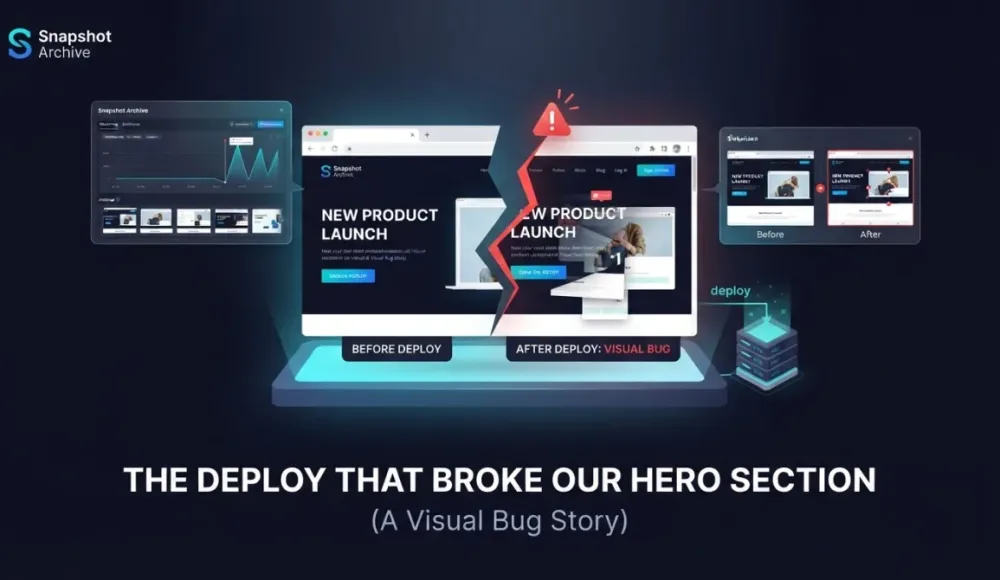
All pages get captured at the same time, so you won't miss anything — the system doesn't get tired, doesn't skip pages, and doesn't forget to check mobile. You get a visual history: a screenshot from before the deploy and one after, and if something broke, the visual diff highlights exactly what changed. No squinting at two browser tabs, no trying to remember what the page looked like yesterday. The diff overlay marks the broken areas in red, and you see the problem in seconds instead of discovering it a week later when a customer writes to support.
You can capture at multiple resolutions at once — desktop and mobile in the same batch. And if you ever need to prove to management or a client that the site was working correctly at a specific moment, a timestamped screenshot is the clearest argument you can make. We wrote more about using screenshots as evidence — it applies to client-facing agencies especially.
Two ways to set up post-deploy monitoring
There are two approaches, and both work well depending on your deployment workflow.
The first is pipeline-triggered: your CI/CD pipeline calls a screenshot service API after deployment, captures the pages you need, and if visual diff detects a change beyond the threshold, you get an alert. This gives you immediate feedback after every deploy — within minutes you know whether anything visual broke. Snapshot Archive has a REST API for exactly this.
The second is schedule-based: you put screenshots on a fixed interval — every hour, every 6 hours, once a day — regardless of when you deploy. This option is simpler because you don't need to modify your pipeline at all. You add URLs, pick a frequency, and everything runs on autopilot. The trade-off is latency: if you deploy at 2 PM and screenshots run at midnight, a visual regression sits in production for 10 hours before you see it. For teams that deploy once a day or less, this is usually fine. For teams shipping multiple times a day, pipeline integration catches problems faster.
The most useful part in both approaches is visual diff. Every new screenshot gets compared to the previous one pixel by pixel. Nothing changed — silence. Something changed — you get a notification with highlighted areas. You don't need to review all the screenshots, just the ones that show differences. If you're monitoring 50 pages and 48 of them are identical to the previous capture, you only look at 2.
Which pages to monitor first after deployment
Capturing every page on your site is overkill for most teams. Start with the pages that make you money or shape the first impression — if something breaks there, the cost is immediate.
The homepage is obvious. If something is broken here, visitors leave without looking further, and every marketing dollar you spent driving traffic to the site is wasted. The pricing page deserves the same attention — we wrote about monitoring pricing pages in the context of competitor analysis, but your own pricing page is the highest-converting page on your site, and any visual breakage there costs real money.
Ad landing pages are critical if you're running paid campaigns. If you're sending paid traffic to a page and it broke after deployment, you're burning budget until you notice — and depending on your ad spend, that can add up to hundreds of dollars per hour. Login and signup forms deserve monitoring too: if the form doesn't render correctly, users can't sign in, and you'll only find out when support tickets start piling up.
Legal pages — Terms of Service and Privacy Policy — are easy to forget in a post-deploy check, but changes to these documents can have legal consequences. Visual monitoring helps make sure nothing got accidentally overwritten by a deployment script or a CMS migration.
When screenshots aren't enough (and what fills the gap)
Screenshots don't replace everything, and it's worth being clear about their limits. They don't catch JavaScript errors, they don't test API responses, they don't verify business logic or database consistency. That's what Sentry, structured logging, and end-to-end tests are for.
What screenshots catch is what the user actually sees — visual regressions, layout shifts, missing images, broken fonts, overlapping elements, elements that appear or disappear unexpectedly. Together with functional monitoring they give you the full picture. On their own, they cover the visual layer only — but that visual layer is exactly what your users judge your product by, and it's the layer that functional tests are worst at catching.
How to pick the right capture frequency for your deploy rhythm
The right frequency depends on how often you ship.
If you're deploying once a week, daily screenshots are enough — you'll see any visual regression within 24 hours of it going live, which is fast enough for most teams. Deploying several times a day? Set an hourly interval or trigger captures from your pipeline directly. For less critical pages like your blog or documentation, once a day or even once a week works fine — these pages change less often and the cost of a visual bug there is lower.
Generally, it's better to capture more often than less. An extra screenshot costs you nothing in practice (we covered the actual storage costs and retention numbers in our retention guide), but a missed breakage can sit in production for hours — and if it's on your signup page, every hour is lost signups.
Why monitoring staging is worth the extra five minutes of setup
If your staging environment is accessible via a public URL, it's worth monitoring alongside production. This gives you a chance to catch visual problems before they reach real users — add your staging URL, capture a screenshot before merging to main, and compare it with what's live on production. If the staging version looks different from prod in ways you didn't intend, you know something needs attention before the deploy goes out.
Some of our users keep competitor monitoring in the same Snapshot Archive account as their own site. Production, staging, and a couple of competitors — all in one dashboard. It's a convenient setup because the same visual diff engine handles all three, and you can scan everything in one place during your morning check.
Getting started with post-deploy visual monitoring
Post-deploy monitoring is one of those things that takes 5 minutes to set up and makes you wonder how you managed without it after a couple of weeks. Add 5-10 key pages, set up a schedule or connect your pipeline, and let visual diff tell you when something looks different.
Snapshot Archive's free plan covers up to 3 URLs — enough to check your homepage, pricing page, and signup flow. No credit card, no commitment — just add the URLs and see what the first few comparisons tell you.
Start archiving websites today
Free plan includes 3 websites with daily captures. No credit card required.
Create free account

Vitalii Holben