Features Visual Diff Change Detection Scheduled Screenshots Watermark & Timestamp PDF Export API Pricing Blog How It Works About Contact
Back to Blog

Visual Diff Explained: How Pixel Comparison Catches What Text Monitoring Misses

Visual Diff Explained: How Pixel Comparison Catches What Text Monitoring Misses

Most website change detection tools work with text. They download a page's HTML, save a copy, then download it again later and compare the two versions. If something changed in the code, you get a notification.

Two identical HTML documents being compared — text-based monitoring shows no changes detected

This approach works, but it has a blind spot that matters more than most people realize: not every change on a website shows up in the HTML. A competitor can swap out the hero banner by overwriting the image file at the same URL. A font can change through an external CSS file. JavaScript can render an entirely new pricing block that doesn't exist in the raw HTML source at all. In every one of these cases, text-based monitoring stays silent — because the HTML code itself hasn't changed, even though the page looks completely different to a visitor.

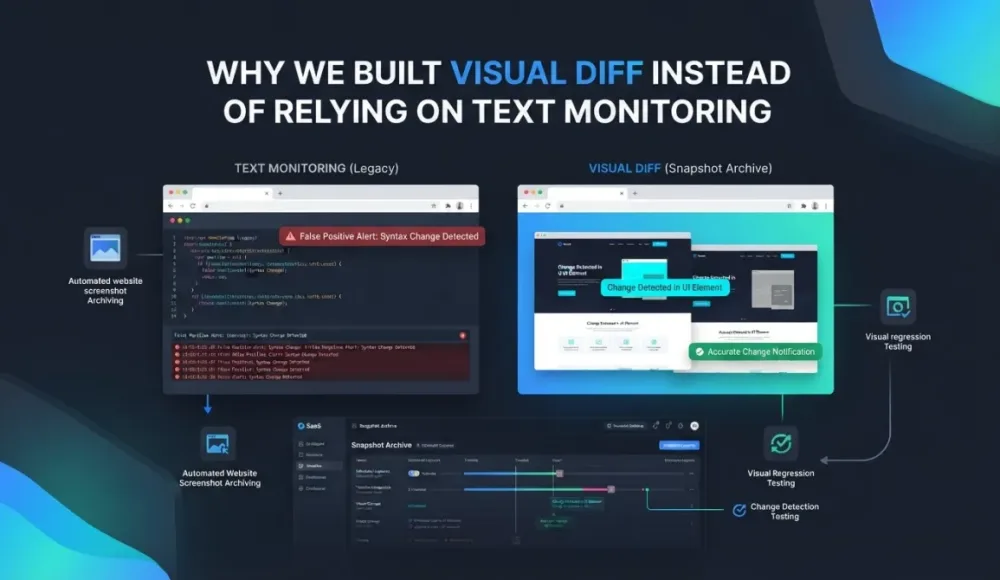
Visual diff takes a different approach. Instead of comparing code, we compare what the user actually sees — two screenshots taken at different times, compared pixel by pixel.

How text-based monitoring works and where it stops being useful

Text-based (or HTML-based) monitoring is the most common approach to change detection. Tools like Visualping, Distill, and changedetection.io do this out of the box — grab the HTML code of a page now, compare it with the previous version, show the difference. For certain tasks, it works well. If a competitor adds a new paragraph to their pricing page, HTML monitoring catches it. If a government agency updates a PDF link, you'll know about it. If someone changes the meta description on your page, same thing.

The trouble starts when changes happen outside of the HTML code, and on modern websites that's more common than you might expect.

Marketers often update banners and hero images by overwriting the file at the same path. The HTML still says <img src="/hero.jpg">, but the actual image is completely different — new creative, new message, new campaign. Text monitoring won't notice, because from its perspective nothing changed. We've seen this in our own competitor monitoring work: a competitor's homepage looked identical in the HTML diff but had an entirely new hero banner visible to every visitor.

CSS changes are another blind spot. The "Buy Now" button was green, now it's red. The price was small and gray, now it's large and black. An entire content block got hidden with display: none. All of these are visible changes that affect how visitors perceive the page and interact with it, but the HTML stayed exactly the same.

JavaScript-rendered content creates an even bigger gap. Modern single-page applications build their interface on the client side — if a competitor updates a pricing widget that renders through React or Vue, the raw HTML might not contain the actual price text at all. It gets pulled from an API and inserted after the page loads. Text monitoring that parses only the source HTML will see an empty <div id="pricing"></div> and assume nothing changed, while every visitor sees completely different numbers.

And then there are the subtler cases: an external font stopped loading and the browser fell back to a system font, making the page look broken. Or an A/B test is serving a different variant to every other visitor. In both cases, the HTML is identical — and text monitoring has no way to tell you anything is different.

How visual diff works under the hood

Visual diff approaches the problem from the other side. Instead of analyzing code, we do the same thing a person would: open the page in a browser, take a screenshot, and then compare it with the previous one.

Here's what the process looks like technically. A headless browser — Chromium via Playwright or Puppeteer — loads the page, waits for rendering, executes JavaScript, loads fonts and images, and takes a full-page screenshot. That screenshot gets saved to the archive. On the next capture, the new screenshot is compared with the previous one pixel by pixel. If the number of differing pixels exceeds a set threshold, the system flags a change and generates an overlay image where the differences are highlighted in color.

This is exactly how visual diff works in Snapshot Archive. We compare every new capture with the previous one and show the result as a side-by-side comparison: the old version on the left, the current version on the right, and the change percentage with pixel count in the middle. Instead of reading through lines of HTML and guessing what changed, you see the difference in a single image.

Visual diff comparison showing before and after versions of a website, with pixel-level changes detected

On top of the side-by-side view, Snapshot Archive also shows changes as a Diff Overlay — all areas that differ between the two captures get highlighted in red. In the example below, the overlay highlights a new screenshot preview block that appeared after a homepage redesign.

Diff Overlay mode showing homepage redesign changes — new screenshot preview block highlighted in red

One important detail: visual diff works with a configurable sensitivity threshold. This matters because every page render can produce microscopic differences — subpixel font rendering, anti-aliasing, a one-pixel shift due to rendering variations. If the threshold is set to 0%, you'll get false positives on every single capture. A reasonable threshold of 0.1–1% filters out the noise and leaves only real changes. We covered threshold tuning in depth in our article on false positives in screenshot monitoring.

What visual diff catches vs what text monitoring catches

The two approaches have different strengths, and the comparison table below makes it clear where each one wins and where it's blind.

Type of change

Text monitoring

Visual diff

New text on a page

✅ Yes

✅ Yes

Removed text

✅ Yes

✅ Yes

Meta tag changes (title, description)

✅ Yes

❌ No (not visible on page)

Image changed but URL stayed the same

❌ No

✅ Yes

Color, font, or size changed via CSS

❌ No

✅ Yes

JavaScript-rendered content

⚠️ Depends on the tool

✅ Yes

Element hidden with display:none

❌ No

✅ Yes

Layout change (blocks rearranged)

❌ No (if HTML didn't change)

✅ Yes

A/B tests (different variants for different users)

❌ No

✅ Yes (captures the specific variant)

Changes in robots.txt, sitemap

✅ Yes (if monitored)

❌ No (not a page)

The pattern is clear: text monitoring works best for tracking code-level changes, metadata, and SEO elements — things that live in the source code and don't have a visual representation. Visual diff covers everything the user sees with their own eyes, which for most monitoring use cases is what actually matters.

We built Snapshot Archive with a focus on visual diff because for most of our users — marketers, agencies, compliance teams — the question is "what changed on the competitor's website?" and the answer they need is a highlighted image, not a diff of two HTML files.

When text monitoring is the better choice

It wouldn't be honest to say visual diff is always the answer. There are situations where text monitoring works better, and it's worth knowing when to reach for which tool.

SEO monitoring is the clearest case. If you need to track changes in title tags, meta descriptions, canonical URLs, or robots.txt, those elements don't appear visually on the page — visual diff simply won't see them, because there's nothing to see. API and JSON monitoring falls into the same category: if you're watching data from an API endpoint, there's no page to screenshot, so visual comparison doesn't apply.

Plain text pages like legal documents or changelogs can also work better with text monitoring, because you'll see the exact words that were added or removed rather than just "something changed in this block." That said, for tracking Terms of Service changes, we've found that visual diff still catches layout changes and formatting shifts that text monitoring ignores — so the two approaches complement each other well on legal pages.

Storage budget is a practical consideration too. Screenshots take up more space than HTML files — if you're monitoring thousands of pages, that difference adds up. We covered the actual storage numbers in our guide to screenshot retention, and for most teams the cost is negligible, but at scale it's worth factoring in.

When visual diff is the only thing that works

Visual diff becomes the only reliable option when you need to see what the user sees — not what the code says, but what actually renders on screen. Here are the scenarios where we use it ourselves and recommend it to our users.

Tracking competitor pricing pages is the most common one. A competitor changes the CTA button color, removes a row from the plan comparison table, or adds a "Most Popular" badge to their middle tier. All of these are visual changes that affect conversion and competitive positioning, and text monitoring would miss them entirely if the HTML structure didn't change. Here's a real example: we monitored a SaaS pricing page and caught a price change — Starter went from $9 to $12, Pro from $29 to $39, Business from $79 to $99. Visual diff caught 0.26% of differing pixels and displayed a side-by-side comparison where you can immediately see which numbers changed.

Snapshot Archive Changes page showing side-by-side comparison of pricing changes — $9 to $12, $29 to $39, $79 to $99, with 0.26% difference detected

In Diff Overlay mode, the same change looks even clearer — the updated prices are highlighted in red directly on the page, and you don't need to compare two images side by side at all.

Diff Overlay mode highlighting changed pricing elements in red directly on the page

QA after a deploy is another scenario where visual diff catches what functional tests miss. Your team pushed an update, all tests passed, logs are clean — but a CSS conflict pushed the checkout button below the fold on mobile devices, or a font failed to load and half the headings look wrong. We wrote about this in more detail in our guide to post-deployment monitoring, but the short version is: if the bug is visual, you need a visual tool to catch it.

Compliance and legal documentation is where visual diff carries real weight. A court or an auditor wants a timestamped screenshot, not an HTML file — they need to see what the page looked like to a visitor at a specific moment. Visual diff goes beyond just capturing the state of a page: it shows exactly what changed between two moments. As you can see in the screenshot above, each capture is stamped with the exact date and time, creating documented proof of changes. We covered the legal requirements for this in our guide to screenshots as legal evidence.

Brand monitoring rounds out the list. If you're an agency managing a client's website and the client swaps out the logo and breaks the layout, or a partner uses your brand outside the guidelines, visual monitoring catches it immediately — because the change is entirely visual, and no amount of HTML parsing would detect a swapped image file at the same URL.

How we built visual diff in Snapshot Archive

Our approach to visual diff is pixel-level comparison using PHP Imagick. Every time Snapshot Archive takes a capture, a headless browser powered by Playwright loads the URL, waits for full rendering — including JavaScript execution, font loading, and lazy-loaded images — and takes a screenshot. That capture gets saved to storage.

Once there are at least two captures, the system runs a comparison. The algorithm takes two images of the same dimensions and goes through every pixel. If the pixel value at position (x, y) on the new capture differs from the value at the same position on the previous one, that pixel gets marked as changed. The result is a percentage of differing pixels — if it exceeds the threshold you've set (we default to 0.5%), you get a notification with a side-by-side comparison showing both page states and the change percentage.

The sensitivity threshold is configurable per URL. In the website settings, you enable visual change tracking, set the Diff Threshold as a percentage, and optionally turn on alerts.

Snapshot Archive settings — configuring diff threshold to 0.3% for visual change detection

If you want to receive notifications when changes exceed the threshold, turn on Enable alerts and enter your email. You can also set up a webhook or Slack integration so notifications go directly to your team's chat.

Enabling email alerts when visual changes exceed the configured 0.3% threshold

When a change exceeds the threshold, you get a notification — both in the app and via email, within seconds of the change being detected.

Real-time notification showing a visual change was detected on screenshotrun.com

For static pages like Terms of Service or Privacy Policy, a threshold of 0.1% works well — any change gets flagged. For pages with dynamic content like banners, sliders, or cookie consent overlays, something like 2–5% filters out noise from content rotation while still catching real changes.

Common false positives and how to deal with them

Pixel-by-pixel comparison is sensitive to any difference, and that cuts both ways. There are a few things that trigger false notifications regularly, and each one has a straightforward fix.

Cookie banners and popups are the most common culprit. If a page shows a consent banner on the first visit but not on the next (because the cookie was already accepted), the diff flags the entire banner area as changed. The fix is to configure the headless browser to auto-accept cookies or dismiss the banner with a click selector before capturing — we covered this process with real examples from Hetzner, CWSpirits, and other sites.

Rotating ads and content create ongoing noise. Banners, carousels, "related products" blocks — these change on every page load, and if such a block covers 10% of the page area, you'll get a 10% diff on every capture regardless of whether anything real changed. The fix is either to raise the sensitivity threshold or to use clip to element to capture only the section of the page you actually care about, excluding the noisy blocks entirely.

Timestamps and counters — "Published 5 minutes ago," "342 views," today's date in the footer — tend to handle themselves, because these elements take up very little screen area and typically fall well below any reasonable threshold. Subpixel rendering differences between browser launches are similar: a threshold of 0.1–0.5% is enough to filter out the microscopic font rendering variations that every headless browser produces.

Choosing between pixel comparison and text monitoring

For monitoring SEO elements, APIs, and structured data, text monitoring is the right tool. For tracking what the user actually sees on the page — visual appearance, layout, images, JavaScript-rendered content — visual diff gives you a more complete and easier-to-understand picture.

In practice, for most use cases we see — competitor tracking, post-deploy QA, compliance archiving, brand monitoring — visual diff handles the job on its own. The cases where text monitoring adds value on top are narrow: SEO metadata tracking and situations where you need to see the exact words that changed rather than just where on the page something moved.

If you want to try visual diff without setting up infrastructure, Snapshot Archive handles it out of the box. Add a URL, pick a capture frequency, set a sensitivity threshold — and the first comparison appears after the second capture. The free plan covers 3 URLs, which is enough to test how it works on your own site, a competitor's pricing page, and a vendor's legal page.

Start archiving websites today

Free plan includes 3 websites with daily captures. No credit card required.

Create free account

More from the blog

View all posts
How to archive websites with cookie banners and pop-ups
· 13 min read

How to archive websites with cookie banners and pop-ups

Cookie banners block the content you are trying to archive. Here is how to handle OneTrust, Cookiebot, and custom consent popups so your screenshots capture actual page content.

Full page vs viewport screenshots: which capture mode to use for monitoring
· 8 min read

Full page vs viewport screenshots: which capture mode to use for monitoring

Full page screenshots capture everything below the fold. Viewport captures only the visible area. Learn which mode fits your monitoring workflow and how the choice affects visual diff.

How to find a stable CSS selector when the page only has utility classes
· 13 min read

How to find a stable CSS selector when the page only has utility classes

The video element highlighted in DevTools on cohere.com/careers. The class attribute h-full w-full object-cover looks like a valid selector at first glance, but the values come from Tailwind utilities and will change at the next redesign. The <video> tag itself stays stable.