
Features Visual Diff Change Detection Scheduled Screenshots Watermark & Timestamp PDF Export API Pricing Blog How It Works About Contact
Back to Blog

How to Use Screenshots as Legal Evidence

How to Use Screenshots as Legal Evidence

You visit a reseller's website and see they're selling your product below the minimum advertised price. Or you find your copy, word for word, on someone else's site. Or a partner placed an ad in a way that has nothing to do with what was in the agreement. Your first instinct is to take a screenshot — just in case. So you do, save it to your desktop, and then forget about it.

Then the matter goes to court and you hear from your lawyer: "There's no date on this, no URL, the file sat on your computer for three months — this isn't evidence." By that point the page has already been changed. There's nothing left to prove, and a $50 dispute just became a $50,000 lesson in evidence collection.

If you thought to take a screenshot, that's already a good start — most people don't even get that far. But the way you create and store the screenshot determines whether it's evidence or just a picture. In this guide, we'll walk through what courts require from digital evidence, why manual screenshots get rejected, and how to set up a collection process that holds up under scrutiny. We're not lawyers, and this isn't legal advice — it's a practical guide to tools and processes.

Why regular screenshots get rejected in court

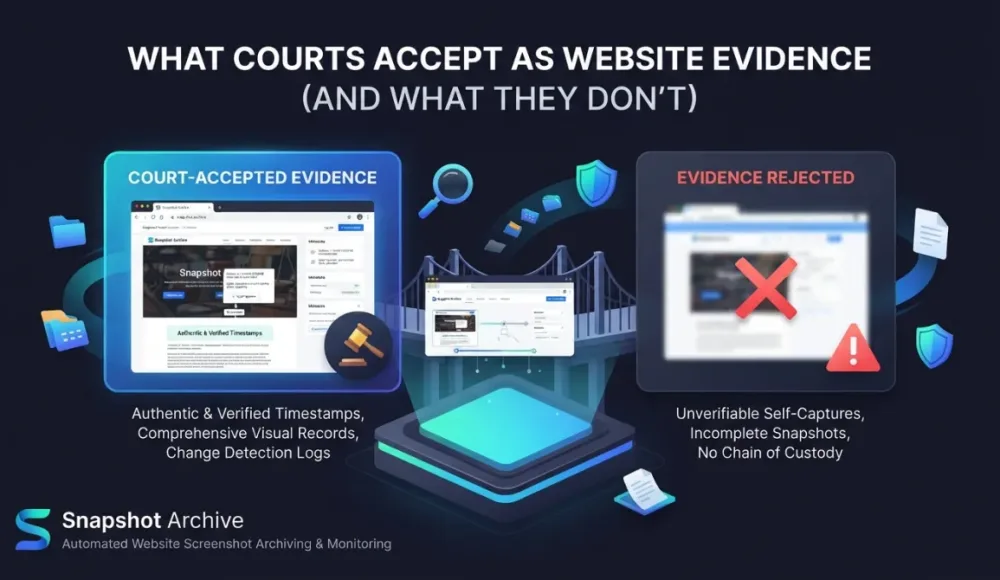
A court is not obligated to accept a screenshot just because you present one. In most jurisdictions, digital evidence must pass an authenticity check — and in practice, that means demonstrating three things.

First, that the screenshot accurately shows what was on the website at a specific moment. Not an edited image, not a cropped fragment, but the full page as it appeared to any regular visitor. Second, that it's clear when exactly the screenshot was taken — date and time matter, because if a competitor changed their page and you want to prove it used to say something different, you need the exact timestamp. Third, that the screenshot hasn't been altered after it was created. This is called chain of custody (the documented history of who had access to a piece of evidence and what happened to it at each stage). If the file sat on your desktop for three months, the opposing side can argue it could have been edited — and technically, they'd be right.

These aren't hypothetical concerns. In Moroccanoil v. Marc Anthony Cosmetics, the court refused to accept screenshots of a Facebook page because there was no way to confirm they accurately represented the original content. In United States v. Vayner, a screenshot of a social media page was thrown out due to insufficient authentication. Screenshots work as evidence — but the way they're created and stored determines whether a court will accept them.

What makes a website screenshot legally strong

A good screenshot for legal purposes is more than just an image. It's a combination of elements that together confirm its authenticity, and each element addresses one of the three requirements above.

A visible timestamp — date and time embedded in the image as a watermark or recorded in the file's metadata, ideally both — proves when the capture was made. A watermark burned into the image pixels is harder to dispute than metadata alone, because metadata can be edited with specialized tools while a watermark would require fabricating the entire image. The page URL needs to be visible too — without it, a screenshot is just a picture that could be of anything. And the capture should include the full page, not a cropped fragment, because a court may question what was left out of the frame and whether the cropping was selective.

File metadata adds another layer: creation date, resolution, the tool used for capture. Cloud storage with access logging works much better than a local folder, because you can demonstrate that nobody touched the file after it was created — the access logs serve as a tamper-proof record. And there's one more factor that gets overlooked: regularity. A series of captures taken over a period of time is far more convincing than a single screenshot taken at the moment of conflict, because it demonstrates you were monitoring consistently rather than reacting to a problem you already knew about.

Why manual screenshots are unreliable for legal purposes

The most common approach is to take a screenshot manually once a problem has been discovered — open the site, press Print Screen or use an extension like GoFullPage, save the file. That works for personal notes, but it has specific weaknesses that make it problematic in court.

A manual screenshot has no automatic timestamp. The file will have a creation date in its properties, but that date can be changed through file properties — the opposing side knows this and can challenge it. There's no automatic link to the URL either — GoFullPage saves a PNG but doesn't write the page address into the metadata, so you'd have to document the source yourself, and that's your word against theirs. Chain of custody is weak by definition: the file was on your computer, you're the only one who had access, and you have no way to prove you didn't modify it between capture and presentation.

But the biggest issue is temporal. A manual screenshot only exists for the moment you decided to take it. A competitor changed their page on Friday night, you noticed on Wednesday — what happened in between is unknown. Maybe they tested a different price for 48 hours and reverted it. Maybe the violation you're trying to prove was only visible for a few hours. Without automated captures running on a schedule, those moments are gone forever. We covered why manual screenshots don't scale in a separate article — for legal purposes specifically, automation isn't a convenience, it's a necessity.

Manual screenshot vs Automated screenshot — comparison table

What automated screenshots give you that manual ones can't

An automated tool captures pages on a schedule — every day, every 12 hours, every hour, depending on the settings. Each capture gets a timestamp tied to server time (not your computer's clock), a URL reference, and goes straight to cloud storage where it can't be silently modified. This addresses all three authentication requirements: the system takes captures without human involvement on a fixed schedule (harder to dispute than "I opened a browser and pressed a button"), the timestamp is server-generated, and the files are stored with access logs.

But there's something else that often gets overlooked: the power of a series. When monitoring is automatic, you don't have a single screenshot — you have captures from a week ago, two days ago, yesterday, and today. You can show a pattern of changes over time, which is far stronger evidence than a single moment frozen in isolation. A court sees systematic monitoring, not a reactive grab.

In Snapshot Archive, we take full-page captures on a schedule, add a watermark with the date, time, and URL, and store everything in the cloud with a complete history. Through visual diff, each new capture is compared with the previous one — so you see not just that a page changed, but exactly where and what changed, with both states preserved.

Visual diff in Snapshot Archive — highlighted change detected on a Privacy Policy page

Real scenarios where screenshot evidence is needed

Content theft is one of the most straightforward cases. Someone copied text from your website, and you need to prove your version was published first. Regular automated screenshots of your own site create a timeline that confirms priority — you can show the exact date your content appeared, with timestamps that predate the copy.

MAP enforcement (minimum advertised price) is another common scenario. A manufacturer sets a minimum price, a reseller sells below it, and screenshots of the product page with the price and a timestamp are direct proof of the violation. We covered how to set up automated pricing page monitoring in a separate guide — the same approach works for MAP tracking, except you're monitoring your resellers' pages instead of competitors'.

Partner and reseller compliance comes up regularly too. A partner is supposed to display your advertising in a certain way, or use your logo according to brand guidelines. A week after the agreement, the conditions on their site change. Without a screenshot archive, proving what the page showed on the day the agreement was signed versus what it shows now is practically impossible.

Terms of Service changes create a different kind of legal exposure. A service you use quietly updated its Terms of Service, and six months later you discover they can now do things they previously couldn't — things that affect how you handle customer data. If you have an archive of their ToS with periodic screenshots, you can show exactly when the change happened. We covered this use case in our guide to tracking Terms of Service and Privacy Policy changes.

Regulated industries add mandatory requirements on top of all this. In finance, FINRA and SEC rules require broker-dealers to retain records of public-facing communications for 6-7 years. In healthcare, HIPAA mandates retention of policy-related records for at least six years. GDPR and FTC can both demand proof of what your website showed at a specific point in time. Our retention guide covers the specific periods for each industry.

How to set up screenshot collection for legal purposes

The principles are the same regardless of which tool you use.

Screenshot evidence checklist — 6 steps for legal screenshot collection

Start by deciding which pages to monitor. You don't need to screenshot the entire internet — focus on URLs that could become the subject of a dispute: your own website, competitor sites (pricing pages, landing pages), partner and reseller sites, and legal pages of services you use.

Set the frequency based on the page type. For legal pages (ToS, Privacy Policy), daily captures are usually enough — these documents don't change hourly. For pricing or advertising pages, every 6-12 hours is better, because promotional changes can appear and disappear within a single day. The general rule: better too often than not enough, because storage costs pennies compared to the cost of missing a change that matters.

Make sure your tool records the right data with every capture: exact date and time, full URL, viewport size (desktop or mobile). A watermark with this information burned directly into the image is a serious advantage over metadata alone, because it can't be stripped out without visibly altering the screenshot.

Use cloud storage, not a local folder. Cloud storage with access logs confirms the file hasn't been altered after creation — this is the chain of custody element that local storage can't provide. For retention periods, 1-3 years covers most commercial disputes, though regulated industries may require 6-7 years or more.

Check that cookie banners aren't covering the content. A screenshot showing a consent popup instead of the actual page is useless as evidence — you're trying to prove what the page showed to visitors, and a full-screen cookie wall doesn't qualify.

And document your process. Describe for your team and your lawyer what tool is being used, which URLs are monitored, how often, and where the files are stored. If the matter goes to court, a documented, systematic process is significantly stronger than ad-hoc captures — it shows intent and consistency, not just reaction.

Watermarks: a small detail with serious legal weight

A watermark is text placed directly on the screenshot — date, time, URL — burned into the image pixels at the moment of capture. It seems like a minor detail, but in practice it's one of the strongest authenticity signals you can have.

File metadata (EXIF data, creation date) can be challenged — and should be, because it can be altered with widely available tools. A watermark embedded in the image itself is harder to dispute. To fake it, you'd have to fabricate the entire image, which is a much higher bar than editing a metadata field. In Snapshot Archive, the watermark is added automatically to every capture — date, time, URL applied at the moment of capture and baked into the file permanently.

Watermark on a screenshot — date, time, and URL burned into the image

When you need evidence right now and can't wait for automation

Sometimes the situation can't wait. You've found a violation and want to capture the page before it gets changed — maybe you're looking at it right now and you know it won't be there tomorrow.

A manual screenshot is better than nothing, but do it right. Use a full-page capture, not a cropped fragment. Write down the URL, date, and time. Save it immediately to cloud storage — not your desktop, not a local folder. If possible, record a screencast of the capture process to show that you opened a real browser, navigated to the URL, and took the screenshot without modifications. This isn't perfect evidence, but it's significantly better than a cropped PNG with no metadata sitting in your Downloads folder.

At the same time, set up automated monitoring going forward. A single screenshot captures a single moment. A series of screenshots captures a history — and history is what makes evidence convincing.

Legal disclaimer

We're not lawyers, and this guide is not legal advice. Requirements for digital evidence vary across jurisdictions — what counts as sufficient authentication under Federal Rule 901(a) in the US may differ from requirements under eIDAS in the EU or the Civil Evidence Act in the UK. Before using screenshots in court, consult with a lawyer who specializes in digital evidence in your jurisdiction.

What we do know from researching this topic: properly collected screenshots — with timestamps, URLs, cloud storage, and a documented process — work far better than random screen grabs taken after the fact. The tools and processes described in this guide are designed to maximize your chances of having evidence that holds up, but they don't guarantee admissibility in any specific case.

The difference between evidence and a picture

Screenshots are accepted in court, but not all of them. The difference between a useless image and strong evidence comes down to three things: how the screenshot was created, what data is attached to it, and where it was stored. Automate the captures, watermark them, store them in the cloud, and document your process — and the screenshots you collect today will still be useful evidence in three years.

Snapshot Archive's free plan covers 3 URLs — enough to set up monitoring on your own site, a reseller's page, and a vendor's Terms of Service, and see whether the workflow fits your needs before scaling up.

Start archiving websites today

Free plan includes 3 websites with daily captures. No credit card required.

Create free account

More from the blog

View all posts
We were monitoring Amazon prices and kept finding error pages instead
· 7 min read

We were monitoring Amazon prices and kept finding error pages instead

We added a handful of Amazon pages to track product prices. Instead of price changes, we started getting alerts about error pages. Turns out scheduled screenshots double as availability monitoring, and they catch things Pingdom never will.

How to bypass age verification on websites using custom cookies
· 8 min read

How to bypass age verification on websites using custom cookies

Some websites block content behind an age verification form — three input fields for date of birth, no simple button to click. Click selector can't help here. We show how to bypass these gates using custom cookies, with jackdaniels.com as a real example.

How to track SaaS pricing page changes automatically
· 12 min read

How to track SaaS pricing page changes automatically

Your competitors change pricing pages without announcements — new tiers, moved features, adjusted discounts. Learn how to set up automated screenshot monitoring to catch every change and turn it into a competitive advantage.