
Full-page website screenshots — capture every pixel from top to bottom
You're monitoring a competitor's landing page, but the screenshot only captures what's above the fold. The pricing table, the FAQ, the fine print at the bottom. All missing. You're making decisions based on half the page. A full page screenshot tool fixes that. Snapshot Archive captures the entire web page from top to bottom, no matter how long it scrolls, so your archive shows the complete picture every time.
What full-page capture actually does
Most screenshots only capture what fits on one screen, roughly the first section of a page. Everything below the fold gets cut off. Pricing tables, legal clauses, product specs, footer links. gone.
Full-page mode captures the entire page in a single image, header to footer, regardless of how far it scrolls. What your visitors see while scrolling, your archive preserves. Every section, every element, in the exact layout it appeared. This is full length website capture. One image that represents the complete rendered page.
Why it matters for archiving and monitoring
A viewport-only screenshot of a terms-of-service page captures the header and the first paragraph. The clause that changed (the one your legal team needs) sits 3,000 pixels down. Without full-page capture, you archived the wrong part of the page.
Pricing pages have the same issue. Product comparison tables too. Anything below the fold is invisible to a viewport-only capture. Our change detection engine compares the full image. A single modified row in a feature comparison table at the bottom of the page still triggers an alert.
We broke down the technical tradeoffs between capture modes in our full-page vs viewport screenshots guide. Including when viewport mode is actually the better choice, particularly for pages with infinite scroll or heavy lazy-loading.
How teams use a full page screenshot tool
Legal and compliance
Law firms and compliance teams archive web pages as evidence. A cropped screenshot weakens your position: opposing counsel can argue you only captured what was convenient. Full-page captures with our watermark timestamp and PDF export with SHA-256 hash give you a complete, verifiable record. See how legal teams set this up in practice, or explore our compliance archiving workflow.
Competitor intelligence
Pricing pages are the highest-value URL in any competitor monitoring setup. With full-page capture you see the tier restructuring, the comparison table changes, and the fine print, not just the hero section. When your competitor moves features between plans, the change shows up in your archive automatically.
QA and post-deploy verification
After a deployment, a viewport screenshot might show the header looks fine while the footer is broken. You won't know until a user reports it. Or until your full-page capture catches the broken element three scrolls down. Pair it with change alerts to get notified the moment a deploy introduces visual regressions.
E-commerce and product pages
Product listings, category pages, and marketplace profiles extend well beyond the viewport. One capture grabs the complete listing (images, descriptions, specs, review count, seller information) without you stitching anything together manually. If you're doing price monitoring or brand protection, this is the capture mode you want.
How full page screenshot capture works under the hood
Our full page screenshot tool uses a headless Chromium browser that scrolls the page programmatically, waits for lazy-loaded content to render, and stitches the result into a single PNG. The process handles:
- Lazy-loaded images. The browser scrolls the page first, so images actually load before capture
- Sticky headers and footers get rendered once, not duplicated in every scroll frame
- JavaScript executes fully before the screenshot fires, so dynamic content is included
- Got cookie banners or popups? Use click selectors to dismiss them before capture
Full-page captures are slightly larger files and take a few seconds longer than viewport-only shots. Maximum capture height is 16,384 pixels, enough for virtually any page. If a page exceeds that limit. common with infinite-scroll feeds. Viewport mode with a clip-to-element selector is the better approach.
Choosing the right capture mode for your monitors
| Scenario | Recommended mode | Why |
|---|---|---|
| Pricing pages | Full-page | Comparison tables and fine print live below the fold |
| Terms of service / legal pages | Full-page | Every clause matters for evidence |
| Landing pages | Full-page | Captures all sections, CTAs, and testimonials |
| Product listings | Full-page | Specs, reviews, and seller info sit below viewport |
| Social media feeds | Viewport | Infinite scroll: full-page would never end |
| Login/status pages | Viewport | Content fits in one screen |
| Specific page section | Viewport + clip | Use clip-to-element to target exactly what you need |
Full-page mode plugs into your entire workflow
Turning on full-page capture doesn't change how anything else works, it makes everything else more useful:
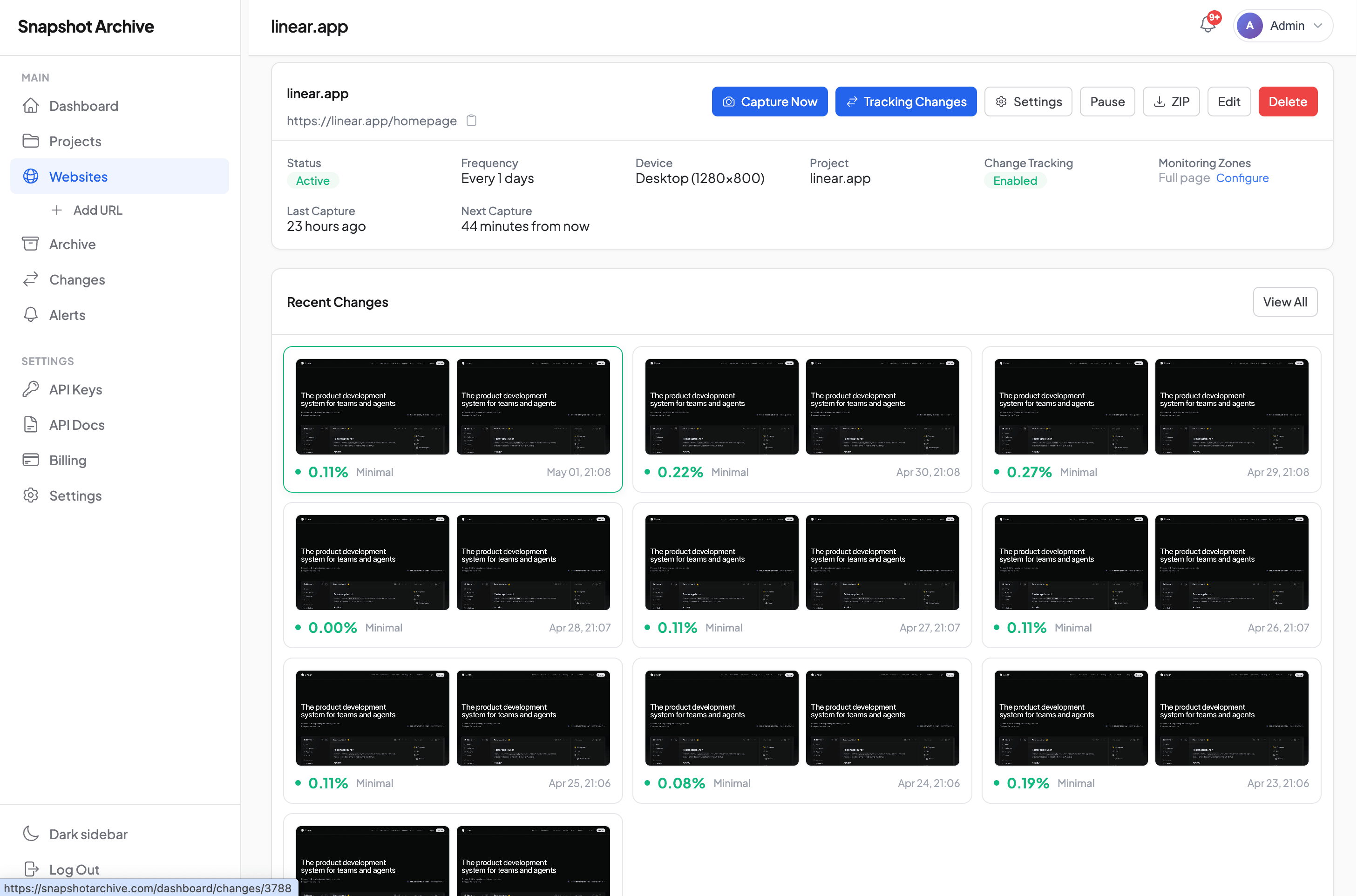
- Visual diff compares full-page captures pixel by pixel. A changed disclaimer at the bottom of the page lights up instantly
- Change alerts still fire: doesn't matter if the change is at the top or 4,000 pixels down
- Scheduled captures run on whatever frequency you've set. Nothing to reconfigure.
- Your watermark timestamp gets burned into the full image, not just the viewport
- PDF export packages everything with SHA-256 verification for legal use
- Need to trigger captures from your own code? The API supports full-page mode too
Set up full-page capture in 30 seconds
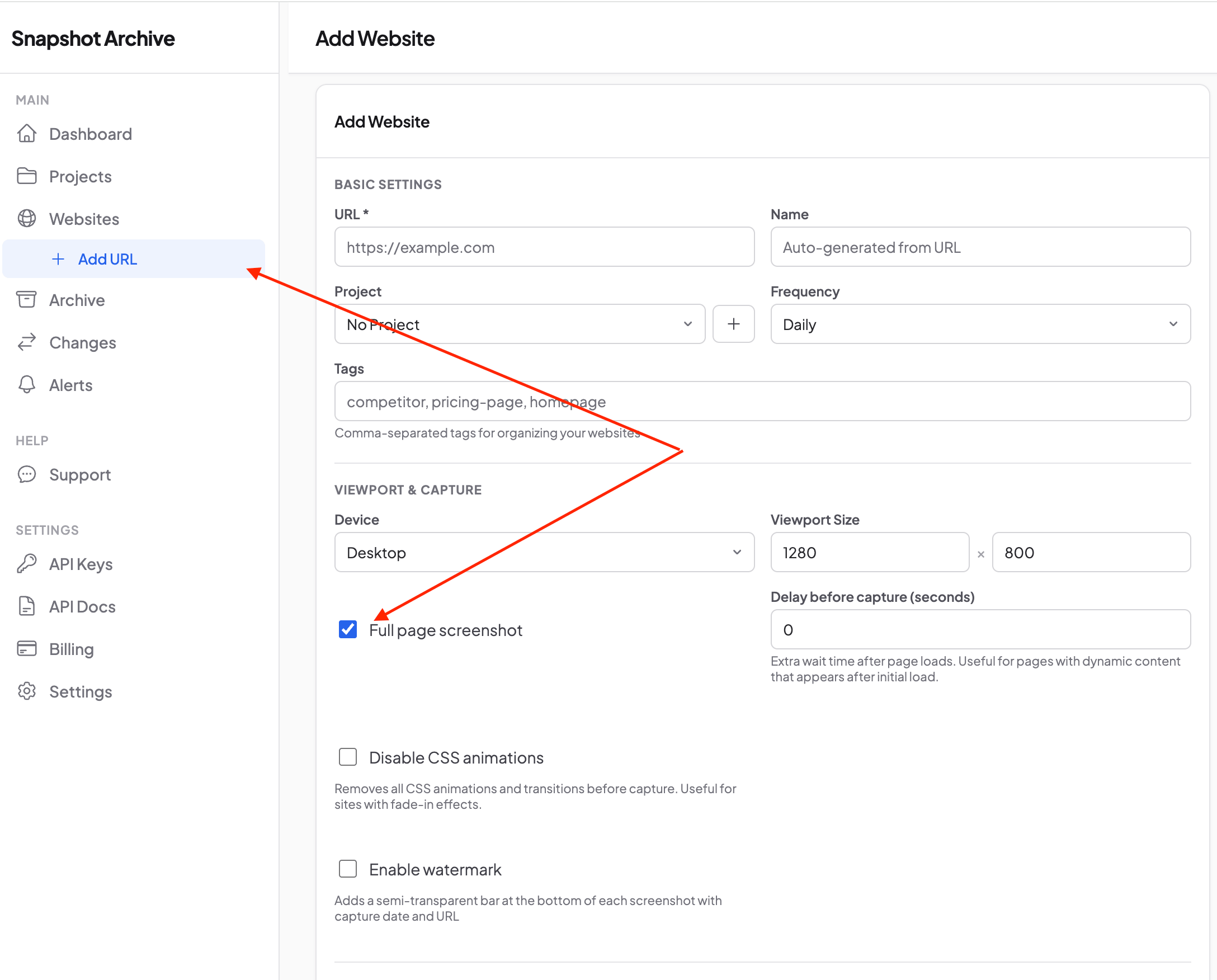
- Create or edit a monitor, paste the URL you want to capture
- Enable full-page mode. Toggle it on in monitor settings
- Set your schedule: daily, every 6 hours, or whatever fits your workflow
- That's it, your next scheduled capture grabs the whole page from top to bottom
Our full page screenshot tool is included on every plan. Even the free one. Add a URL, toggle full-page mode on, and your first complete capture runs within minutes. No setup calls, no credit card.
Frequently Asked Questions
Very tall pages capture fine in the overwhelming majority of cases. The practical limit shows up with infinite-scroll feeds and some heavy single-page apps that keep loading new content as the browser scrolls — those can grow without end, or time out before they finish. For pages like that, a fixed viewport or a clipped element is the steadier choice.
Yes. Because the browser physically scrolls through the page before capturing, images and sections that only load when they enter view get triggered and rendered into the final image. For content that fades in or arrives a moment after the page settles, the Delay before capture setting holds the shot for a few extra seconds so everything has time to appear. The one case this won't solve is content that waits for a click or some other interaction rather than for scrolling or time.
Set the rendering width to a mobile size, like 375 pixels, and full-page behaves the same way — it captures the full mobile layout top to bottom. That's useful when a site serves a different structure to phones than to desktops, since the mobile version is the one your visitors actually see.
A viewport screenshot usually weighs tens of kilobytes; a full-page capture of a long page runs into the hundreds. It's more storage, but your plan's retention window keeps the history without any manual cleanup, and the completeness is worth the extra weight for most archiving work.
Yes. Full-page is the default mode on every plan, including the free tier (3 websites, daily captures). There's no upsell to capture the whole page — it's how the product works out of the box.
Every full-page capture can be exported to a PDF that preserves the whole length in one document, with the timestamp and SHA-256 certificate attached, so it reads as a single dated record instead of a stack of cropped images.