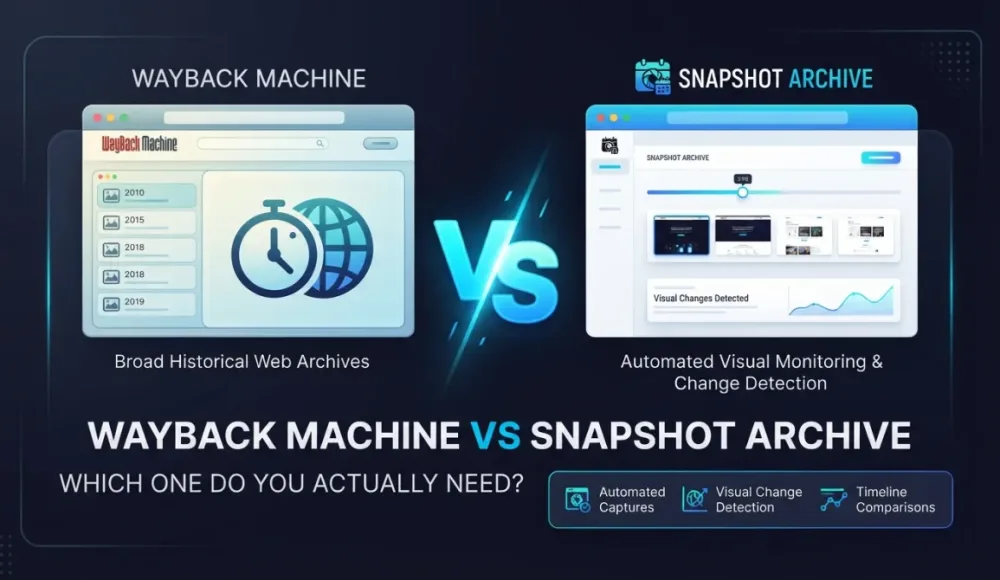

Wayback Machine vs Snapshot Archive: Which One Do You Actually Need?
We've been using the Wayback Machine for years — probably just like you. Every now and then we'd open web.archive.org to check what some website looked like a year or five years ago, and for that kind of thing it works great. Type in a URL, scroll through the timeline, and there it is: a page from 2019 with an outdated design and broken images.
The trouble started when we needed to solve actual work problems: monitoring a competitor's pricing page and catching every change, archiving our own pages after each deployment, building an evidence trail for legal matters with exact dates and timestamps. That's when we realized the Wayback Machine wasn't built for any of this — not because there's anything wrong with it, but because it was designed for something else entirely.
What the Wayback Machine does well and where it falls short for daily work
The Wayback Machine is a free archive run by the nonprofit Internet Archive. Since 1996 it has saved over a trillion web pages, which is genuinely impressive — for browsing internet history it's hard to beat. But once you try to use it for day-to-day monitoring, the limitations add up fast.
You don't get to decide when the Wayback Machine captures your page. It crawls sites on its own timetable — sometimes daily, sometimes once every few months. High-traffic sites like nytimes.com get saved frequently, while smaller ones are captured whenever the crawler happens to visit. And even when a snapshot exists, it may be incomplete: the Wayback Machine saves the HTML and tries to reconstruct the page, but external resources like CSS files, fonts, images, and JavaScript often fail to load. What you end up seeing looks roughly like the original, but it's not an accurate visual copy.
There are no notifications — this is an archive you browse, not a monitoring tool. If something changes on a page, nobody tells you. You have to manually open two snapshots side by side and compare them yourself. Everything that ends up in the Wayback Machine is public, which means a staging environment or an internal page could become freely accessible. And the "Save Page Now" feature is manual work every time: go to the site, paste the URL, click the button, wait for it to finish.
The Wayback Machine also can't interact with pages. Cookie banners, popups, age gates — all of these stay on the snapshot because the crawler can't click buttons or dismiss overlays. If a European site shows a GDPR consent dialog, the Wayback Machine captures the dialog, not the content behind it.
We tested this with a real example. We took hetzner.com — a hosting provider we actually use ourselves — and checked how often the Wayback Machine had been capturing it. On April 6, 2026, there were only 3 snapshots for the entire day. Hetzner isn't some obscure website — it's a major European hosting provider with thousands of customers.

For comparison, Snapshot Archive had screenshots of the same page every hour on that same day — 24 captures versus 3, and each one was a proper visual screenshot rather than an HTML reconstruction.

When the Wayback Machine is still the right choice
It would be dishonest to suggest the Wayback Machine is useless — there are things it does better than any paid tool, and we still use it regularly for these.
Viewing historical versions of a site is where it's unmatched. The Wayback Machine has been archiving since 1996, and no commercial service comes close to that kind of depth. If you need to see what Apple.com looked like in 2005 or find a page that was deleted years ago, this is your only option.
Free, one-off lookups require no signup, no subscription — just type a URL and browse. For academic research, journalism, or nostalgia, it remains the best tool for the job. And for recovering lost content — an old blog post, deleted documentation, an article that was taken down — if the page was ever indexed, there's a chance it's still sitting in the archive.
What we needed and why we built Snapshot Archive
Our needs were different. We didn't want to browse internet history — we wanted to control it. We needed screenshots on a schedule that we choose ourselves (every 5 minutes, every hour, once a day), accurate visual captures that show exactly what a visitor sees in the browser with proper fonts, images, and CSS — not an HTML reconstruction. We needed automatic visual comparison where the system compares each new screenshot against the previous one and highlights the differences, so we're not squinting at two browser windows on two monitors. We needed notifications when something changes — via email, Slack, or webhook — because we wanted to know about a change immediately, not stumble across it two weeks later. And we needed a private archive where our screenshots stay ours.
All of this came from real work we were already doing. We monitor competitor pricing pages, track changes in Terms of Service, and check our own site after deployments — and every one of those tasks needs reliable automation, not random snapshots that show up once every few months.
Real-world test: hetzner.com in both tools side by side
We set up monitoring for hetzner.com in two ways: through the Wayback Machine and through Snapshot Archive with hourly automatic screenshots. The differences showed up immediately.
Cookie banner: the Wayback Machine captures it, Snapshot Archive dismisses it
When we opened a Wayback Machine snapshot of hetzner.com, a cookie consent banner was sitting right on top of the content — "THIS WEBSITE USES COOKIES" with "Allow all cookies" and "Allow necessary cookies" buttons. The actual page content was barely visible behind it.

The Wayback Machine saves the HTML and renders the page as-is — it doesn't click buttons, dismiss popups, or interact with the page in any way. We ran into the same issue with early Snapshot Archive captures before we configured banner handling:

Unlike the Wayback Machine, we fixed this in about 30 seconds by adding a click selector in the monitor settings — a CSS selector pointing to the "Allow all cookies" button. Now Snapshot Archive clicks that button automatically before every capture, the banner closes, and the screenshot shows the actual content. We walked through this entire process using Hetzner as the example in our click selector guide.
Capture frequency: 3 snapshots per day versus 24
The numbers tell the story. The Wayback Machine made 3 snapshots of hetzner.com on April 6, while Snapshot Archive made 24 — one every hour. Three snapshots a day might seem like enough, but changes on a website don't happen on a schedule. A competitor can update their pricing page at 3 AM, and your own site can break after a deployment at 2 PM only to be fixed by 4 PM. If there's no snapshot in that window, you won't even know the problem existed.
Visual diff: the system shows you what changed instead of making you look
Below is a comparison of two consecutive Snapshot Archive captures. On the left, a capture from 22:46; on the right, one from 23:47 the same day. Between them, the diff indicator: 0.01%, 51 pixels. A tiny change, but the system caught it.

In this case the difference turned out to be minor — probably a dynamic element updating on the page. That's exactly why we built a configurable sensitivity threshold: set it to 1–2% and these micro-changes stop generating alerts. But if Hetzner ever changes their pricing or redesigns the hero section, the diff will jump to 5%, 10%, 20% — and you'll get notified immediately.
The Wayback Machine has no comparison feature at all. The only way to spot a change is to manually open two snapshots, place them side by side, and compare with your eyes — a process we covered in detail in our comparison of manual vs automated approaches.
Feature comparison: Wayback Machine vs Snapshot Archive
Feature | Wayback Machine | Snapshot Archive |
|---|---|---|
Capture schedule | Uncontrolled, depends on the crawler | Every 5 min to once a week, you choose |
Snapshot format | HTML reconstruction (often broken) | PNG screenshot + PDF + HTML |
Visual diff | No | Pixel-by-pixel comparison with highlighted changes |
Change alerts | No | Email, Slack, webhook |
Cookie banners & popups | Stay on the snapshot | |
Sensitivity threshold | No | Configurable (0–100%) |
API for automation | Archive search only | REST API for CI/CD and integrations |
Archive privacy | Public | Private, accessible only to you |
Mobile screenshots | No | Yes, with custom viewport |
Snapshot retention | Indefinite (managed by Internet Archive) | By plan: 7 days – 1 year |
Archive depth | 1 trillion+ pages since 1996 | Only what you've configured |
Price | Free | Free for 3 URLs, from $10/mo for 15 |
Which tool fits which use case
If you need to see what a website looked like in the past — use the Wayback Machine. For that particular task it's unmatched: the largest web archive in the world, a trillion pages going back to 1996, all of it free.
If you need to regularly monitor pages and react when something changes, you need a different kind of tool. Competitive intelligence — tracking competitor pages and SaaS pricing changes so you find out the same day, not a month later at a quarterly review. Legal evidence — courts need an exact date, an unaltered file, and the full page, and the Wayback Machine can't guarantee any of those things (we covered what makes screenshots legally valid in a separate guide). Post-deployment monitoring — automated screenshots paired with visual diff catch visual regressions before your users do. Compliance — tracking changes in vendor Terms of Service and Privacy Policy on autopilot. Ad and landing page monitoring — agencies verifying that partner sites display creatives correctly, with hourly screenshots as proof.
Using both tools together is what we actually do
The Wayback Machine is for browsing historical data and quick one-off checks, while Snapshot Archive handles everything that needs regularity, accuracy, and a fast response to changes. When you think about it, they're not really competitors — the Wayback Machine is a library, and Snapshot Archive is a monitoring system. You wouldn't go to a library to check whether your site is working after a deploy. And Snapshot Archive won't show you what Twitter looked like in 2009.
Here's how the combination works in practice:
Task | Tool |
|---|---|
See what a competitor's site looked like 3 years ago | Wayback Machine |
Monitor a competitor's pricing page daily | Snapshot Archive |
Find a deleted blog post | Wayback Machine |
Check your own site after a deploy | Snapshot Archive |
Collect evidence for a legal dispute | Snapshot Archive |
Study the design evolution of a well-known site | Wayback Machine |
Track changes in a partner's ToS or Privacy Policy | Snapshot Archive |
Try it and see the difference yourself
If you're still monitoring websites through the Wayback Machine or doing it manually, try setting up a couple of URLs in Snapshot Archive. The free plan covers 3 URLs with daily screenshots and 7 days of retention — enough to track a competitor's pricing page, your own homepage, and a vendor's ToS, and see whether automated monitoring tells you something you would have missed.
We built this tool because we needed these exact capabilities ourselves. If you're in a similar spot — give it a try, setup takes about a minute.
Start archiving websites today
Free plan includes 3 websites with daily captures. No credit card required.
Create free account

Vitalii Holben