
 Vitalii Holben
What the change percentage actually means in screenshot monitoring
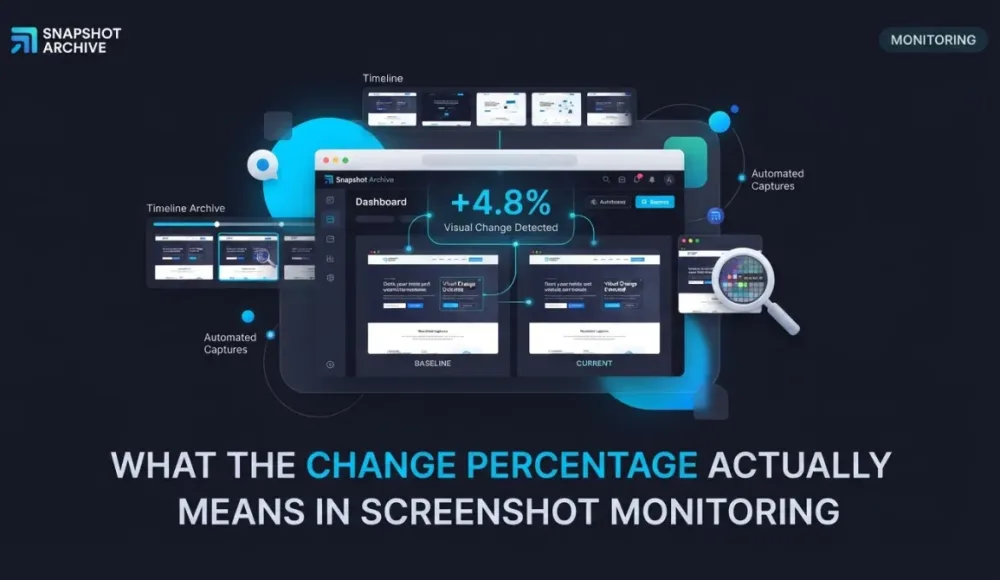
You set up a monitor, go to bed, and wake up to an alert: 22.59% changed, status Major. Sounds like the competitor rewrote their pricing page, or something broke badly.
You open the diff, drag the slider back and forth, and realize the page looks exactly the same. Same content, same price, same layout. The only thing that happened is a promotional banner appeared at the top of the page and pushed everything down by 40 pixels. Every element on the page technically moved, so the diff flagged all of them.
This is the core tension with change percentages: the number is always mathematically correct, but it doesn't always mean what you think it means. A 5% diff can be more important than a 40% one: it depends entirely on what caused the change and whether the page layout stayed stable between captures.
How the change percentage is calculated in website change detection
Visual diff in Snapshot Archive works by comparing two screenshots pixel by pixel. Every pixel that differs between the "before" and "after" images gets counted, and the result is the ratio of changed pixels to total pixels in the image. If a screenshot is 1,280 × 800 pixels (1,024,000 total), and 55,727 of those pixels are different, the change is 5.44%. Pure math, no interpretation, the system doesn't know whether those pixels represent a new button or a shifted banner.
Based on the percentage, Snapshot Archive assigns a severity level. Under 0.5% is Minimal (a counter ticked, a timestamp updated, an ad rotated) almost always noise. Between 0.5% and 5% is Minor: something small but visible, like a new UI element, a text edit, or a slight layout adjustment. Between 5% and 20% is Moderate: a noticeable change that could mean a new section on the page, a banner swap, or a content block appearing or disappearing. Over 20% is Major: a large portion of the page looks different, which might be a redesign or an error page, but can just as easily be a plain layout shift with no real content change at all.
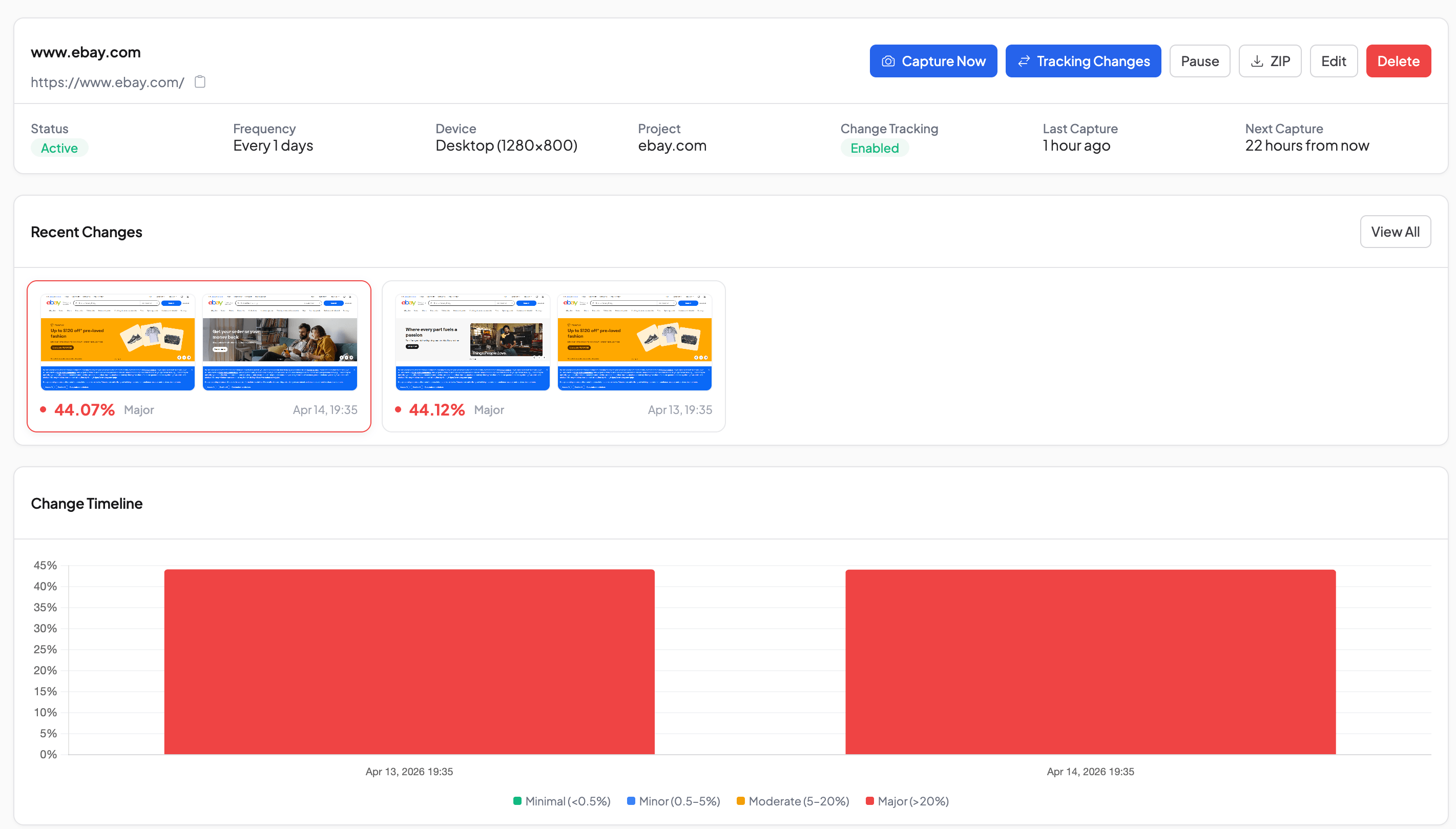
What the full spectrum looks like in the alerts panel. From 4.13% on Amazon to 44.07% on eBay, all from a couple of days of monitoring:
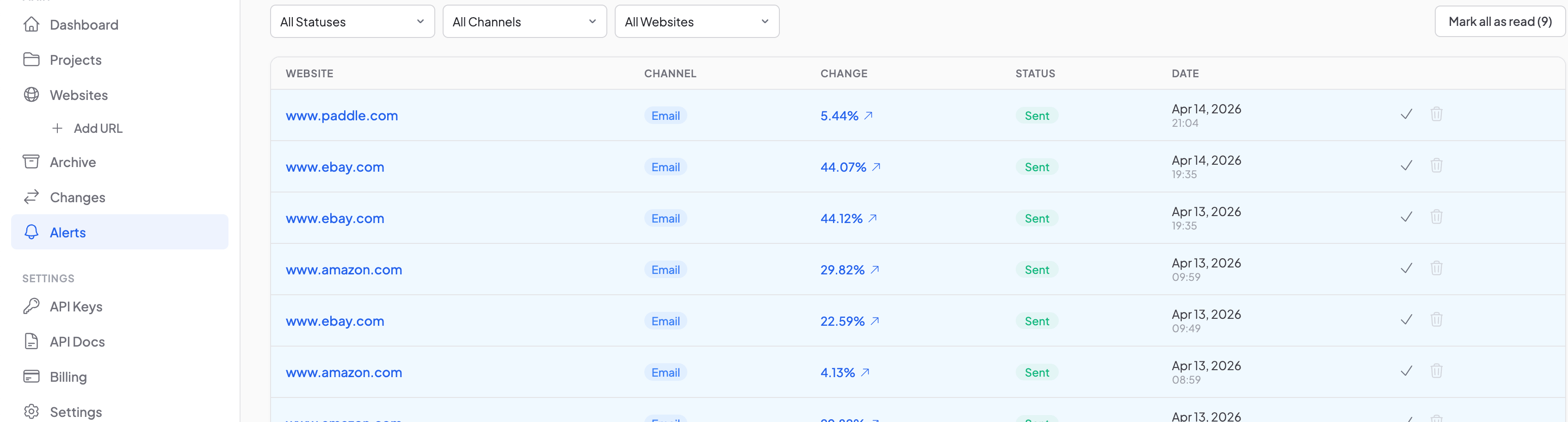
These labels help you triage alerts quickly, but the label alone won't tell you whether the change is real or visual noise. For that, you need to look at the diff: and understand when the percentage is trustworthy and when it isn't.
When the percentage tells the truth: stable templates
The diff percentage is most reliable when the page layout stays stable between captures. If headers, footers, and content blocks stay in the same positions, then any change the diff highlights is a real change in content.
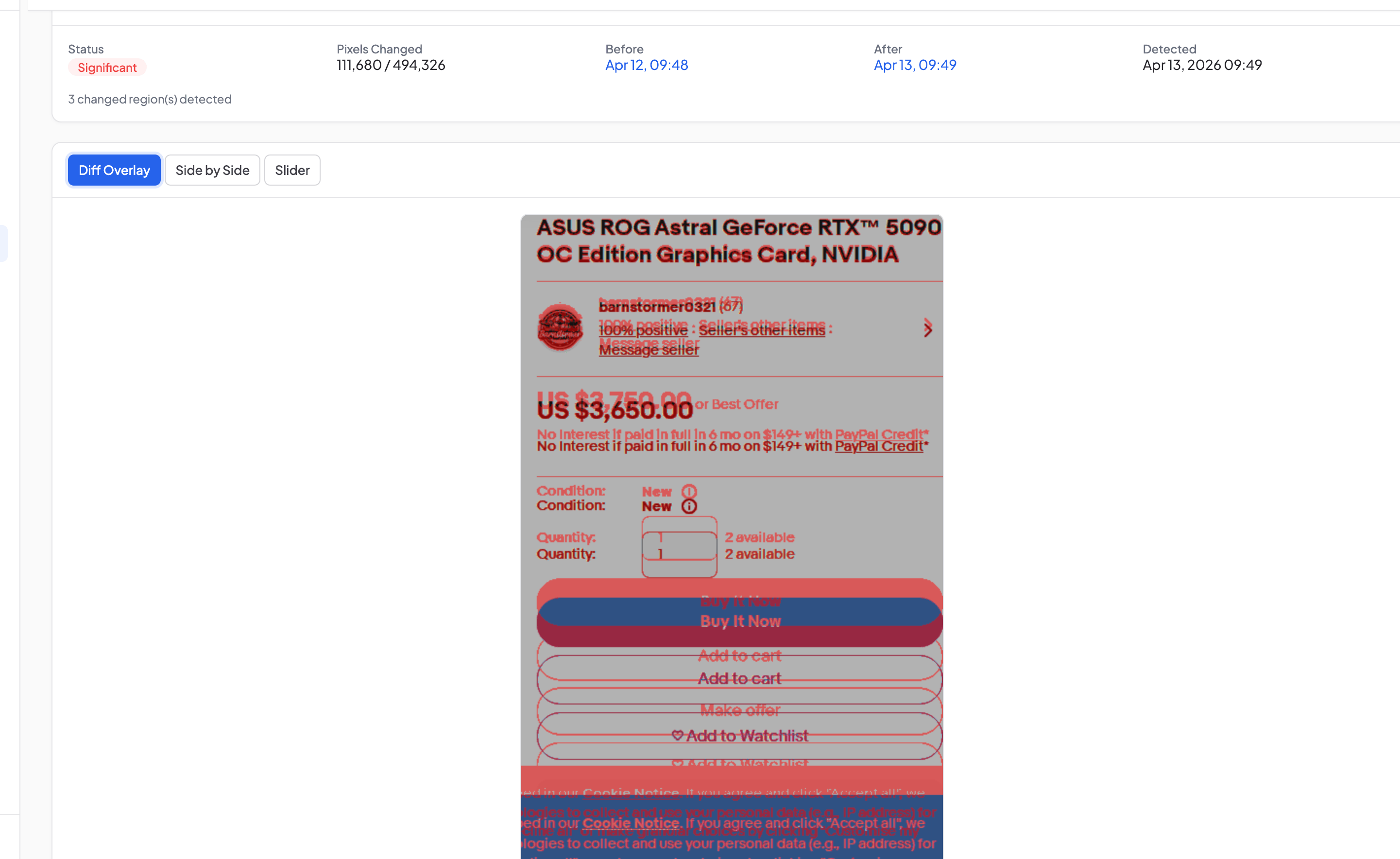
We were monitoring a product listing on eBay, and the diff came back with a clean side-by-side: the price moved from $3,750 to $3,650. Nothing else shifted. The diff highlighted only the price zone, and the percentage reflected just that one change.
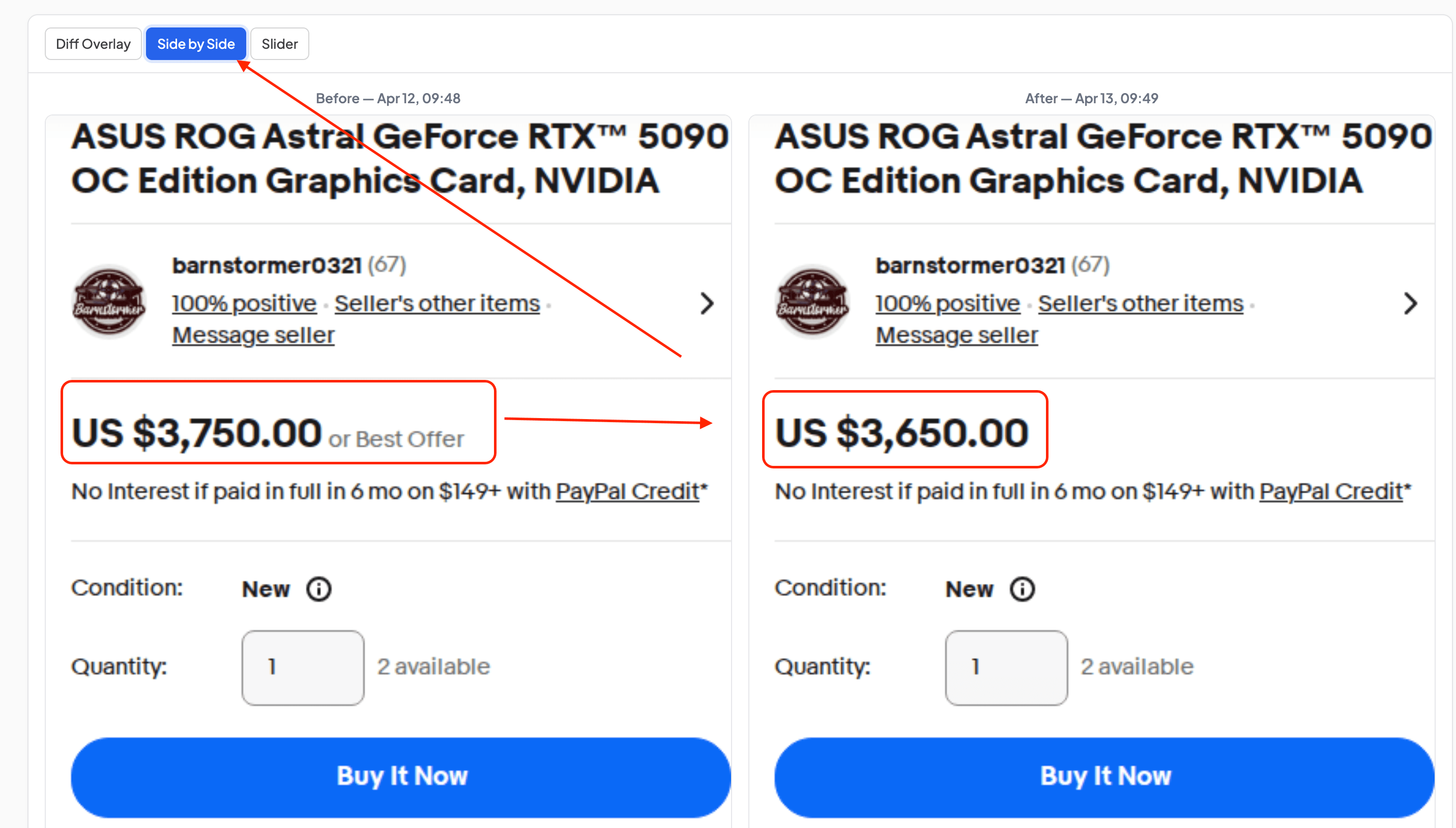
The reason this worked cleanly is that we used clip to element to capture only the right panel with price and product details, no recommendations, no banners, no floating widgets. The template stayed identical between captures, so the diff showed exactly what changed and nothing else.
Same story with paddle.com. The diff showed 5.44%, and when we opened the overlay, it was clear what happened: a new "Book a demo" button appeared in the navigation. Seven changed regions, and every one of them was a real, intentional change. Not noise. We wrote about this specific case in our article on real website changes we caught with screenshots.
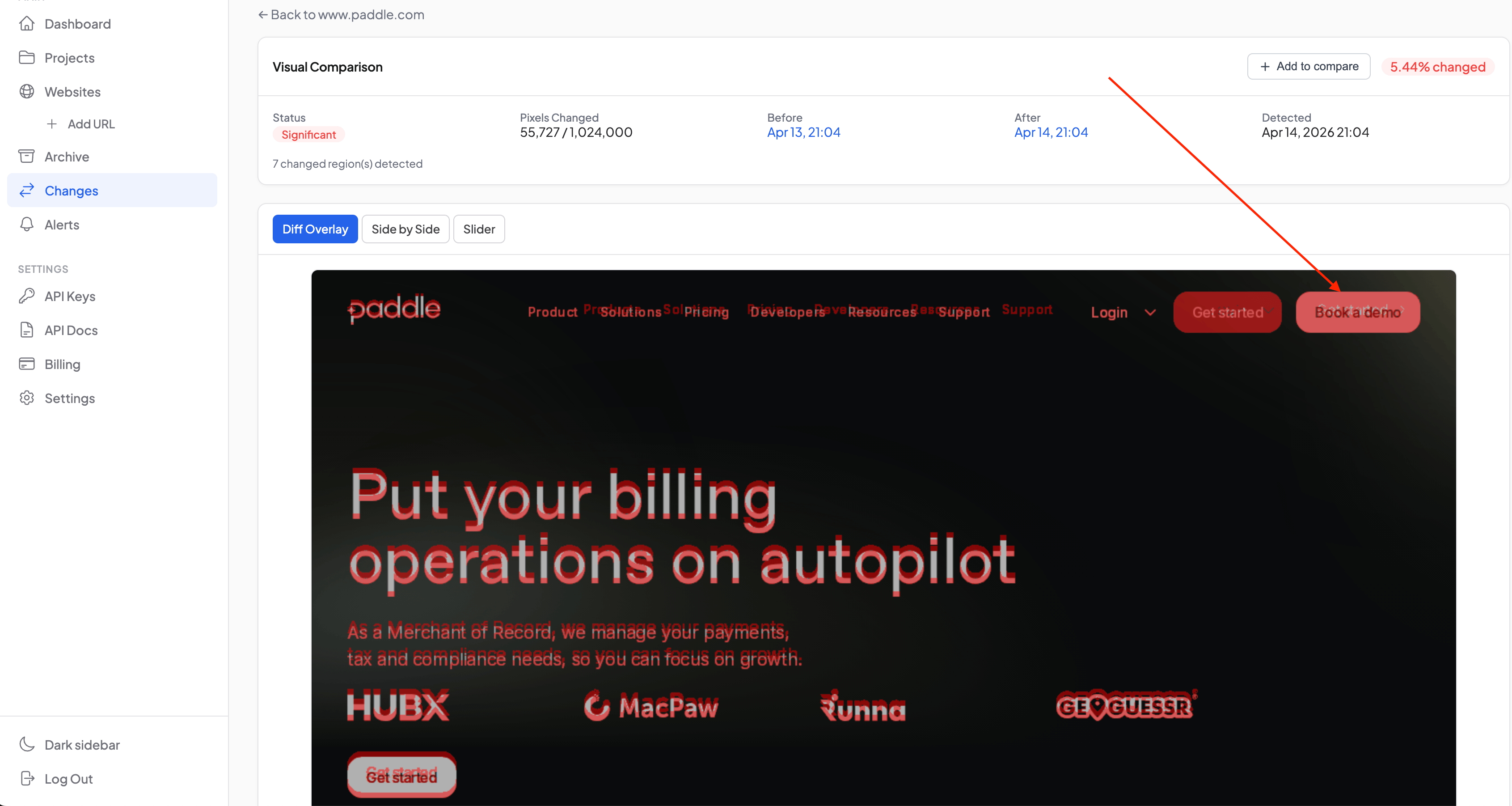
When the template is stable, even a low percentage carries a strong signal. A 2% diff on a pricing page might mean a plan got renamed. A 5% diff on a homepage could be a new CTA in the header. These are the cases where the number maps directly to what happened.
When the percentage lies: layout shifts are the main culprit
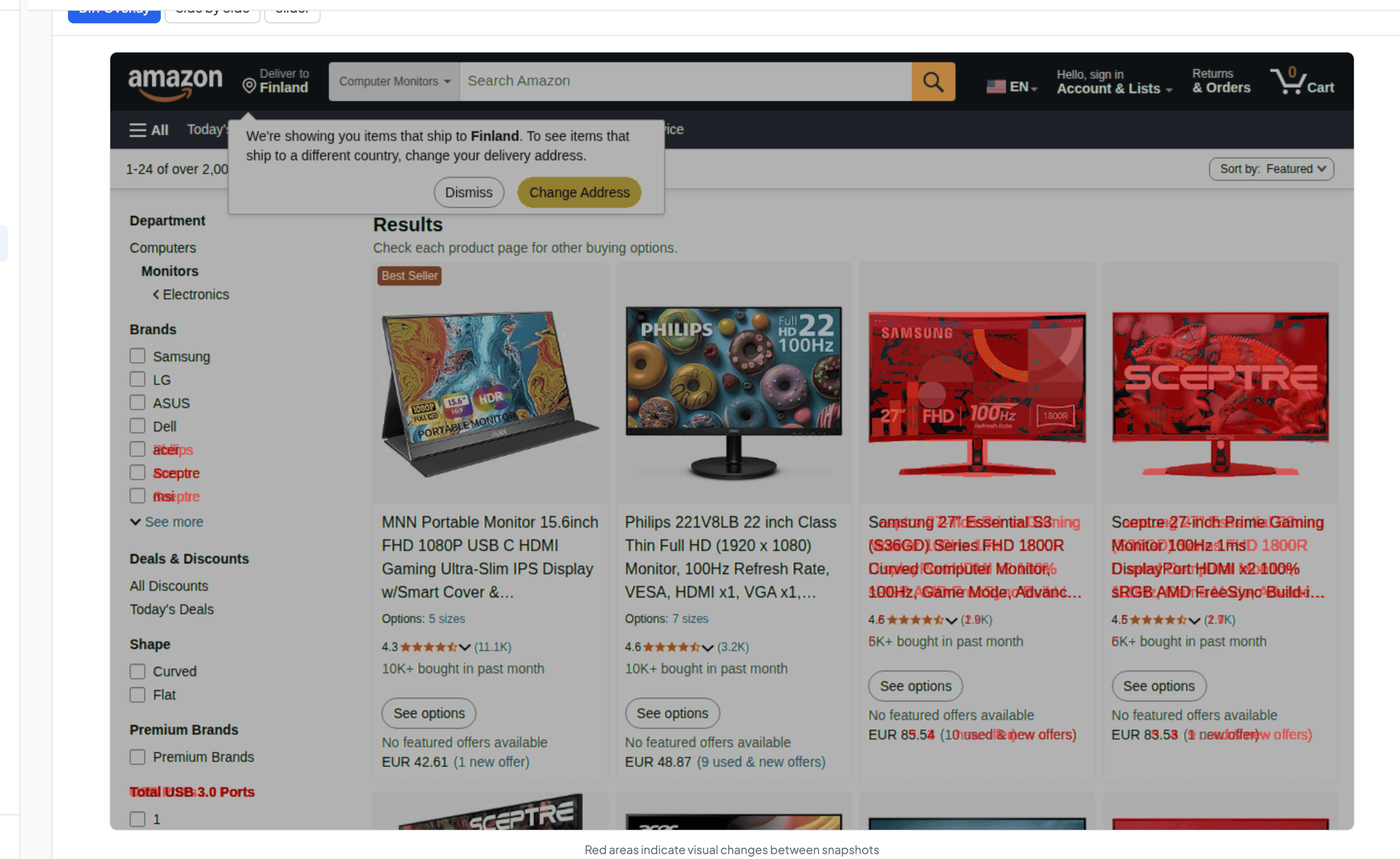
It works the other way too, and this is where most confusion comes from. We added an Amazon product page to monitoring: a specific product card with price, images, and reviews. The first alert came in: 22.52%, Major. We opened the diff expecting a serious content change and found nothing. Same product, same price, same image. The page just looked slightly shifted.
What happened: Amazon occasionally injects a promotional row into the navigation bar. It doesn't show up on every visit, depends on the session. When that row is present, every element below it shifts down by a few dozen pixels, and pixel-by-pixel comparison treats this as if the entire page changed. We described this in detail in our article about layout shifts in price monitoring, including the before/after screenshots.
This is the biggest gotcha with visual diff percentages. Layout shifts inflate the number dramatically. A floating element appears, a geo-popup adds a bar at the top, a cookie banner shifts the content, and the diff jumps to 20–30% even though the meaningful content is identical.
Other common sources of misleading percentages include rotating carousels and testimonial sliders that change on every page load (1–5% diff each time: we ran into this on stripe.com and covered it in our false positives article), live counters like Stripe's "Global GDP running on Stripe" that tick up constantly, geo-targeted popups that appear inconsistently and push content around, and ad blocks or sponsored content that rotate independently of the page itself. In all of these cases, the percentage is mathematically correct (pixels did change) but the change doesn't reflect anything meaningful about the page content.
How to make the percentage more trustworthy
Most of this noise is fixable, and none of the fixes are complicated.
The quickest option is raising the sensitivity threshold. If a page consistently generates 1–3% diffs from rotating content, set the alert threshold to 4–5% and you'll stop hearing about carousel rotations. The threshold is configurable per monitor, so you can tune it for each site individually without affecting your other URLs.
Removing unstable elements before capture with hide selectors is more precise. Cookie banners, promo bars, chat widgets: all of these can be hidden before the screenshot is taken. Once the noisy elements are gone, the remaining diff reflects actual content changes.
If the problem is that the whole page is noisy except for one block, clip to element makes more sense. Instead of capturing the full page and filtering the noise, you capture just a pricing table, a product card, or a navigation bar. Layout shifts outside the clipped area don't affect the percentage at all, which is exactly why the eBay price change example above worked so cleanly.
For hero section monitoring, viewport mode avoids the noise from footer changes, below-the-fold content, and lazy-loaded elements that render differently on each visit.
The Change Timeline on each monitor page gives you a visual feel for how noisy a site is over time. If every bar is red, the page probably needs threshold tuning or hide selectors before the percentage becomes useful.
The one thing to remember: stable template equals trustworthy percentage
The change percentage is reliable when the page template stays in the same position between two captures. When headers don't shift, sidebars don't appear and disappear, and no floating elements push content around, the diff percentage maps directly to real content changes. A 5% diff means roughly 5% of the visible content is different.
When the template moves, the percentage inflates. A 22% diff can mean "everything slid down 40 pixels," which isn't a content change: it's a layout shift, and it needs to be handled with threshold tuning, hide selectors, or clip to element.
If you've been getting alerts that look too high, start by opening the diff in slider mode. Drag the handle and watch whether the content actually changed or whether it just shifted position. That one check will save you from chasing phantom changes. And if the same noise keeps showing up, our guide on false positives walks through the fixes step by step.
Start archiving websites today
Free plan includes 3 websites with daily captures. No credit card required.
Create free account
False Positives in Screenshot Monitoring: What Causes Them and What to Do
We got 14 alerts in one day from a single website. The problem was a live counter and a logo carousel triggering visual diff on every capture. Here is how we fixed it with threshold tuning and hide selectors.

Text Monitoring vs Visual Diff: What Each One Actually Catches
Text monitoring and visual diff solve different problems. One reads the code, the other compares what visitors actually see. Here's how to pick the right one.

How to Save a Website Before It Gets Deleted
Free tools to save a website before it disappears — Wayback Machine, SingleFile, wget, and how to set up automated screenshots so the next shutdown doesn't catch you off guard.