
How to Save a Website Before It Gets Deleted
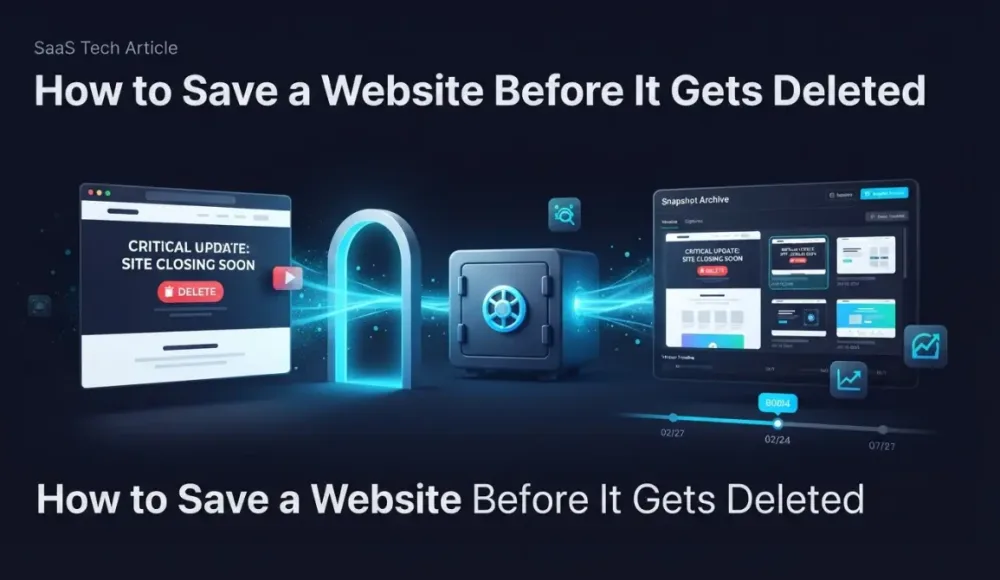
You just found out a website you depend on is shutting down. Maybe it's a SaaS tool sunsetting (like InVision in 2024 or Skype in May 2025). Maybe a forum you've used for years is going dark, the way AnandTech's forums did. Maybe a client's site is about to expire and you need proof of work you built there.
Whatever the reason, you're here because you need to save a website before it gets deleted. So skip the theory. Here's what to do right now, with free tools, in the next 30 minutes.
Save what you can right now
Start with the fastest option that matches your skill level. Don't overthink it. Anything saved now beats a perfect archive later.
Wayback Machine "Save Page Now"
You can try web.archive.org/save — paste the URL, hit save, and a copy goes into the Wayback Machine's public archive. But you'll have to do it one page at a time, and each save takes at least 30 seconds. If the site has 50 pages you care about, that's a lot of manual pasting. On top of that, plenty of sites block Wayback Machine crawlers through robots.txt, so you might paste a URL and get nothing back. Even Reddit blocked their crawlers. Worth trying first, but don't count on it working for everything. We have a full breakdown of Wayback Machine's limitations if you want the details.
SingleFile browser extension
You can install SingleFile for Chrome or Firefox, and with a couple of clicks it saves the entire page as a single HTML file. Images, CSS, fonts — all embedded in one document. Open it in any browser months from now and it looks exactly like the original.
Probably the best free option for visual fidelity on individual pages. Still manual though — you need to visit each page yourself. For a big site, that's hours of clicking.
Print to PDF
Ctrl+P (or Cmd+P on Mac), select "Save as PDF." Quick and dirty. Layout breaks on about half of modern sites because print stylesheets either don't exist or strip out the content you actually wanted. Sticky headers repeat on every page of the PDF, sidebars collapse into the main content, and interactive elements just vanish. But for text-heavy pages where you only need the words, it works.
wget --mirror (if you're comfortable with a terminal)
If a blinking cursor and cryptic commands don't scare you, there's a faster way. Run wget --mirror --convert-links --page-requisites https://example.com and wget crawls the entire site, downloading HTML, images, and stylesheets into a local folder. Only free method that handles a full site in one command.
Real downsides though. wget doesn't execute JavaScript, so anything loaded dynamically — pricing tables, interactive demos, single-page apps — comes back empty. Most modern sites serve almost nothing without JS. There's also HTTrack, a GUI alternative, but it's not without its own problems either — especially with SPAs, and it gets blocked by Cloudflare-protected sites more often than not.
Browser "Save As" (Ctrl+S)
Saves the page as HTML plus a folder of assets. Fast. But images break, relative paths break, and you end up with a folder of disconnected files that may or may not render correctly a year from now. Last resort.
archive.today
Similar to the Wayback Machine but takes a visual snapshot you can browse. Paste a URL, get a frozen copy. Single page only, no batch option, and some sites block it. Good as a secondary backup alongside Wayback Machine, not a replacement.
Where every free method falls short
I wish I could tell you one of those tools handles everything. None of them do.
JavaScript-rendered content is the biggest gap. React apps, Vue dashboards, anything that hydrates client-side — it all shows up as a blank page or a loading spinner in wget and HTTrack. The Wayback Machine captures the initial HTML response, which on a modern SPA means you get the shell and nothing else. The difference between what a server returns and what a browser renders keeps growing every year.
Login-protected pages are another problem entirely. If the content you need sits behind authentication — a client portal, an internal wiki, a members-only forum — none of these tools can reach it without manual workarounds. You'd have to log in, then use SingleFile or Print to PDF page by page. Tedious if you're looking at dozens of pages behind a login wall.
Dynamic content shifts between visits too. A pricing page that loads different tiers based on your location, a product page with real-time inventory counts. You save the page and get whatever state it happened to be in at that exact moment, with no way to prove when you captured it or that you didn't edit the file afterward.
And then there's scale. Saving three pages with SingleFile takes five minutes. Saving 300 takes an entire afternoon. According to Pew Research, a quarter of webpages that existed between 2013 and 2023 are already gone. The web disappears faster than most people realize, and manual tools can't keep up.
How most people end up here
Not to pile on when you're already stressed. But once you've saved what you need today, it's worth thinking about why this happened in the first place.
Nobody thinks about archiving until something disappears. It's the same reason nobody backs up their phone until they drop it in a lake. We ran into this ourselves when a competitor's pricing page changed overnight and we had no record of what it said the day before. That kind of frustration sticks with you. Trying to save a website before it gets deleted always feels urgent because it is — once the domain lapses, there's no second chance.
The pattern shows up everywhere. A SaaS product announces it's sunsetting and gives you 90 days to export your data. A government site loses funding and vanishes overnight. An agency loses a client, and six months later needs portfolio screenshots to prove what they built. A business gets acquired and the parent company kills the subsidiary's website within weeks. The web has no built-in memory. If you don't create one, nobody will.
The shutdowns that hurt most aren't the big public ones where you get months of advance notice. The painful ones are quiet. A small vendor lets their domain registration lapse. A nonprofit runs out of grant money and their hosting just stops. No announcement, no countdown, no export option. One day the site loads, the next day it doesn't. Reactive archiving works in those emergencies — but it's exhausting, incomplete, and everything that disappeared before you started is already gone.
Set up automatic captures before the next one
Proactive archiving flips the model. Instead of scrambling when a site disappears, you have screenshots already sitting in storage from every day, week, or hour that the site was live. When something shuts down, you open your archive and the captures are already there. No panic. No race against a countdown clock.
Think of it like a security camera for websites you care about. You don't watch the feed every day. But when someone disputes what happened or a page vanishes, you have the tape.
Scheduled screenshots run on autopilot. You add the URLs you care about, pick a capture frequency (daily for most things, every few hours for pages that change often), and captures happen whether you remember to check or not. That's the entire point.
Snapshot Archive works this way. You give it URLs, it captures full-page screenshots on a schedule and stores them with UTC timestamps. Not a site mirror, not an HTML download. Visual proof of what the page looked like at a specific moment in time.
Honest limitation worth stating plainly: Snapshot Archive captures visual screenshots, not the underlying code. If you need a functional offline copy of a website you can click through and interact with, Snapshot Archive won't do that. wget or HTTrack are better for that use case (with all the JS caveats above). What Snapshot Archive gives you is timestamped, watermarked proof that a page existed in a specific state on a specific date. For legal evidence, compliance records, or just personal peace of mind — that's usually what you actually need when the dust settles.
Every screenshot gets a SHA-256 hash (a one-way fingerprint that proves the image hasn't been modified since capture). You can export captures as PDFs for offline safekeeping or sharing with lawyers, regulators, or clients who need proof in a format they can actually open.
Free tier covers 3 URLs with daily captures and 30-day retention. Enough to protect your three most important pages at zero cost. Starter plan ($19/mo) bumps that to 20 URLs with 180-day retention.
What to archive first
If you're setting up monitoring after today's close call, don't try to archive everything. Focus on pages that sit on domains you don't control — anything where someone else can pull the plug without warning you.
The obvious ones: any page you'd need to reference in a dispute, a client conversation, or a compliance audit. Terms of service and privacy policies change quietly and old versions vanish. Competitor pricing pages get rewritten overnight with no trace of what was there before. Client sites you built can disappear the day someone forgets to renew the domain — and your portfolio proof goes with them.
Beyond that, think about what you've Googled for and found already gone. A vendor's documentation page that 404s now. A government database you bookmarked last year. A forum thread with the only working solution to an obscure problem. If losing it would cost you time, money, or evidence — that's your list. A daily capture on those pages costs almost nothing and takes about two minutes to set up.
Don't wait for the next shutdown
For the site you're trying to save right now — use Wayback Machine and SingleFile on the most important pages. Start with whatever you'd regret losing most.
For everything else: pick three URLs that would actually hurt to lose and set up scheduled captures. Three URLs on the free tier, two minutes to configure. Next time a site goes offline, you check your dashboard instead of scrambling through this article again.
Start archiving websites today
Free plan includes 3 websites with daily captures. No credit card required.
Create free account
90% of Automated Screenshots Work. The Other 10% Made Us Build a Button.
Screenshots break. Now you can report problems without leaving your dashboard — we get the full context automatically.
What the change percentage actually means in screenshot monitoring
Visual diff shows 22% changed, but the page looks the same. The percentage is always mathematically correct — but it only tells the truth when the page template stays stable between captures. Here's how to tell the difference and what to do about it.

How to Track Terms of Service & Privacy Policy Changes
Terms of service and privacy policy pages change without warning. Here is how to set up automated screenshot monitoring so you always know what changed and when.