
Screenshot Email Delivery
Every time Snapshot Archive captures a screenshot, it can automatically forward an email to your inbox or compliance archive with full-resolution attachments and a PDF certificate. No dashboard login required.
Screenshots stuck in a dashboard help nobody
You set up automated captures. The system runs on schedule, grabs screenshots, stores them. All of this is available in the dashboard: you can log in, open any snapshot, download a screenshot from a specific date, export a PDF or HTML source. But that is a manual step. Every time you need to log in, find, download, forward. What if you need every capture to arrive in your inbox automatically? So a compliance officer gets the screenshot directly in their email archive, a client gets the proof without a link to someone else's tool, and a lawyer finds the PDF in their case folder every morning without a single click in the dashboard.
Screenshot email delivery sends each one straight to the people who need it, the moment it happens. Up to five recipients per monitor. Full-resolution attachments, not thumbnails. The capture arrives where work already happens, whether that's an inbox or a compliance archive mailbox, without anyone touching the dashboard.
Three screenshot email delivery modes
Each monitor gets its own delivery setting, independent of every other monitor on your account.
By default, email delivery is turned off on every monitor. We deliberately do not enable it automatically so we don't flood you with emails from the first minute. You decide whether this feature is needed and turn it on only for the monitors where it is actually useful.
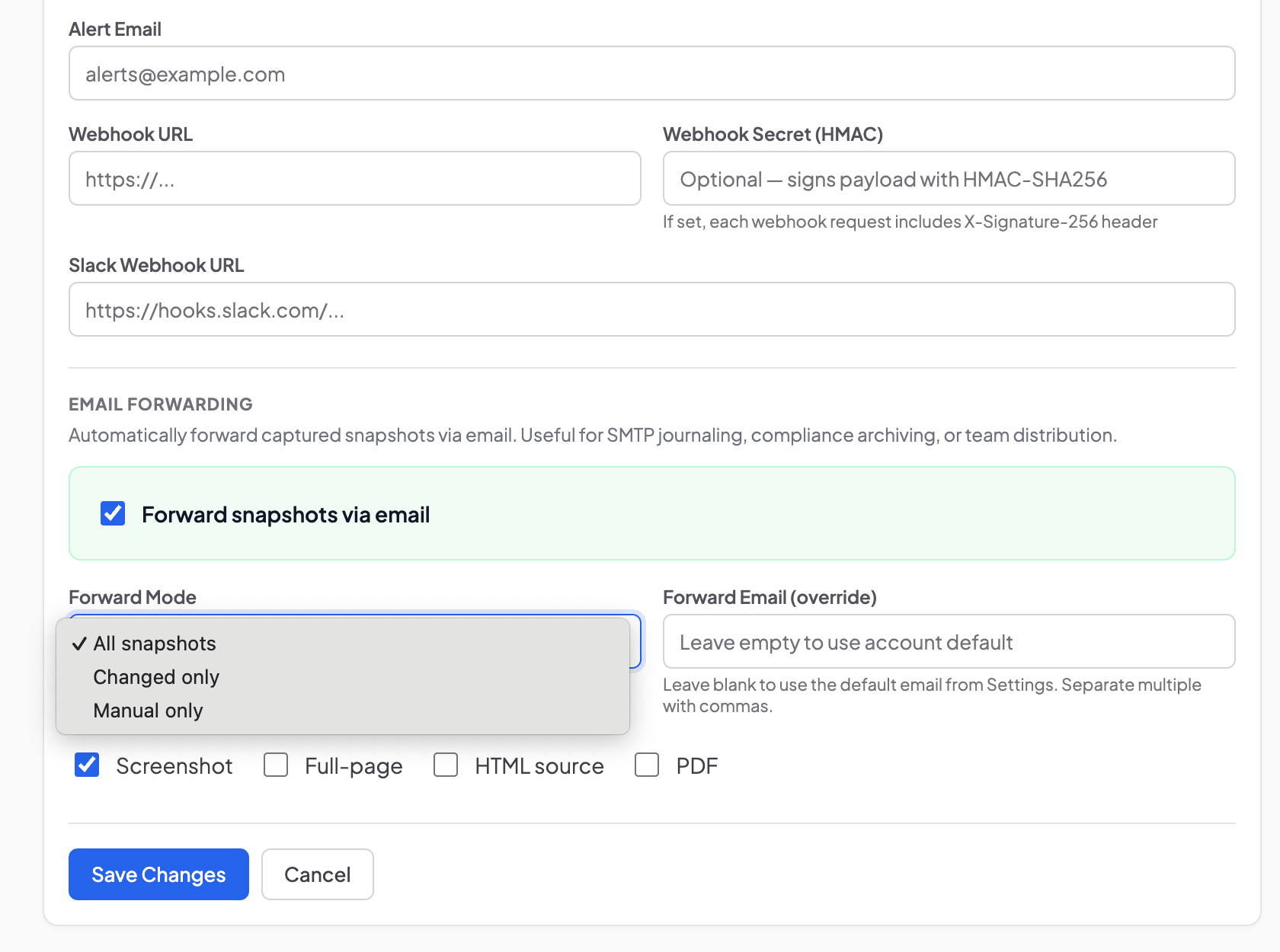
Every capture sends an email after each scheduled screenshot. A monitor running every 6 hours produces 4 emails per day. Pick this when you need a complete record of every state the page was in for compliance archiving and contract documentation.
With changes only, the system stays quiet until change detection finds visual differences above your threshold. A page where the pricing table changed triggers delivery. You set the sensitivity threshold per monitor. Most competitor monitoring setups use this mode: captures run in the background, but emails only go out when something happened. Note that this is different from change alerts, which notify you that something changed. Screenshot email delivery sends the actual file.
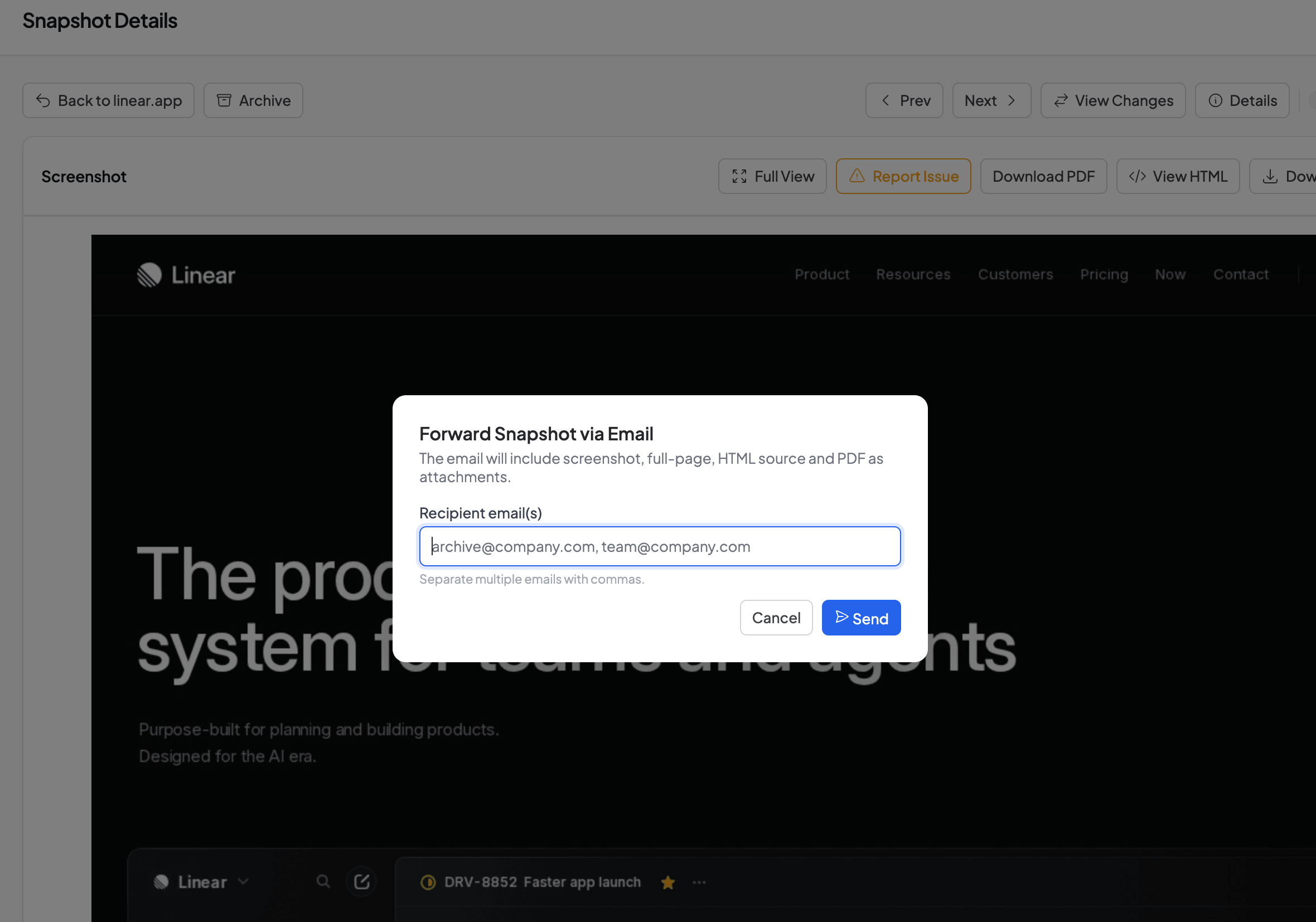
Manual only keeps email off the schedule entirely. Browse the dashboard, find the snapshot you care about, forward it on demand from the snapshot detail page or through the API. Useful when you capture daily but only share a specific state with a client or legal team once in a while.
What arrives in the screenshot email?
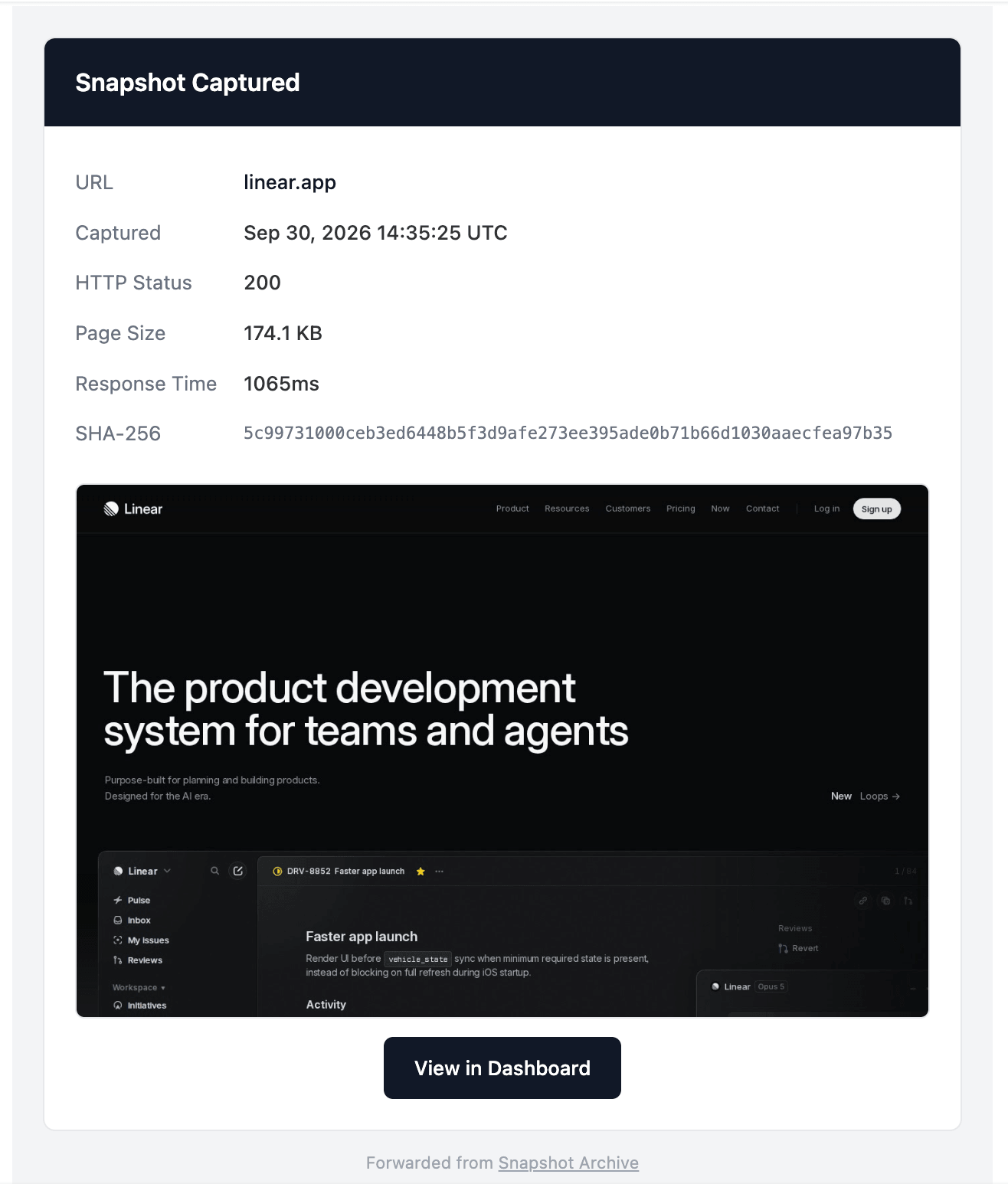
Each delivery email includes an inline preview of the screenshot and a structured metadata block: the captured URL, UTC timestamp, HTTP status code, page size, response time, and the SHA-256 hash of the screenshot file. A "View in Dashboard" button links to the full snapshot with visual diff comparison.
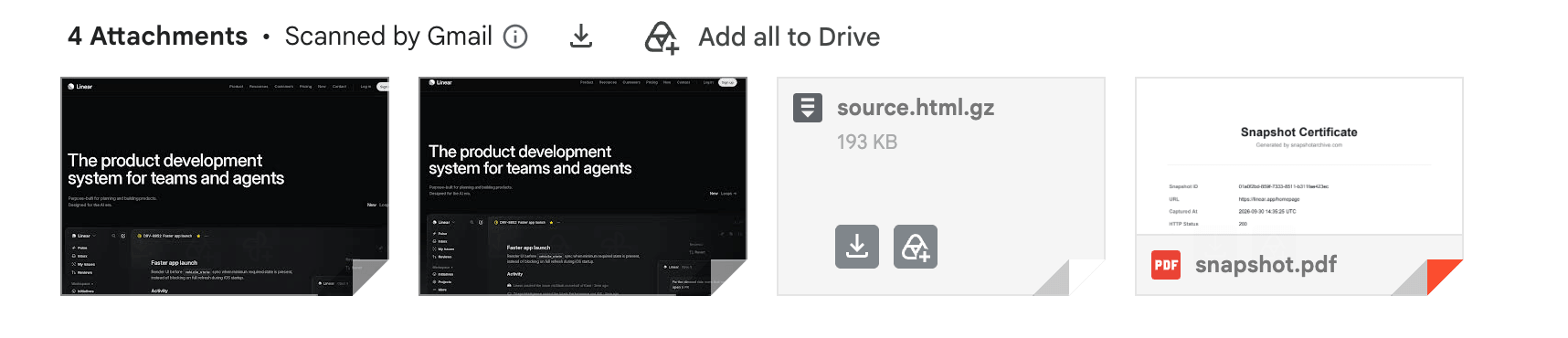
Below the metadata, you'll find the attachments you configured for that monitor. The viewport screenshot (JPEG, PNG, or WebP) shows the page as it appeared in a browser window at the configured resolution. The full-page screenshot captures everything from header to footer, however long the page runs. You can also include a gzipped HTML source file (.html.gz), a copy of the page's markup at capture time that you can inspect for changes or feed to your own tools.
The fourth option is a PDF with a metadata cover, the same PDF export available in the dashboard. Page one is the Snapshot Certificate: URL, capture time, HTTP status, viewport, SHA-256 hash, and a statement that the capture was automated with no manual edits. All four attachment types can ship in a single email. We enforce a 24MB size limit per message because most mail servers reject anything larger. For pages that produce oversized full-page screenshots, viewport-only delivery keeps things under the cap.
Forward screenshots to multiple recipients
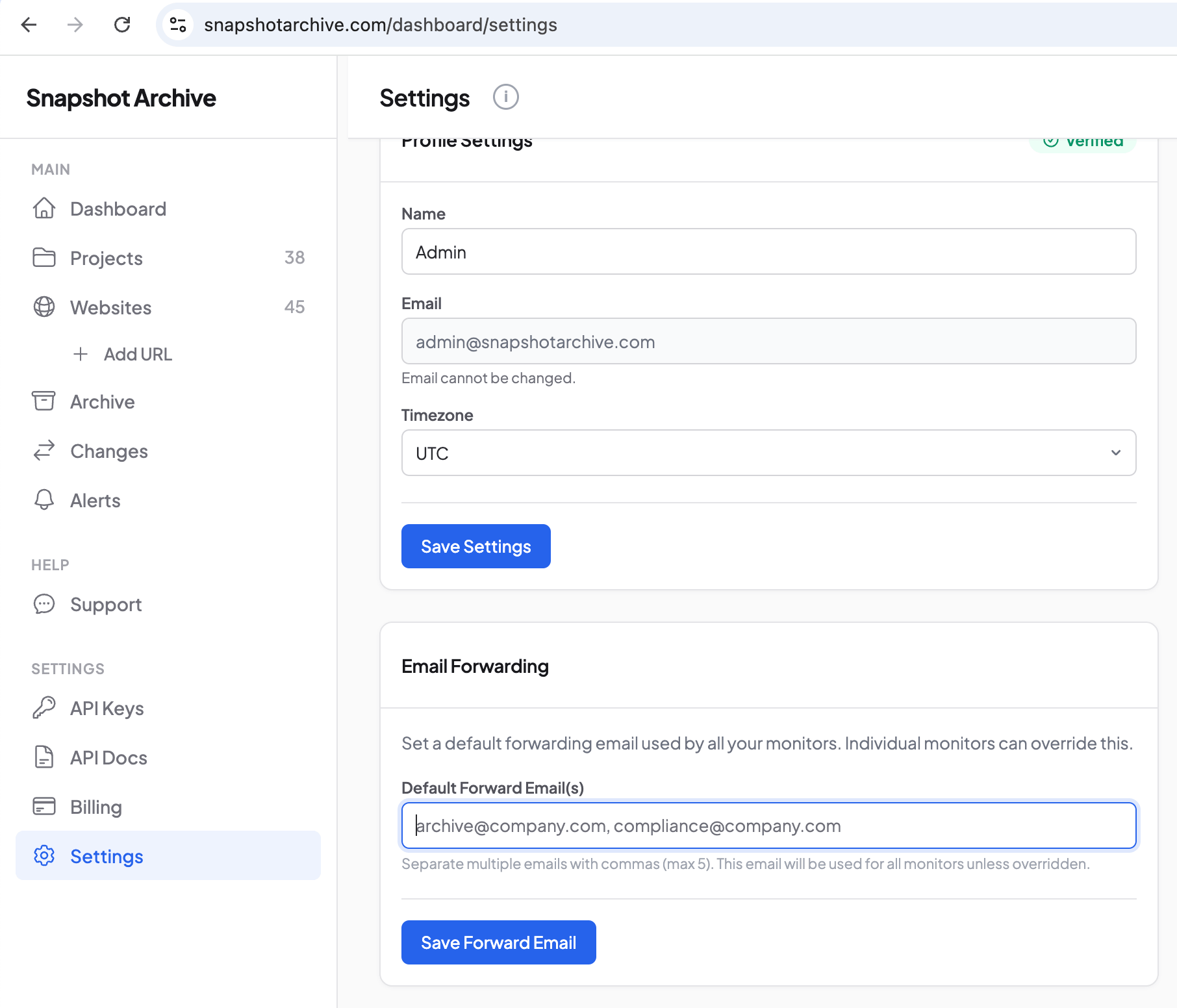
Recipients are set at two levels. Per monitor, you enter up to 5 comma-separated email addresses. Per account, you set a default forward address that applies to any monitor without its own list. If neither is configured, delivery falls back to your account email.
Why per-monitor recipients matter: a law firm tracking 12 opposing-counsel websites can route captures from each case to a different paralegal. An agency monitoring 8 client sites can forward screenshots to email addresses belonging to each client directly. One account, different destinations, no manual sorting.
Screenshot delivery to compliance email archives
Financial firms under FINRA Rule 4511 and SEC Rule 17a-4 are required to retain business communications in approved archiving systems like Intradyn, Smarsh, Jatheon, MirrorWeb, and similar platforms. These systems accept records by email. Point a monitor's forward address at your archive's ingest address, and every website capture becomes part of your compliance record automatically. No export step, no manual upload, no middleware.
The same pattern works across regulated industries. Healthcare organizations maintaining HIPAA audit trails, insurance companies documenting rate disclosures, and legal teams preserving terms and privacy policy states for evidentiary use all benefit from the same setup. The screenshot with its PDF certificate and SHA-256 hash lands in the archive system through its standard email intake, timestamped and indexed like any other business record. Watching a capture land in a Smarsh archive 4 seconds after the screenshot was taken is genuinely satisfying.
Limits and constraints
Screenshot email delivery is currently available on all plans, including Free. However, we may revisit this policy and restrict the feature to paid plans as usage grows.
We set the cap at 24MB because Gmail and most corporate servers reject anything above 25MB. We found out during testing with a long Amazon listing that the full-page capture plus PDF hit 31MB. Nobody received that email. If a delivery fails because of size, you'll see it in your alert history. The fix is usually switching to viewport-only screenshots or dropping one attachment type.
Emails send from [email protected] through a queue with 2 automatic retries and a 120-second timeout per attempt. If your mail server is slow to accept connections or your inbox is full, the delivery retries twice before marking as failed. You can resend manually from the dashboard.
The email itself is sent in two versions: HTML and plain-text. In Gmail, Outlook, Apple Mail, and Thunderbird everything renders fine. If your corporate email client strips HTML markup, the plain-text version will display instead, but this does not affect attachments. Screenshots, PDF, and HTML source (.html.gz) arrive as file attachments, not inline content, so they are delivered regardless of how your client renders the email body.
How to start receiving screenshots by email
Setup takes less than a minute. Open any monitor's settings, enable "Forward snapshots via email", choose your delivery mode, and check the attachment types you need. The next scheduled capture will be sent to the addresses you entered.
Most users who turn on email delivery stop logging into the dashboard for day-to-day work. The dashboard stays for monitor configuration and browsing history, but the actual work moves to the inbox. Screenshots arrive, get forwarded to a client or colleague, filed into the right folder. No manual exporting needed.
If you're not using Snapshot Archive yet, start with the free plan. Three URLs, daily captures, email delivery included. That's enough to see how screenshots fit into your workflow before upgrading to a paid tier.
Set up a monitor, add recipient emails, and every screenshot arrives with full-resolution attachments and a PDF certificate. Free plan included.
Start archiving freeFrequently Asked Questions
Each email can include a full-resolution PNG screenshot, a full-page PNG, an HTML snapshot of the page source (.html.gz), or a PDF with a Snapshot Certificate containing the URL, capture timestamp, and SHA-256 integrity hash. You choose which attachment types to include per monitor.
Yes. Add your compliance archive's intake address (Intradyn, Smarsh, Jatheon, or any journal-style mailbox) as a recipient on the monitor. Every capture gets delivered directly to the archive with full-resolution attachments and metadata, no manual forwarding needed.
Each monitor supports up to five email recipients. You can mix personal addresses, team distribution lists, and compliance archive intake addresses on the same monitor.
Yes. Attachments are capped at 24 MB per email. If a full-page screenshot exceeds that limit, you can switch to viewport-only delivery or remove one attachment type. Failed deliveries retry automatically up to two times.
Screenshot email delivery is currently available on every plan, including the free tier. However, this policy may change as usage grows. Paid plans starting at $19/month add higher capture frequencies, longer retention, and more monitored URLs.
Change alerts notify you only when a visual difference is detected on a monitored page. Screenshot email delivery sends the actual screenshot file to your inbox after every capture (or only when changes occur, depending on the mode you choose). You can use both on the same monitor.
Yes. One of the three delivery modes sends emails only when visual changes cross your sensitivity threshold. This keeps your inbox quiet on days when nothing moves, while still archiving every capture in the dashboard.